Add and test your own provider key (BYOK)
Connect an OpenAI, Anthropic, or Gemini API key, pick a model, and test the connection on the AI & Generative page.
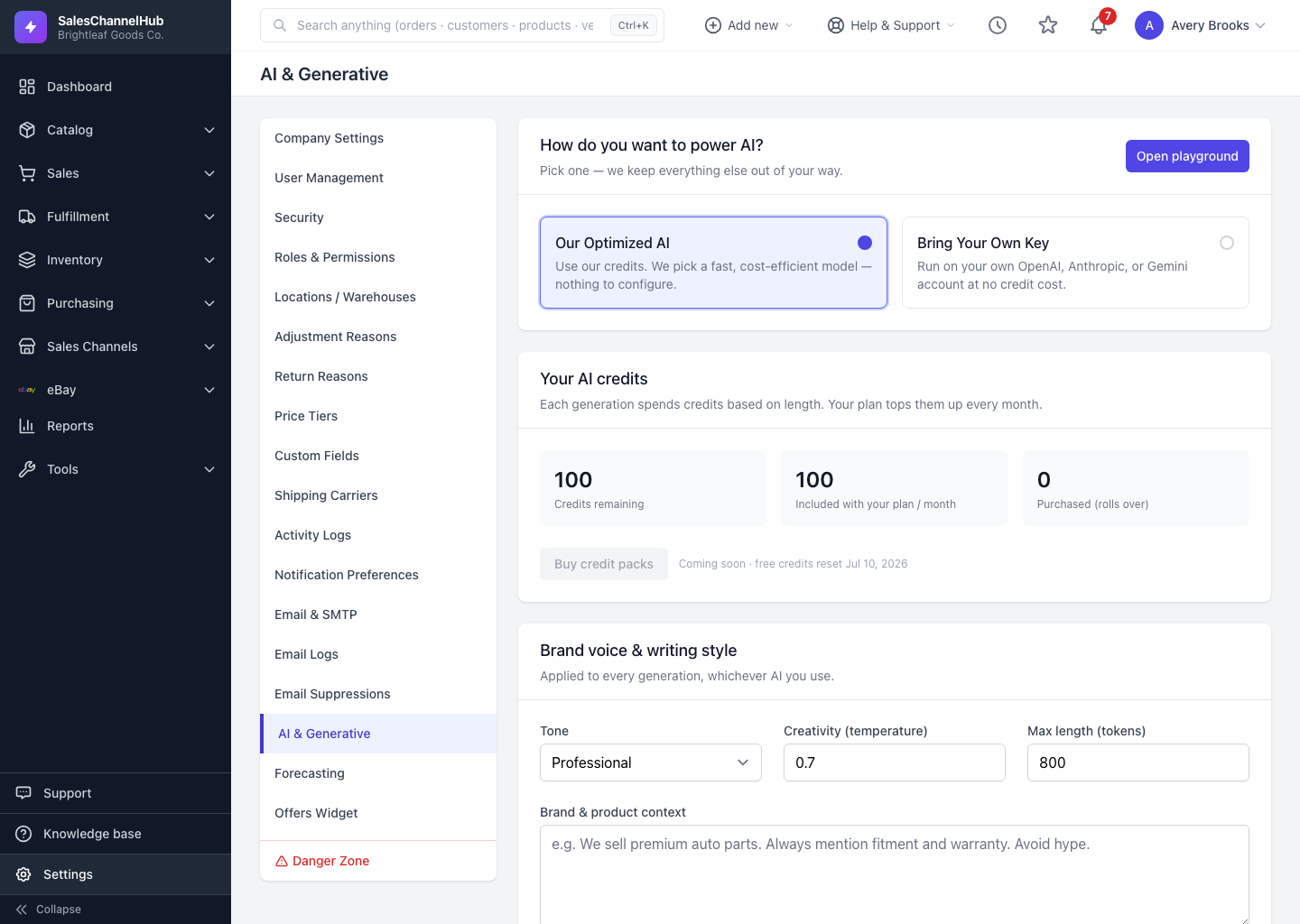
Bringing your own key means generations run on your provider account at no credit cost here. You add the key once on the AI & Generative page. It's stored encrypted and only the last four characters are shown back to you.
How do I connect a key?
- On the AI & Generative page choose Bring Your Own Key.
- Pick a provider from the AI provider dropdown: OpenAI, Anthropic (Claude), or Google Gemini.
- Choose a Model, paste your API key, and for OpenAI add an Organization if your account uses one (optional).
- Click Connect. The card shows a Connected badge and the key ending in four characters.
How do I check or change a key?
Click Test on the card any time to confirm the connection is healthy. Use Update to swap in a new key, or Disconnect to remove it and fall back to managed credits.
Tip. A card reading Needs attention means the key saved but the last check failed. Re-enter it with Update, then Test. A bad key never blocks you, AI just uses managed credits meanwhile.
Common questions
Where do I get an API key?
From your provider's own dashboard: OpenAI, Anthropic, or Google. SalesChannelHub never issues these keys; you paste in one you already hold.
Can I see my key again after saving?
No. The key is encrypted and only the last four characters are shown. To change it, re-enter the full key with Update.
Can I connect more than one provider?
Yes. Connect OpenAI, Anthropic and Gemini if you want. The provider chosen as your default powers the AI buttons; you can pick any connected provider in the playground.