Combine shipments
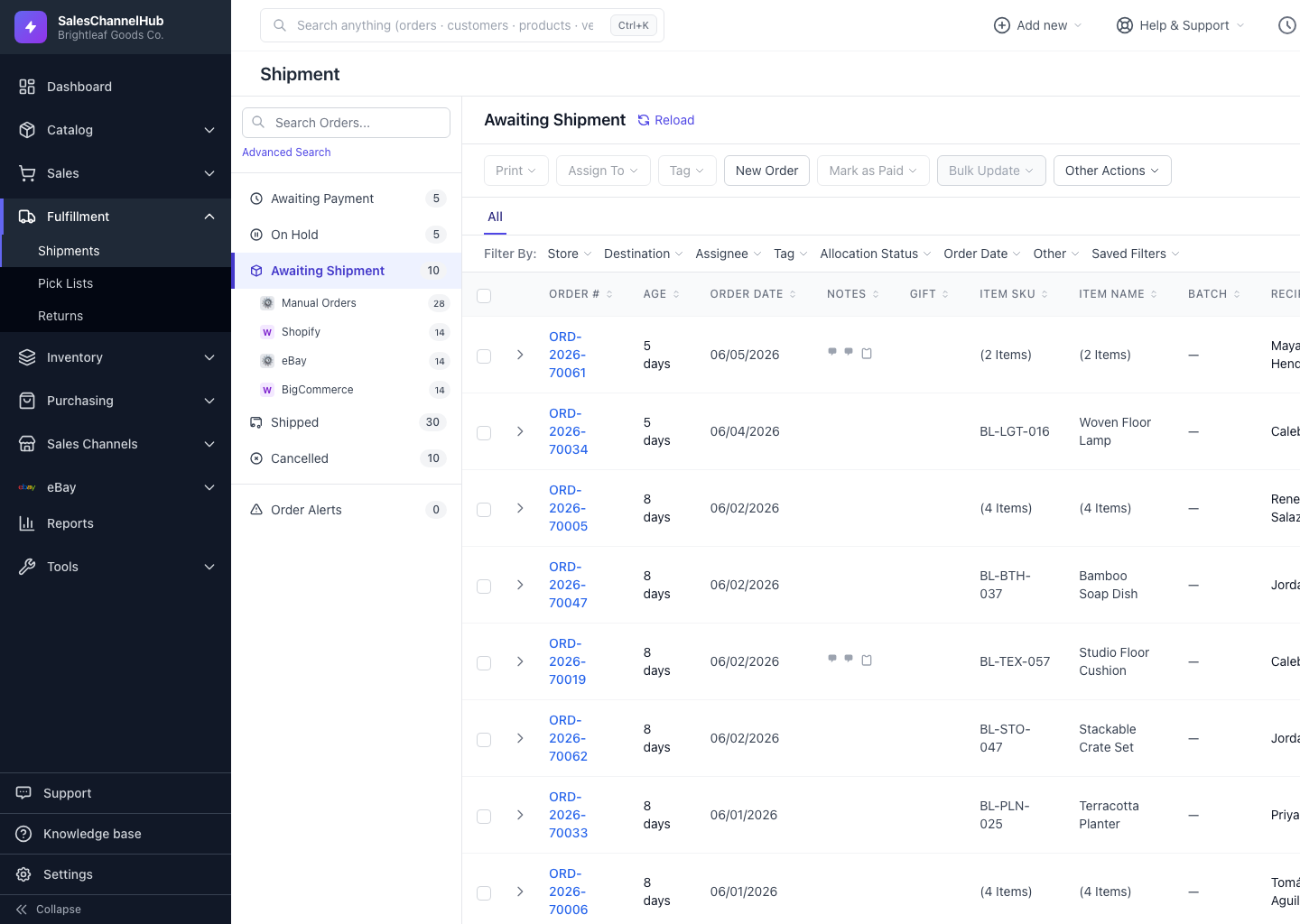
Tick orders to the same address, then Other Actions → Combine Shipments merges them into one shipment and one label.
When the same customer places several orders to the same address, combining them packs and labels everything as one shipment: one box, one label, one tracking number.
How do I combine orders?
- In the table, tick two or more orders.
- Open Other Actions and click Combine Shipments.
- Review the preview, which confirms whether the addresses match.
- Click Combine into one shipment.
When will combine be refused?
Combining needs the same ship-to address, currency and ship-from across the orders. If any differ, the combine is refused. A successful combine cancels each source order's existing draft, and the merged order shows a small ×count badge in the table.
Tip. Combining can't be undone. If you change your mind, void the combined label and create fresh drafts on the individual orders.
Common questions
Why won't two orders combine?
Their ship-to address, currency or ship-from don't all match. The three must be identical to combine. Fix the mismatch, or ship the orders separately.
Can I undo a combine?
No. Combining is one-way. To reverse it, void the combined label and start fresh drafts on the individual orders.