Create a category
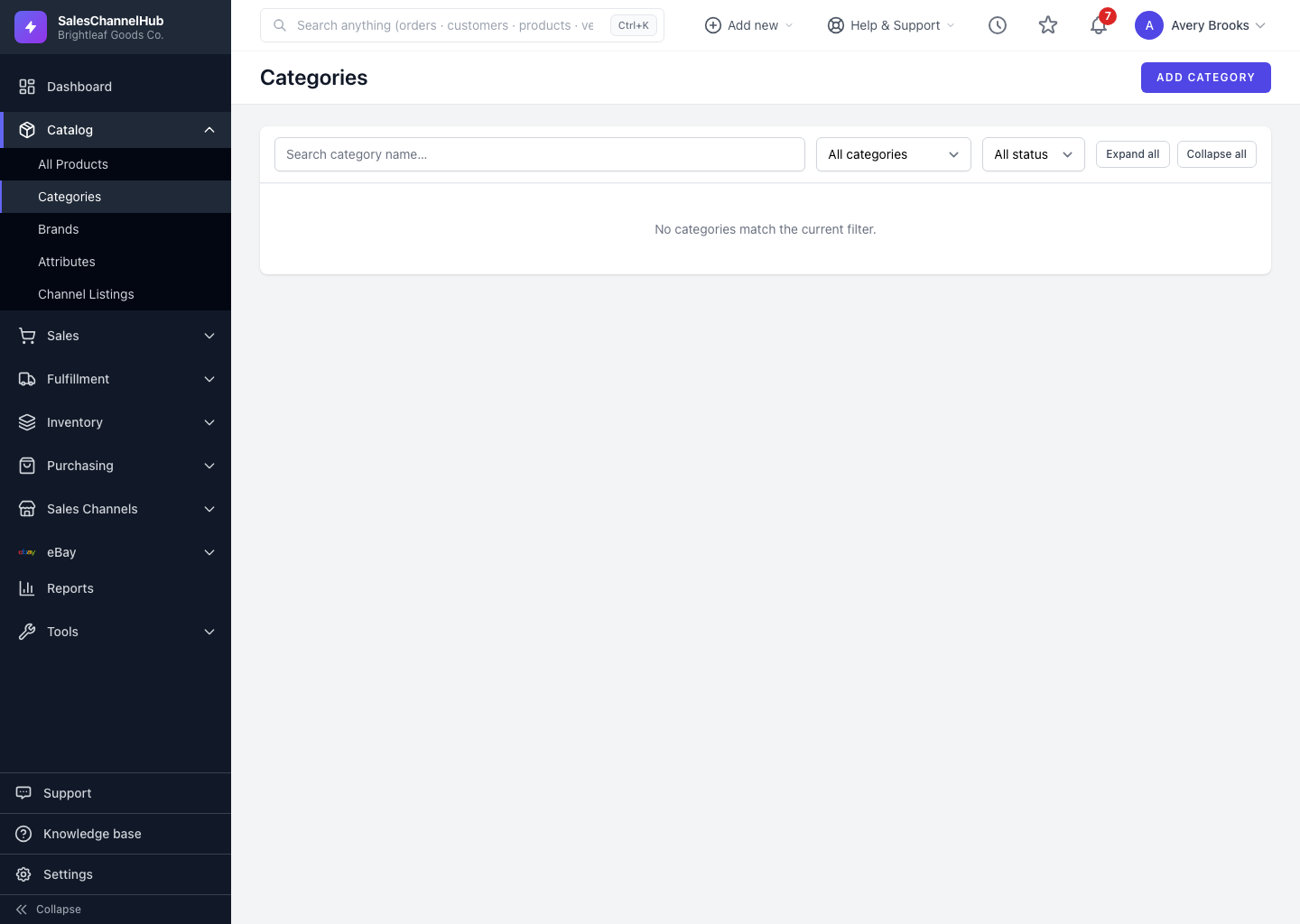
Go to Catalog → Categories → Add Category, name it, pick a parent (or leave it as a root), then set sort order and status.
To add a category, open Catalog > Categories and click Add Category. Name it, choose where it sits, and save.
How do I add a category?
- Click Add Category on the Categories list.
- Enter a Category Name (required), for example Ceramic Planters.
- Pick a Parent Category to nest it, or leave it as None (Root Category) for a top-level section.
- Add a Description in the rich-text editor if you want one.
- Set a Sort Order (lower shows first among siblings) and tick Active to make it usable.
- Click Create Category.
Tip. The web-friendly slug is generated from the name automatically, so you don't need to type it.
Common questions
Do I have to set a parent?
No. Leave Parent Category as None (Root Category) to create a top-level section. You can move it under a parent later by editing it.
What does Sort Order do?
It orders categories that share the same parent, lowest number first. It has no effect across different parents.
Was this article helpful?