Run a blind count
Tick Blind Count when you create the count to hide the system quantity, so counters report what they actually see.
A blind count hides the system's expected quantity from the person counting. That removes the temptation to simply confirm the number on screen, so the count reflects what's really on the shelf.
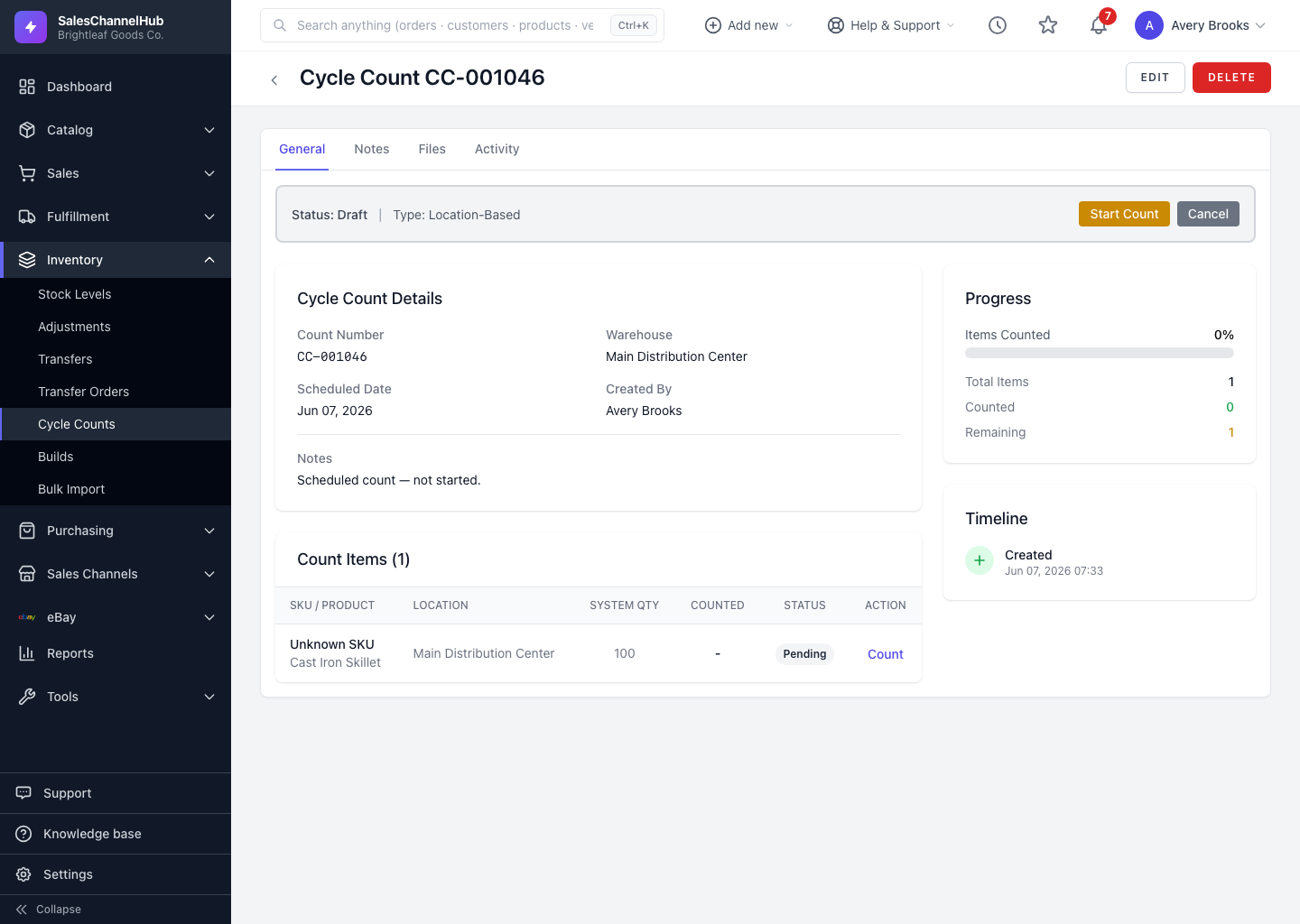
How do I run one?
- When you create the count, tick Blind Count (its help text reads “Hide expected quantities”).
- Counters open each line and enter the Counted Quantity without seeing the system figure.
- The system quantity and the variance appear once the count reaches review.
Tip. Use blind counts for high-value or high-shrink items, where you want the most honest possible result.
Common questions
Can I turn an existing count into a blind count?
Set Blind Count when you create the count. It governs whether the system quantity is hidden during counting, so decide before counters start.
When does the expected quantity appear on a blind count?
At review. Once the count is submitted, the System Qty column and the variance become visible to the reviewer.
Was this article helpful?