Favourite and duplicate a report
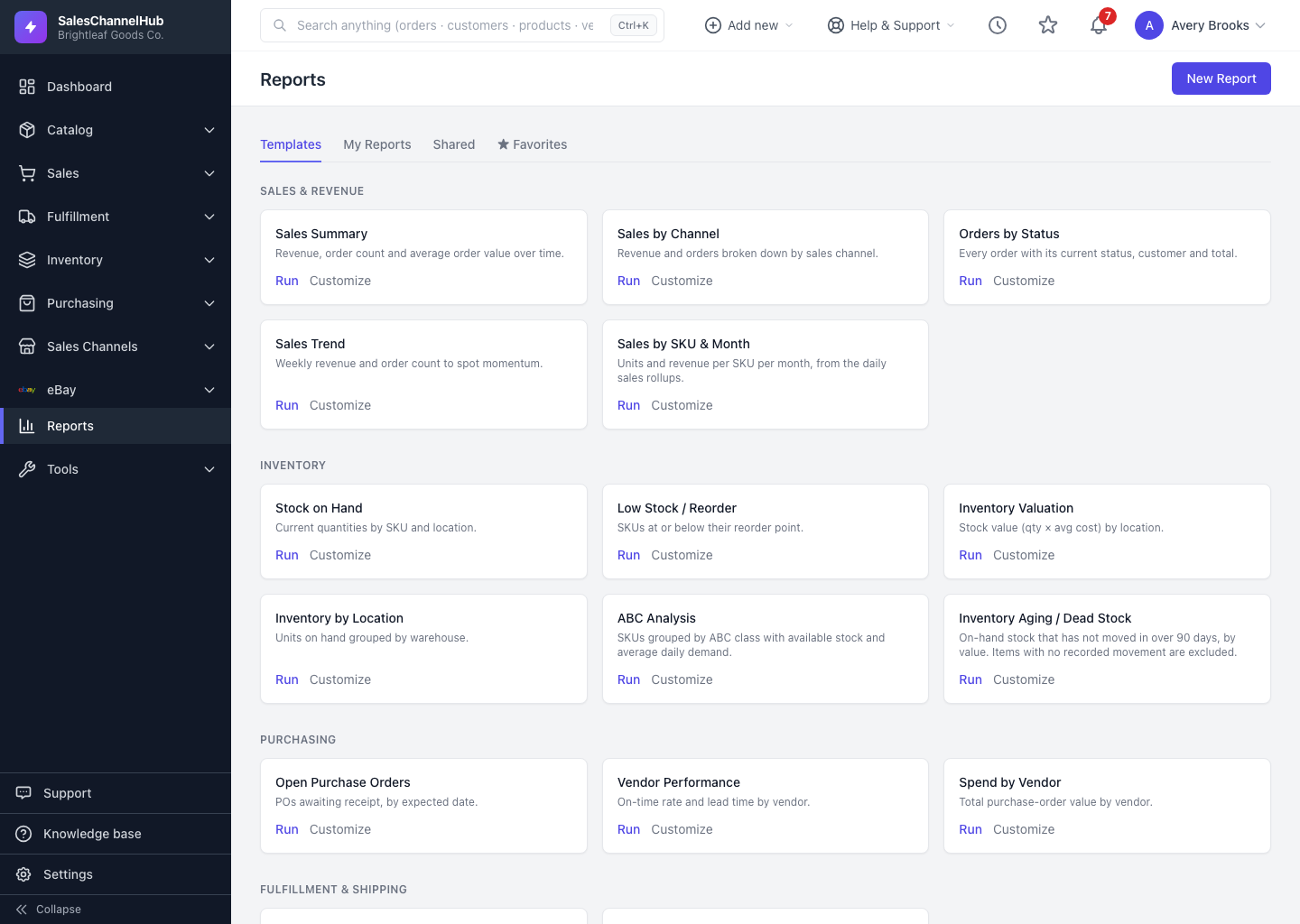
Click the ★ star at the start of a row to favourite a report, and Duplicate in the Actions column to copy one as a private starting point.
Two small actions save a lot of time: starring the reports you run often, and copying a good report instead of rebuilding it.
How do I favourite a report?
- In any saved-report list, click the ★ star at the start of the row. A gold star means it's favourited.
- Open the ★ Favorites tab to see just your starred reports.
How do I duplicate a report?
- In the Actions column, click Duplicate.
- You get a private copy named with (copy), opened in the builder ready to edit.
- Rename it, adjust anything, and save.
Tip. Duplicating is the safe way to experiment. The copy is always private to you and starts independent of the original, so changes to one never affect the other, even when you duplicated someone else's shared report.
Common questions
Can I duplicate a report someone else shared with me?
Yes. The copy lands in your My Reports as a private report you own and can edit freely. The original is untouched.
Is a favourite shared with my team?
No. Favourites are personal. Starring a report only adds it to your own ★ Favorites tab; it doesn't change who else can see the report.
Was this article helpful?