Create a discount
Click New Discount, then fill the form section by section: name, value, what it applies to, conditions, and the channels to push it to.
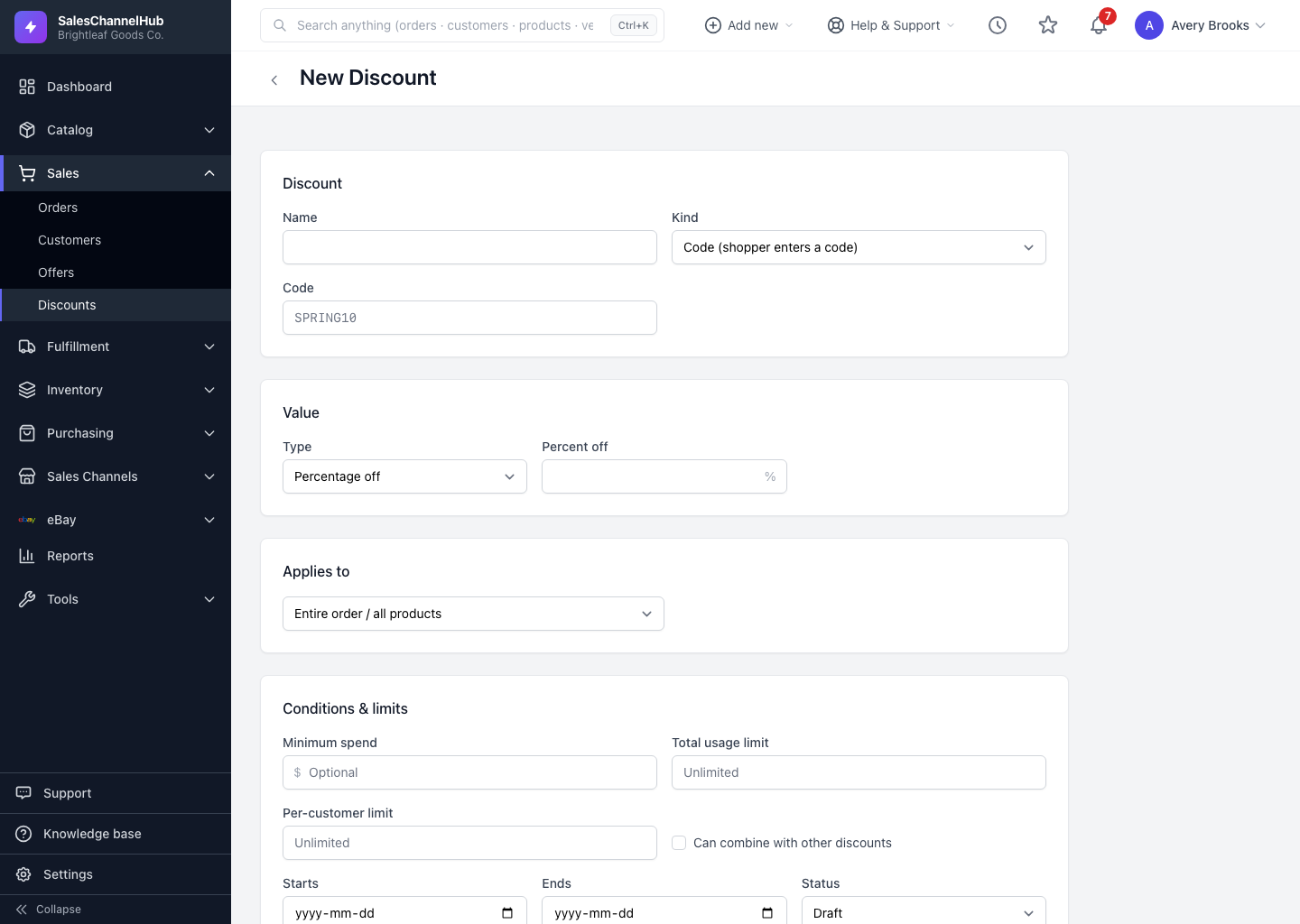
To create a discount, click New Discount on the Discounts list and work down the form. It's split into sections: the basics, the value, what it applies to, conditions, and the channels to push it to.
How do I create a discount?
- From Discounts, click New Discount.
- Give it a Name. This is internal, for example "Spring Homeware 10%".
- Pick a Kind: Code if shoppers type a code, or Automatic if it applies at checkout. For a code, type the code itself, like SPRING10.
- Under Value, choose the Type and enter the percent or amount.
- Under Applies to, set the scope: entire order, specific products, or specific categories.
- Set any Conditions & limits and the Starts and Ends dates.
- Tick the channels to push to, then click Create discount.
Tip. Leave the status on Draft while you set it up, then switch to Active when you're ready for it to go live.
Common questions
Do I have to push to a channel when I create the discount?
No. You can create a discount and leave every channel unticked. It lives here as a draft until you edit it and tick the stores you want it on.
What's the difference between Name and Code?
Name is internal, for your own reference in the list. Code is what shoppers type at checkout, and it only appears on Code-kind discounts. Automatic discounts have no code.
Can I change a discount after it's live?
Yes. Open it, click Edit, change what you need and save. The update re-pushes to the channels it's on. Changing the channel ticks adds or removes the coupon from those stores.