Read the customer 360 view
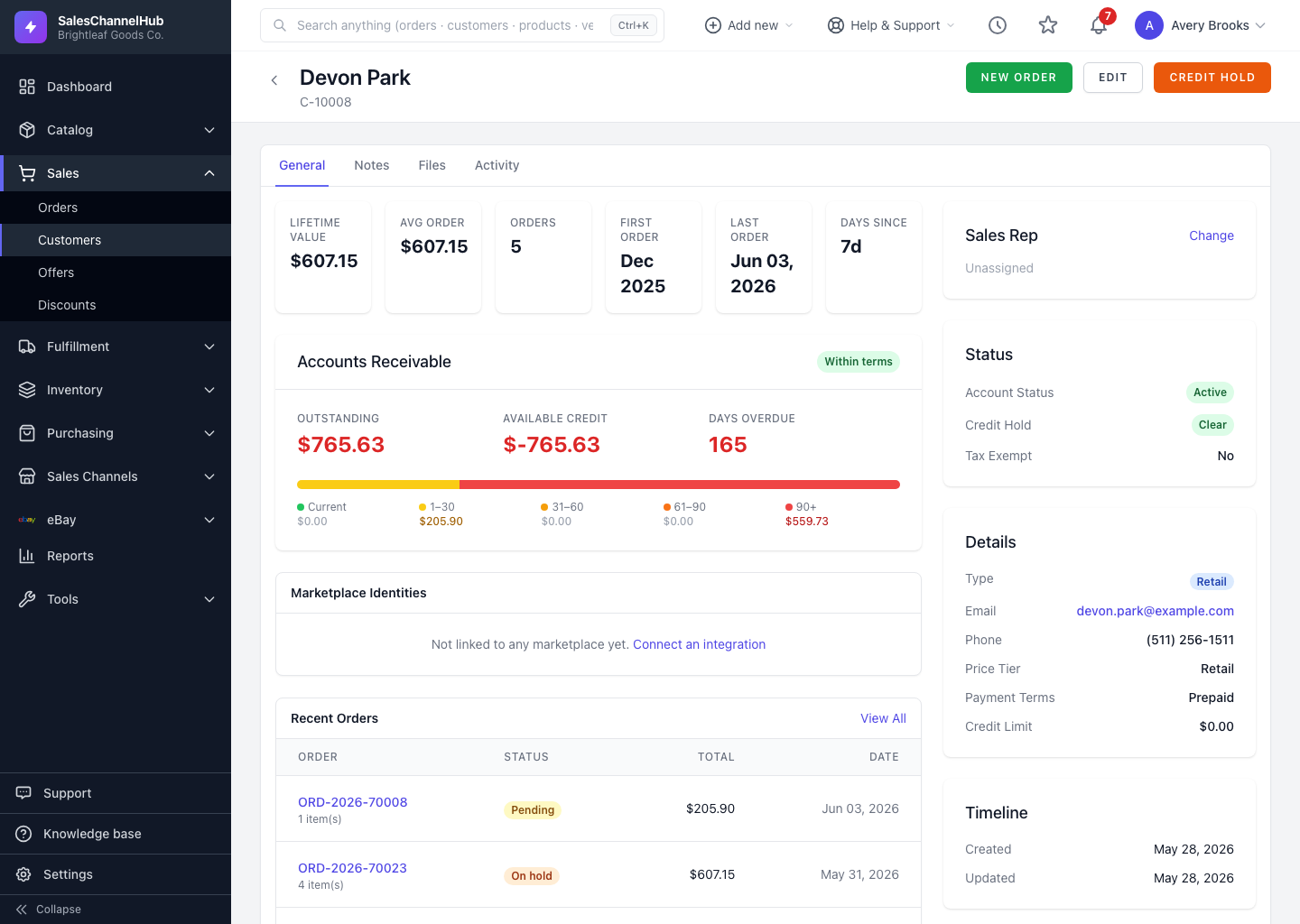
Opening a customer shows the General tab: a KPI strip, accounts receivable, recent orders, addresses and a status sidebar.
Opening a customer lands you on the General tab, the 360 view that puts everything about that account on one page so you can size up its value and risk before you take an order.
What's on the page?
- KPI strip across the top: Lifetime Value, Avg Order, Orders, First Order, Last Order and Days Since the last order.
- Accounts Receivable: outstanding balance, available credit, days overdue and a colour-coded aging bar.
- Marketplace Identities: any sales channels this customer maps to, with sync status.
- Recent Orders: the latest orders with status, total and date.
- Addresses on file, labelled billing or shipping with a default marker.
- Sidebar: sales rep, account status, key details, internal notes and a created/updated timeline.
What are the other tabs?
Alongside General sit Notes, Files and Activity. Notes and Files hold attachments and threaded notes; Activity is the audit log of changes to the record.
Tip. The badge on the Accounts Receivable card — Within terms, Near credit limit, Over credit limit or Credit hold — is the fastest read on where the account stands.
Was this article helpful?