Set auto-accept and auto-decline thresholds
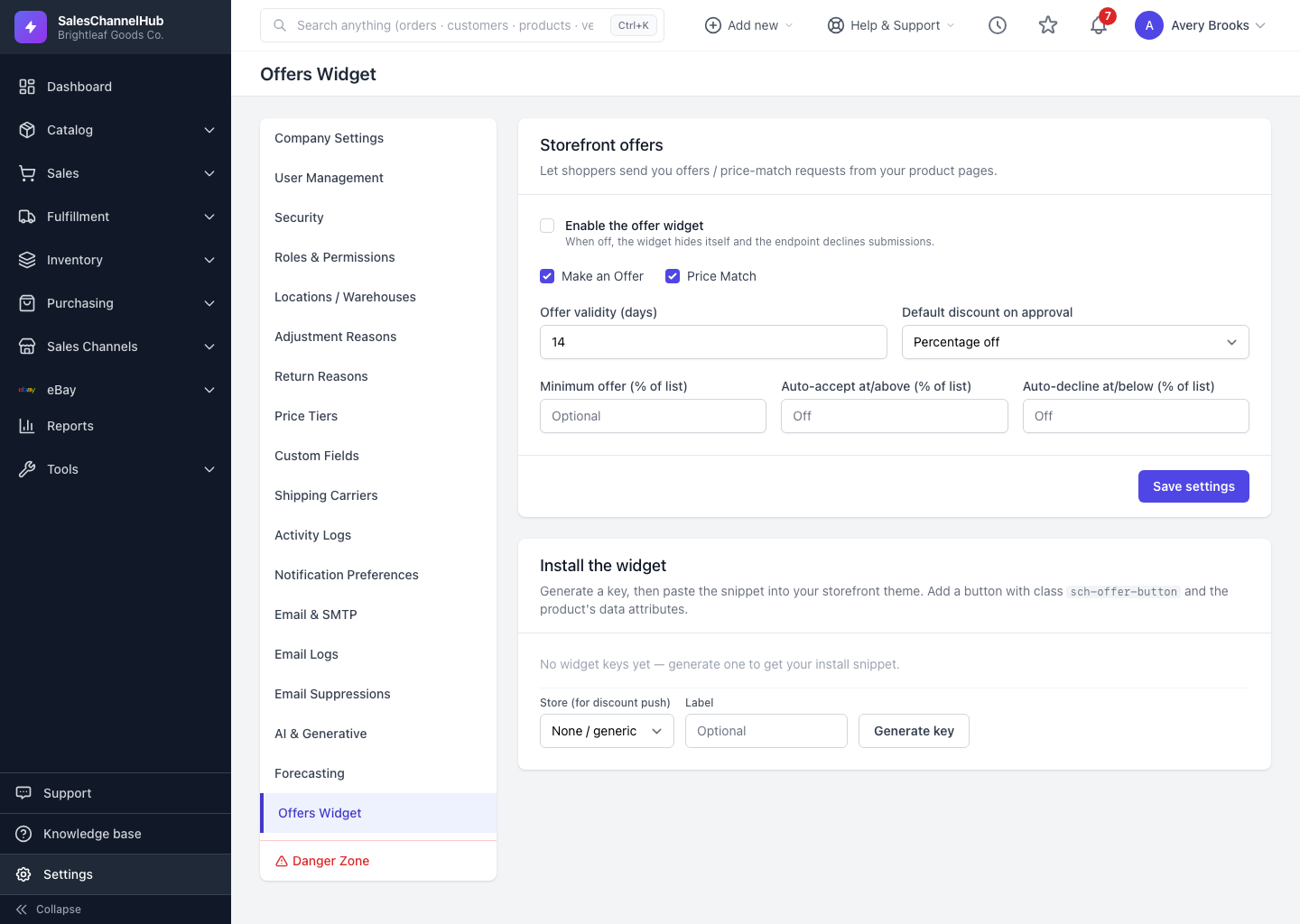
On the Offers Widget page, set auto-accept and auto-decline as a percent of list so strong offers and lowballs handle themselves.
Thresholds let common offers handle themselves, so your inbox holds only the ones that genuinely need a decision. Each is a percent of the product's list price.
What do the three thresholds do?
- Minimum offer (% of list) — offers below this are turned away as too low. Leave blank to accept any amount.
- Auto-accept at/above (% of list) — an offer at or above this is approved automatically. Leave blank (Off) to review everything yourself.
- Auto-decline at/below (% of list) — an offer at or below this is declined automatically.
Set these on the Offers Widget settings page and click Save settings. Offers that land between the two thresholds still come to you to counter, approve or reject.
Tip. Leave a gap between auto-decline and auto-accept (say decline below 70%, accept above 92%) so the offers worth a human reply still reach you.
Common questions
What happens to offers between the two thresholds?
They land in your inbox as New, waiting for you to counter, approve or reject. Auto-accept and auto-decline only handle offers above or below the lines you set.
How do I turn auto-handling off?
Leave the auto-accept and auto-decline fields blank; they read Off and every offer comes to you. Minimum offer works the same way: blank means no floor.