Manage users: edit, deactivate, remove
From Settings → User Management you can edit details, change roles, deactivate access or delete a user.
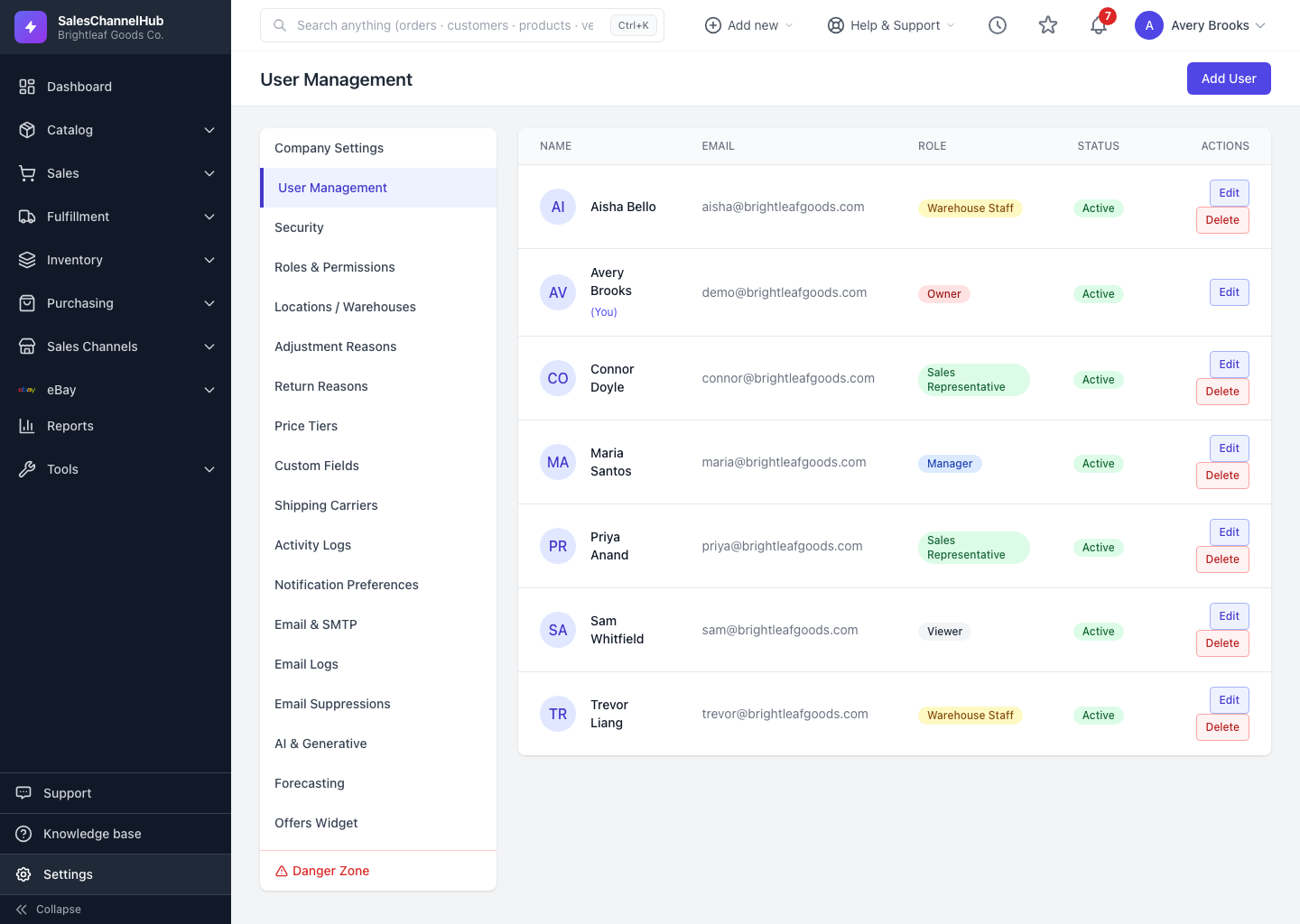
Settings → User Management lists everyone with access, their email, role and status. It's where you keep your team's accounts current.
What can I do here?
- Open Settings → User Management to see all users. Your own row is marked (You).
- Click Edit to change a person's name, email, phone or role.
- To stop someone signing in without removing them, edit the user and untick Active. Inactive users keep their history.
- To reset a password, edit the user and enter a New Password (leave blank to keep the current one).
- Use Delete to remove a user entirely. You can't delete your own account.
Tip. When someone leaves temporarily, deactivate rather than delete. It preserves the audit trail and lets you switch them back on later.
Was this article helpful?