Mark notifications read or delete them
Mark one alert, a whole group or everything read, and delete the ones you no longer need. Marking read keeps them; deleting is permanent.
A tidy notification list means the bell badge only counts things you still care about. You can mark items read without losing them, or delete the ones you're finished with.
What are my options?
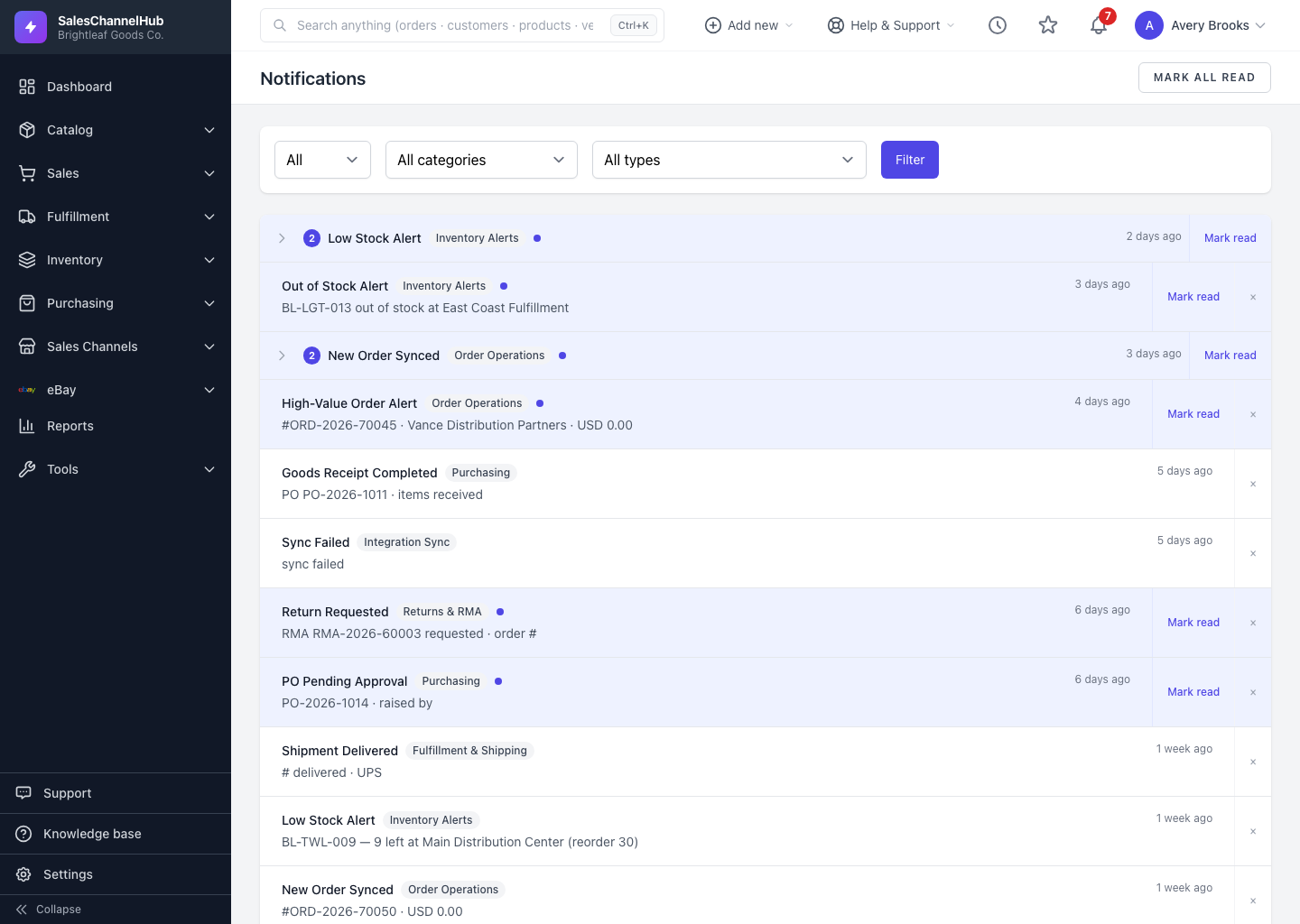
- Mark one read. On the Notifications page, click Mark read at the end of any unread row. Clicking through to what an alert is about marks it read for you too.
- Mark a group read. On a grouped row, Mark read clears every item in that group at once, including repeats that arrived after you opened the page.
- Mark everything read. Use the Mark all read button at the top of the page, or the same link in the bell dropdown, to clear the whole badge.
- Delete a notification. Click the × at the end of a single row and confirm. This removes it for good.
Can I undo marking something read?
You don't need to. A read notification stays in your list and you can still filter for it under Read. Deleting, though, is permanent, so use the × only for alerts you're sure you'll never need again.
Tip. Reach for delete sparingly. Marking read is enough to clear the badge while keeping the alert on record.
Common questions
If I delete a notification, can I get it back?
No. Deleting is permanent. To clear the badge while keeping the alert, mark it read instead, then filter for it under Read when you need it.
Does marking a group read also clear later repeats?
Yes. Mark read on a grouped row clears every item in the group, including alerts of the same type and day that arrived after you opened the page.