Understand custom fields
Custom fields add your own data to products, SKUs, categories, brands and customers, with control over type, required status and where they show.
Custom fields capture data the standard forms don't have: a country of origin, a warranty length, an internal reference. Each field attaches to one type of record.
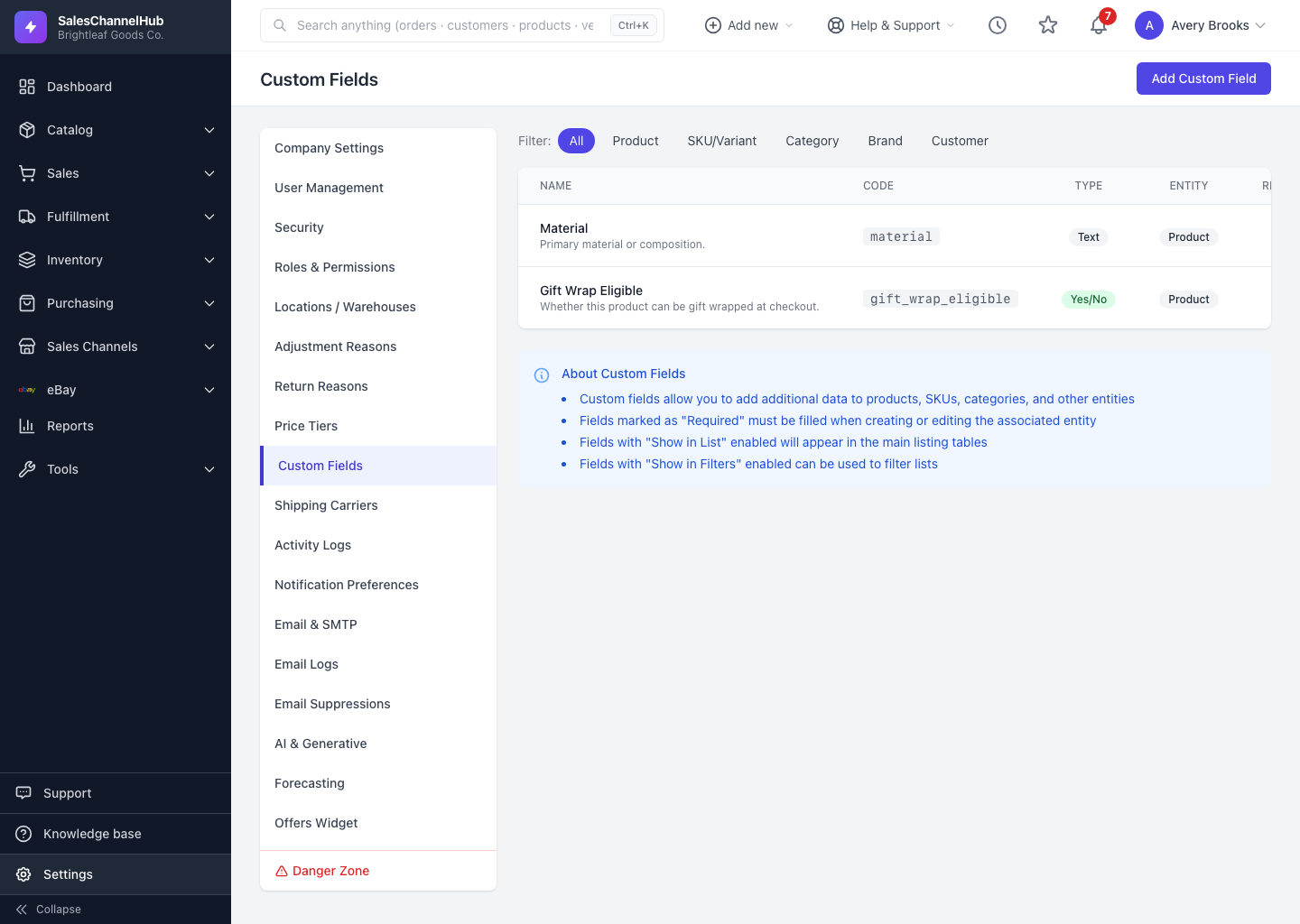
What can a custom field do?
- Attach to Product, SKU/Variant, Category, Brand or Customer.
- Use one of many types: Text, Text Area, Number, Decimal, Dropdown, Multi-Select, Yes/No, Date, Date & Time, File Upload, Image Upload, Color Picker, URL, Email, JSON.
- Be marked Required, shown in list views and filters, and made searchable.
- Be deactivated to hide it without losing the data already captured.
Tip. Filter the list by entity type using the chips at the top (All, Product, SKU/Variant, Category, Brand, Customer) so you only see the fields for the records you're working with.
Was this article helpful?