Approve a purchase order
Approving signs off a PO so it can be sent. It's a separate action with its own permission, so it can be reserved for budget holders.
Approval is the sign-off step before an order can go to a supplier. It's a separate action with its own permission, so it can be reserved for the people who hold the budget.
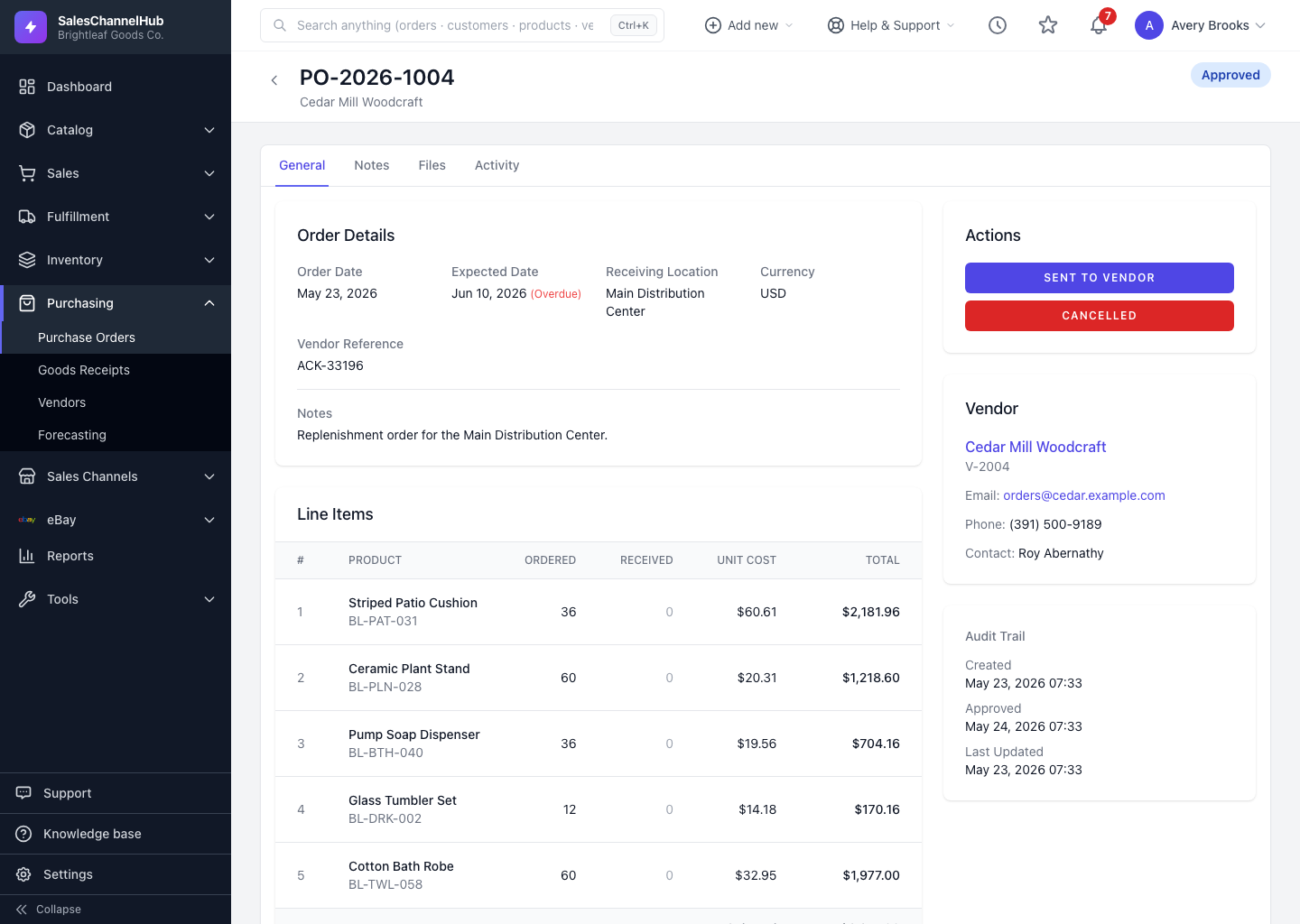
How do I approve a PO?
- Open a purchase order that's in Draft or Pending Approval.
- In the Actions sidebar, click the Approved button.
- The status changes to Approved, and the approver and timestamp are recorded in the Audit Trail.
What if I can't see the Approved button?
Approving is gated separately from editing by the purchase_orders.approve permission. Someone with edit rights alone can't approve. Ask an owner or admin to grant it, or have someone with the permission sign off.
Tip. Move an order to Pending Approval first when you want a second person to check it before it reaches the vendor.
Common questions
Why is there no Approve button on my PO?
Approval needs the purchase_orders.approve permission, which is separate from edit rights. An owner or admin can grant it under Settings → Roles & Permissions.
Can I edit a PO after I approve it?
No. An approved PO locks. The next step is Sent to Vendor. To change an approved order, cancel it and raise a new one.
Can I undo an approval?
You can't drop an approved PO back to draft, but you can still Cancel it. A pending-approval PO, however, can be withdrawn back to Draft.