Bulk delete orders
Tick orders and click Delete to remove draft or cancelled orders that have no shipments and no open returns.
Deletion clears out orders you'll never need again. To protect your records, only draft and cancelled orders with no shipments and no open returns can be deleted.
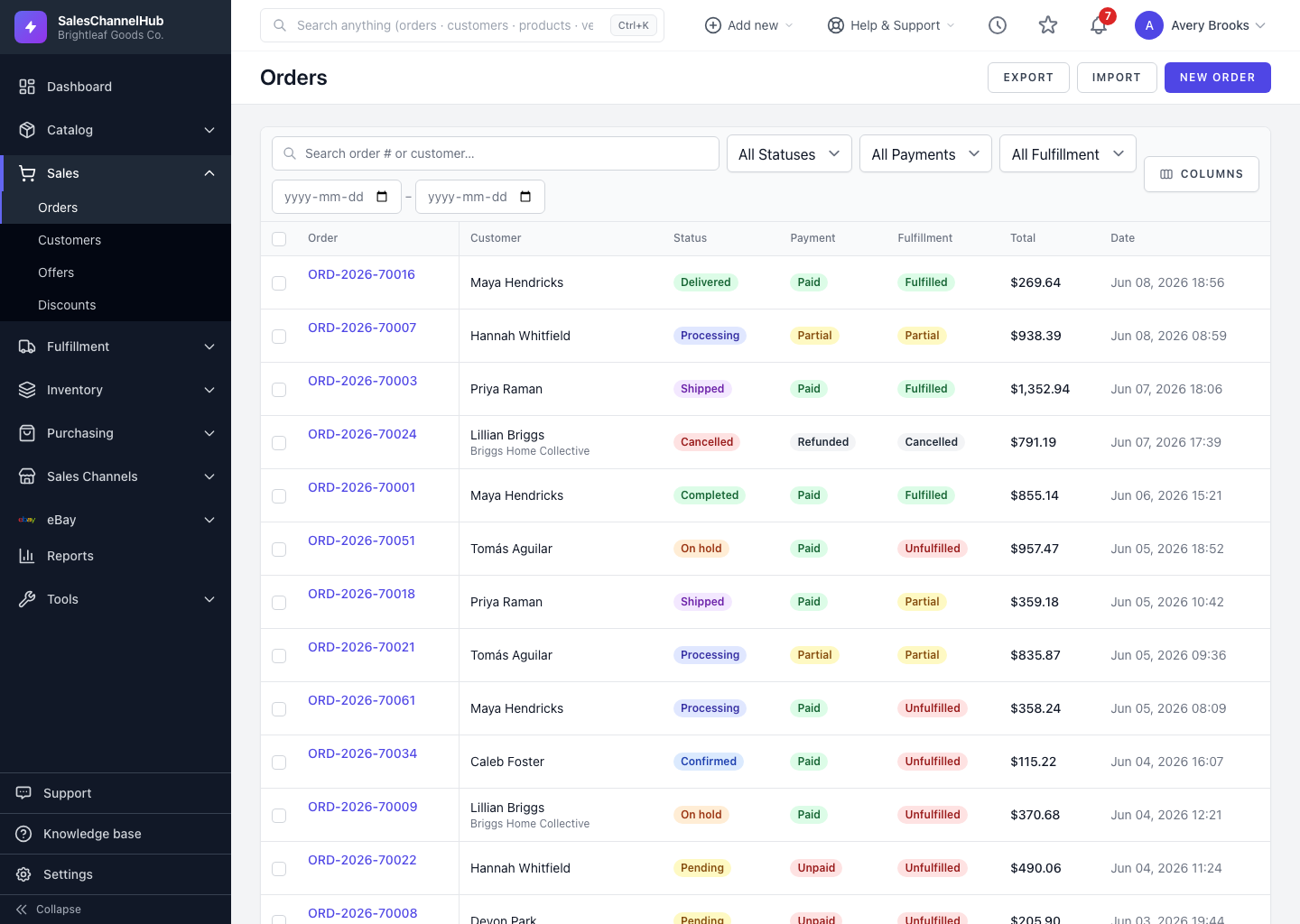
How do I delete orders in bulk?
- Tick the checkbox on each order you want to remove.
- In the bulk action bar, click Delete.
- Read the prompt. It reminds you that only draft or cancelled orders without shipments can be deleted; others are skipped.
- Confirm. The eligible orders are removed and the summary reports how many were deleted and how many couldn't be.
Tip. Deletion is permanent. For an order that genuinely happened but fell through, cancel it instead so the history stays intact.
Common questions
Why can't I delete an order?
Only draft or cancelled orders with no shipments and no open returns can be deleted. Anything that shipped or has an open return is protected. Cancel it instead.
Can I recover a deleted order?
No. Deletion is permanent. If you need the record kept, cancel the order rather than delete it.
Was this article helpful?