Create a shipment from an order
Move an order to Processing, then click Create Shipment in its Shipments section to pick, pack, buy a label and track.
To fulfil an order, turn it into a shipment. The shipment is where picking, packing, labels and tracking happen, and you raise it from the order once it's in Processing.
How do I create a shipment?
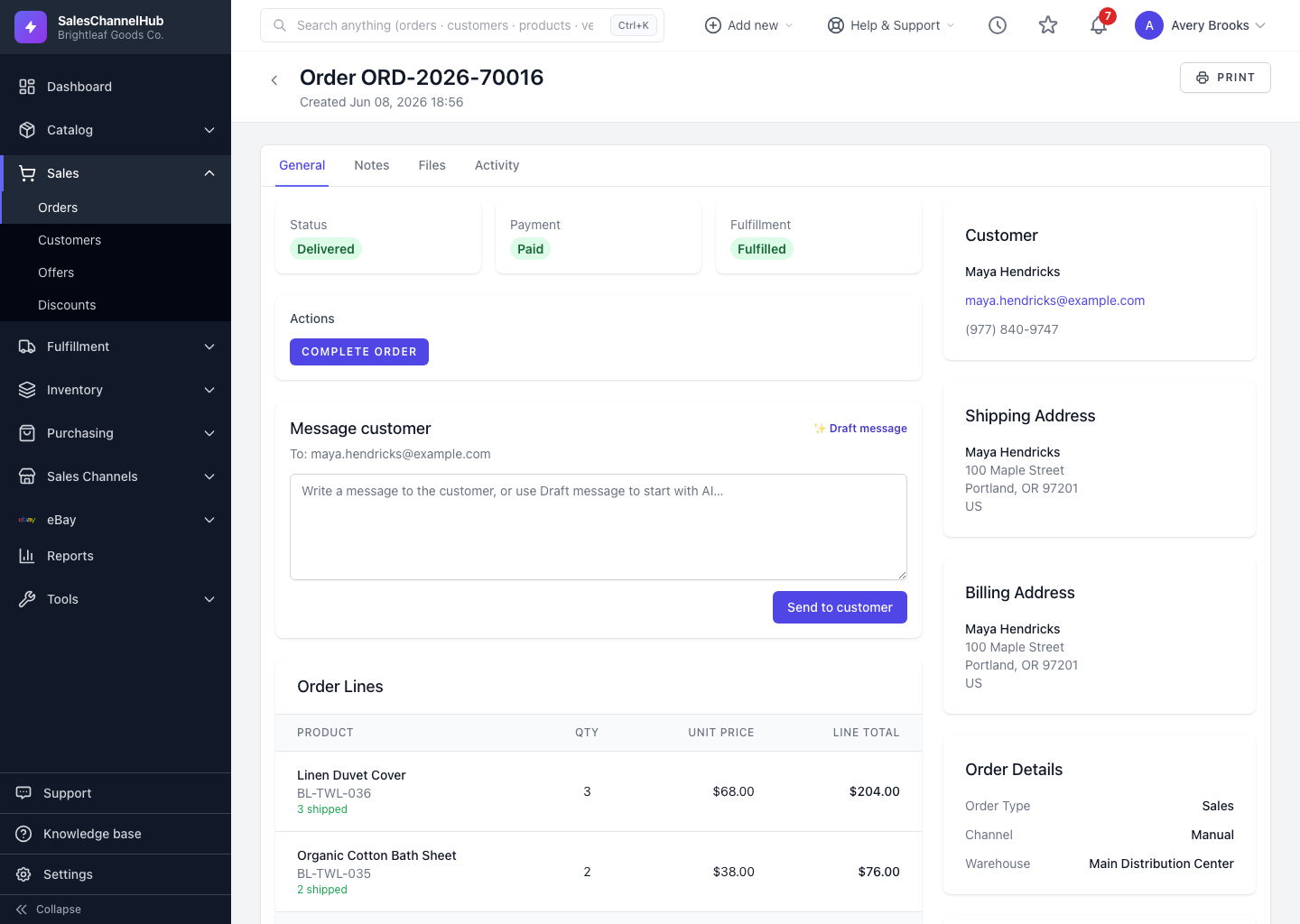
- Move the order into Processing using the Actions panel. Shipments can only be raised from there.
- In the Shipments section of the order, click Create Shipment (or Create first shipment if there are none yet).
- You land in the shipping workspace focused on this order, where you build the shipment, buy a label and add tracking.
- Back on the order, the new shipment appears with its number, status and any carrier and tracking details.
Why isn't the Create Shipment button showing?
The order isn't in Processing yet. Use Start Processing in the Actions panel, and the button appears.
Tip. A large order can have more than one shipment. Until every line ships, its Fulfillment badge stays Partial.
Common questions
Can an order have more than one shipment?
Yes. Split or large orders can ship in several batches. The Fulfillment badge reads Partial until everything has shipped.
Why can't I create a shipment yet?
The order must be in Processing. Use Start Processing in the Actions panel first, then the Create Shipment button appears.
Was this article helpful?