Batch print labels
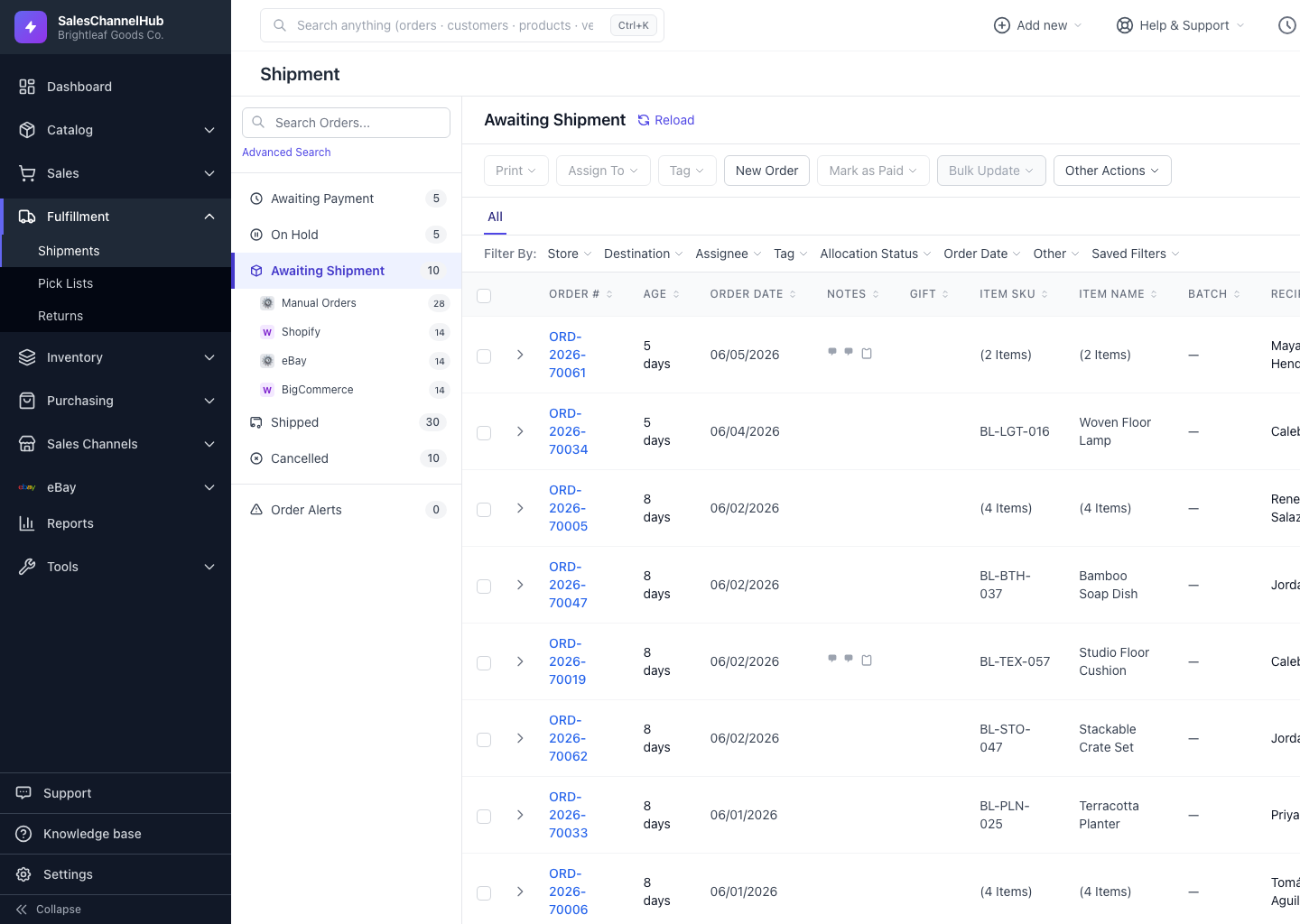
Tick many orders and click Print in the toolbar to label them together as a background job and clear a queue fast.
When you have a stack of orders ready, batch printing labels them together instead of one at a time. It's the fastest way to clear an Awaiting Shipment queue.
How do I batch print?
- In the table, tick the orders you want to label.
- Click Print in the action toolbar.
- The button shows Printing… while the batch is prepared in the background.
- When it finishes, the combined labels are ready to print.
Can I keep working while it runs?
Yes. Batch printing runs as a background job, so you can carry on in the workspace while it builds. Larger batches take a little longer.
Tip. Filter or apply a saved filter first so you print exactly the right set, for example only one store, or only one carrier's orders.
Common questions
How many orders can I batch print at once?
There's no hard limit in the toolbar. The job runs in the background, so larger selections simply take a little longer to assemble.
Do batch-printed labels cost money?
Yes, the same as buying each label individually, since the carrier is charged per label. Use the Test carrier first if you want to rehearse a batch at no cost.