Put an order on hold and resume it
Use Put On Hold in the Actions panel to pause an order, then a Resume button to send it back to where it left off.
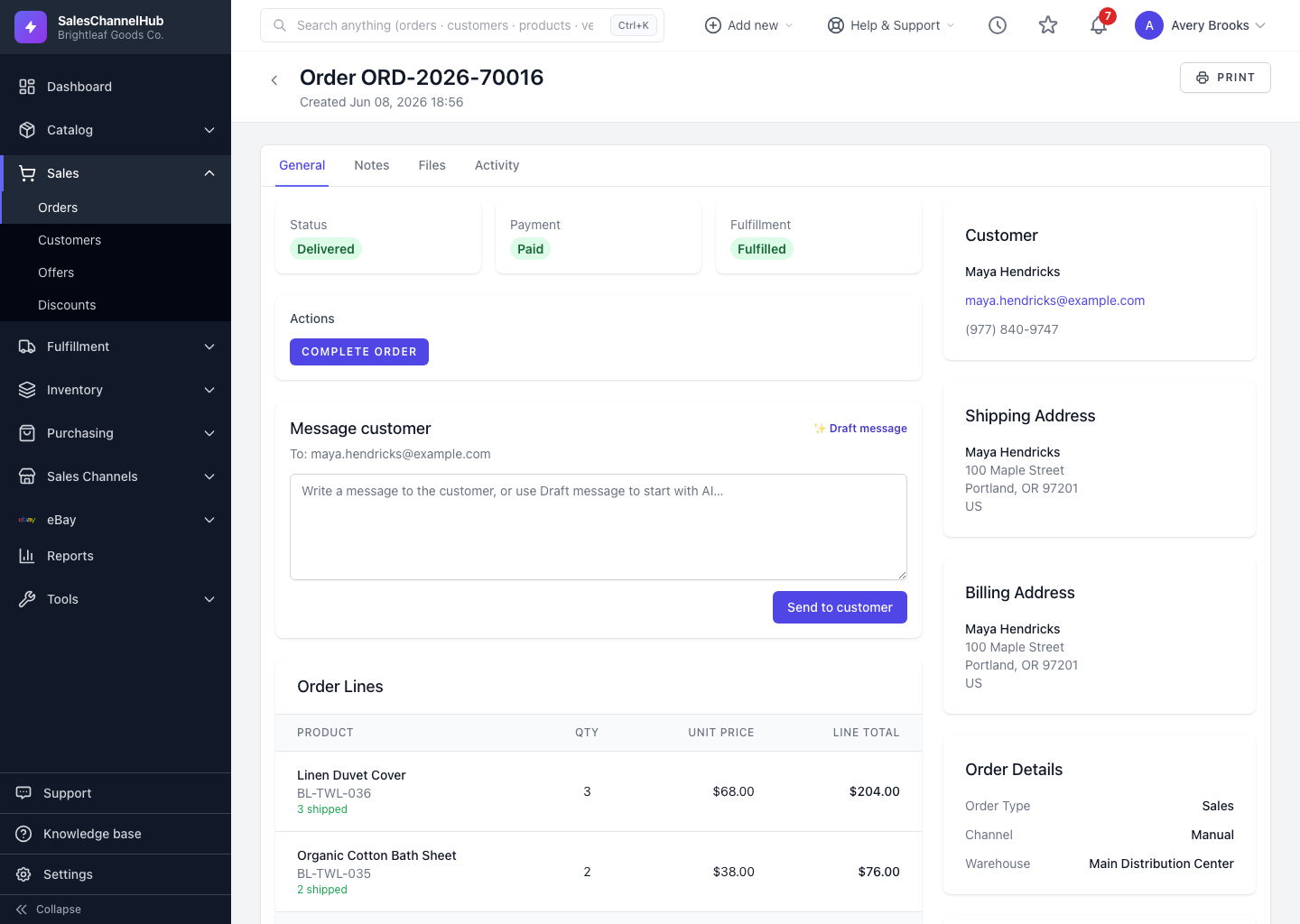
To pause an order without cancelling it, use Put On Hold in the Actions panel. Holding keeps stock reserved, and you can resume the order later to where it left off.
How do I hold and resume an order?
- Open the order and find the Actions panel.
- Click Put On Hold. This is available while the order is Pending, Confirmed or Processing.
- When you're ready, click a Resume button. The choices match where it paused, such as Resume (Pending), Resume (Confirmed) or Resume (Processing).
To hold several orders at once, tick them on the list and use the On Hold bulk action.
Tip. Holding is reversible and keeps stock reserved; cancelling is not. Use On Hold whenever the order might still go ahead.
Common questions
Does putting an order on hold release its stock?
No. A held order keeps its reserved stock, which is the difference between holding and cancelling. Resume it to carry on.
Where does an order go when I resume it?
Back to the stage it paused from. The Resume buttons are labelled with the destination, like Resume (Processing).
Was this article helpful?