Read the integrations page
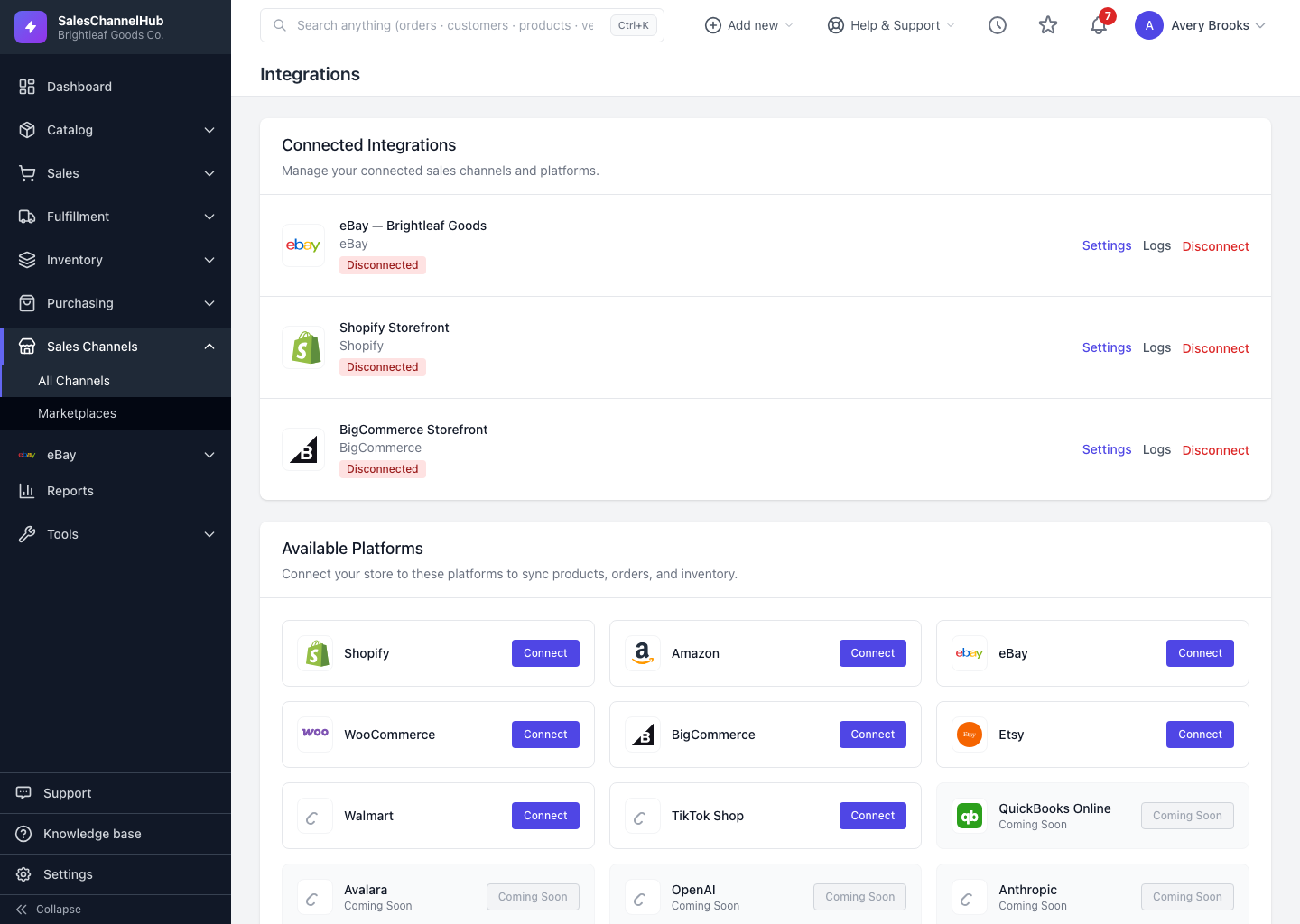
The integrations page lists your connected channels with a status badge and shows the available platforms you can still add.
The integrations page is home to every channel you've connected and every one you can still add. Open it from Sales Channels → All Channels in the sidebar.
What's on the page?
- Connected Integrations — one row per connected channel showing its name, the platform, a status badge, and the date you connected ("since").
- Each row carries Settings, Logs and Disconnect links. When a connection needs attention, a Reconnect button appears too.
- Available Platforms — a grid of channels you can add. Each has a Connect button; ones that aren't ready yet show Coming Soon instead.
What do the status badges mean?
- Connected (green) — the channel is active and syncing.
- Reconnect required (amber) — the channel rejected its access and syncing is paused until you reconnect.
- Disconnected (red) — the connection is switched off.
Tip. Just finished an authorise flow? You land back here with a green success message. Clear any amber badges first, since those connections aren't syncing.
Was this article helpful?