Add a simple product
Click Add Product, fill in the name, SKU and price, then click Create Product. Richer details come later on the edit tabs.
To add a product, click Add Product on the product list and fill in the create form. It captures the essentials; you can add the richer details afterwards on the edit tabs.
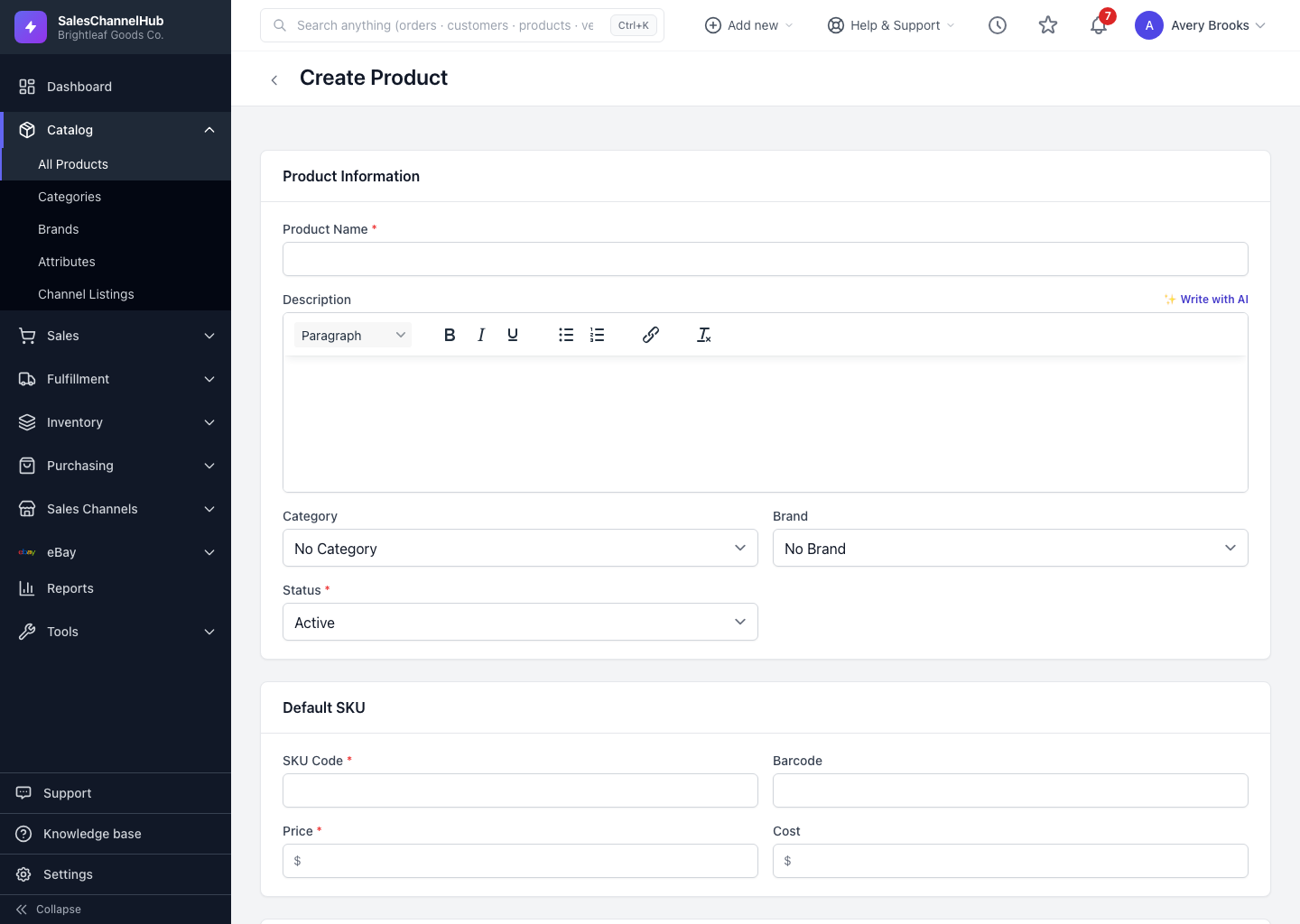
How do I add a product?
- On the Products list, click Add Product.
- Under Product Information, enter a Product Name and an optional Description. Pick a Category, Brand and Status.
- Under Default SKU, enter the SKU Code and Price. Add a Barcode and Cost if you have them.
- Optionally fill in Dimensions & Weight and any Customs & Hazmat details.
- Click Create Product.
Which fields are required?
Product Name, Status, SKU Code and Price are required (marked with a red asterisk). Everything else is optional and can wait.
Tip. Use the Write with AI button next to Description to draft sales copy from the product name.
Common questions
Do I have to choose the product type when I create it?
No. New products start as simple. A product becomes a variant, bundle or BOM automatically once you add variants, bundle components or BOM rows on the edit page.
Can I add a product without a price?
No. Price is required on the create form, along with Product Name, Status and SKU Code. You can change the price later on the Pricing tab.
Where do I add images and a full set of details?
Create the product first, then open it and use the edit tabs: Images, Pricing, Variants & Inventory, Shipping, SEO and more.