Turn a rule on or off
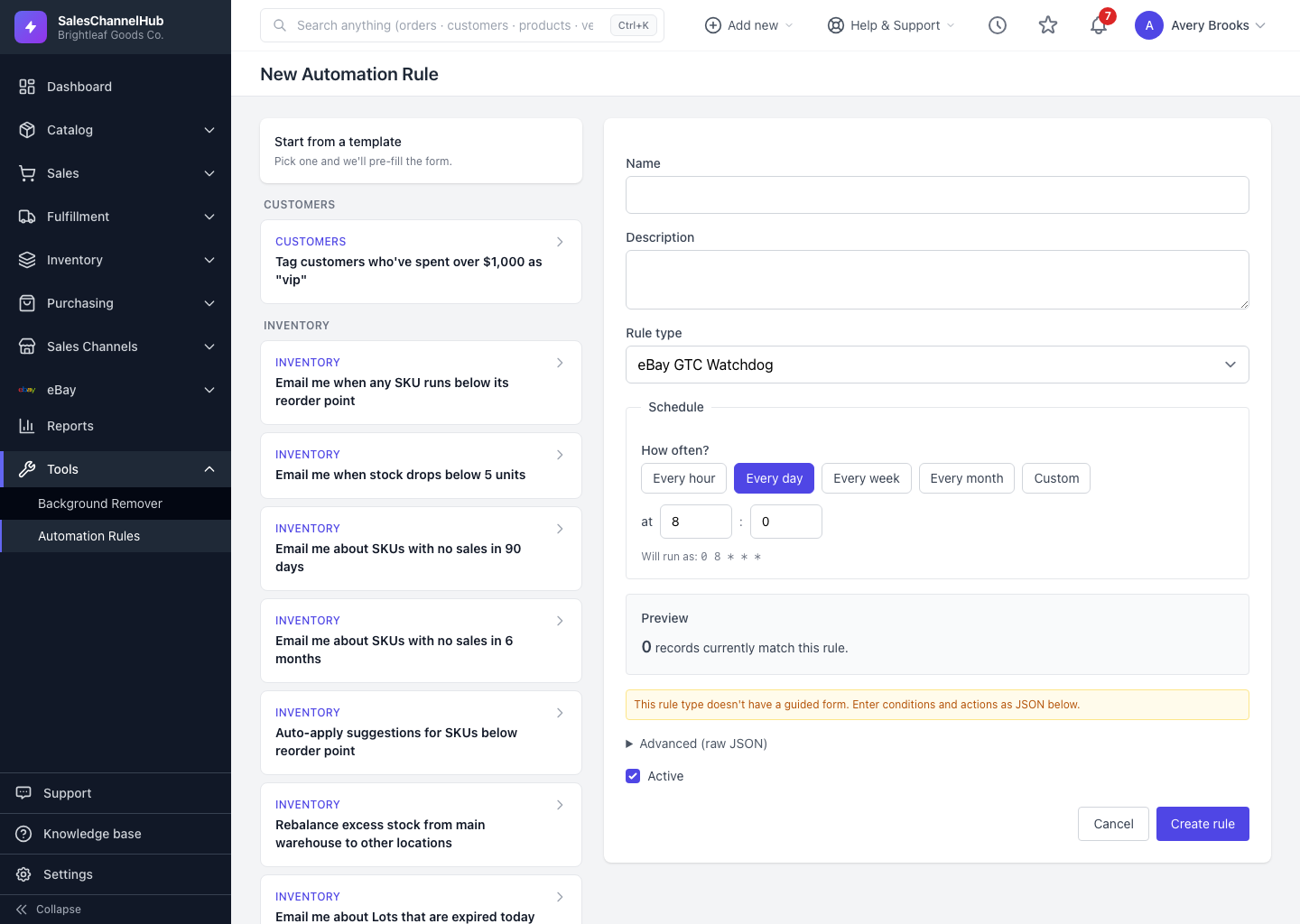
To pause a rule without losing it, open Edit, untick Active and save. Tick it again to switch it back on.
You don't have to delete a rule to stop it. Switching it off keeps the rule and its history but stops it running, so you can turn it back on whenever you're ready.
How do I switch a rule on or off?
- On the Automation Rules list, the Active column shows on or off for each rule.
- To change it, click the rule's Edit link.
- Tick or untick the Active checkbox.
- Click Save. An off rule stays in the list but won't run on its schedule or via Run now.
How do I delete a rule instead?
On the same Edit page, click Delete this rule and confirm. Deleting removes the rule and its run history for good, so switch off rather than delete if you might need it again.
Tip. Switch off when you're testing or seasonally pausing an automation. You keep the exact configuration and the run history, and you can flip it back on in one tick.
Common questions
Does an off rule still run on its schedule?
No. An inactive rule is skipped on its schedule and from Run now. It stays in the list with its history intact until you switch it back on.
What's the difference between switching off and deleting?
Off keeps the rule and its run history and is fully reversible. Delete removes both permanently. Prefer off whenever you might want the rule back.