Install the offers widget on your storefront
On the Offers Widget page, generate a key, paste the script snippet into your theme, and add a sch-offer-button to product pages.
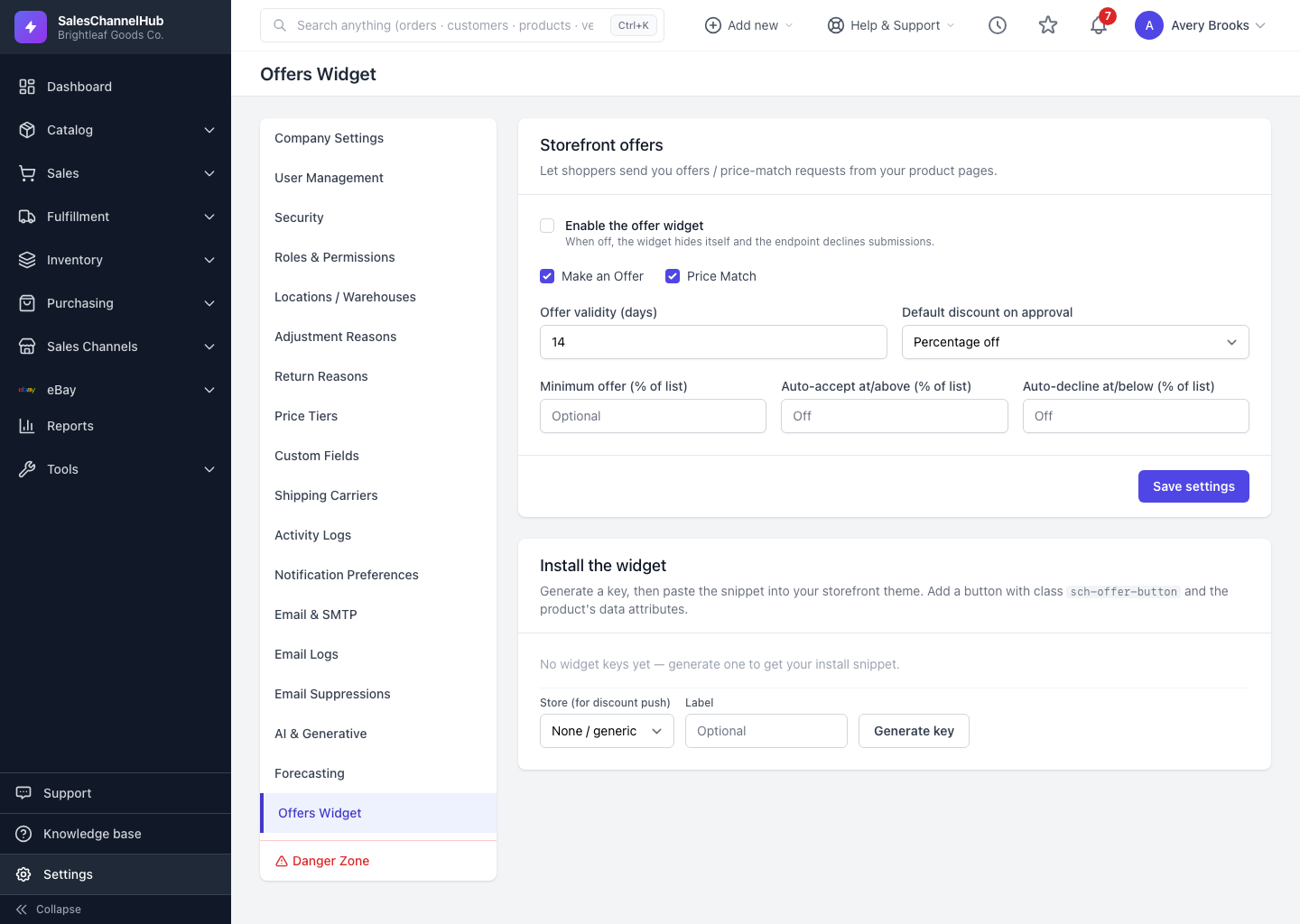
To collect offers, add a small snippet to your storefront theme and place a button on your product pages. The Offers Widget settings page generates the key and shows the exact code.
How do I install the widget?
- Under Install the widget, optionally pick a Store (so approved discounts push there) and add a Label, then click Generate key.
- Copy the
<script>snippet shown for that key into your theme. - Add a button with the class
sch-offer-buttonon each product page, filling its data attributes (product id, variant id, price, name and SKU) from your theme's product data.
Each key shows as Active or Revoked. Click Revoke to disable a key; storefronts using it stop submitting offers.
Tip. Use a separate key per store and set its Label, so you can tell at a glance which storefront each one belongs to.
Common questions
What is the Store dropdown on a key for?
It links the key to a connected store so an approved offer's single-use code pushes there. Leave it on None / generic for a key that isn't tied to a specific store.
What happens when I revoke a key?
The key turns Revoked and any storefront still using it stops submitting offers. Generate a fresh key and swap the snippet to start collecting again.