Approve an offer
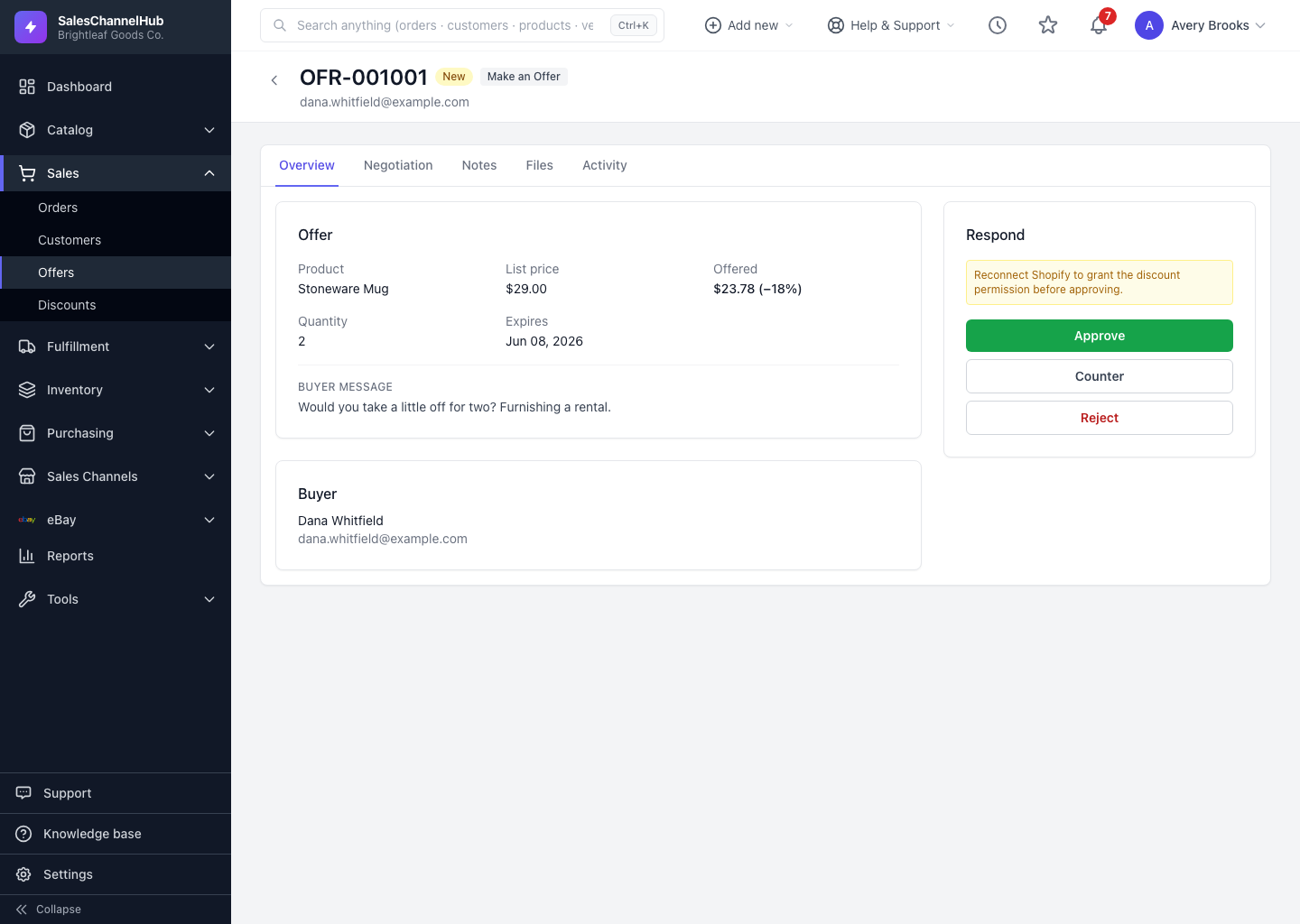
Click Approve in the Respond panel, set the discount to issue, and Approve & email code. It mints a single-use code for that buyer.
Approving an offer creates a one-time discount code for that buyer at the agreed price and emails it to them. The code is single-use and tied to the product they offered on, so nobody else can spend it.
How do I approve an offer?
- Open the offer and click Approve in the Respond panel.
- Set the discount to issue: choose % off or $ off and enter the value.
- Click Approve & email code.
The offer moves to Approved, a code like OFFER-XXXXXXXX is created, and a green Discount issued box appears with a link to the new discount. The code is capped to one use, one per customer, and expires with the offer.
Tip. If the offer's channel needs reconnecting, a yellow warning shows in the Respond panel and approval is blocked. Reconnect that store first so the code can be pushed to it.
Common questions
Can the buyer share or reuse the code I issued?
No. The code is single-use, one per customer, tied to the product they offered on, and it expires with the offer. Once spent, it's done.
Why is the Approve button blocked?
The offer's channel lacks the discount permission. A yellow notice tells you which store to reconnect; reconnect it from Integrations, then approval works.
Where does the discount the approval created live?
In Discounts, like any other coupon. The green Discount issued box on the offer links straight to it, so you can view its channel push and usage.