Create a cycle count
Click New Count, choose a warehouse, a count type and the locations to include. The system loads stocked SKUs in those bins as count lines.
Creating a count scopes the work and snapshots current stock. You pick a warehouse, a count type and one or more locations, and the system loads every SKU with on-hand stock in those bins as a count line.
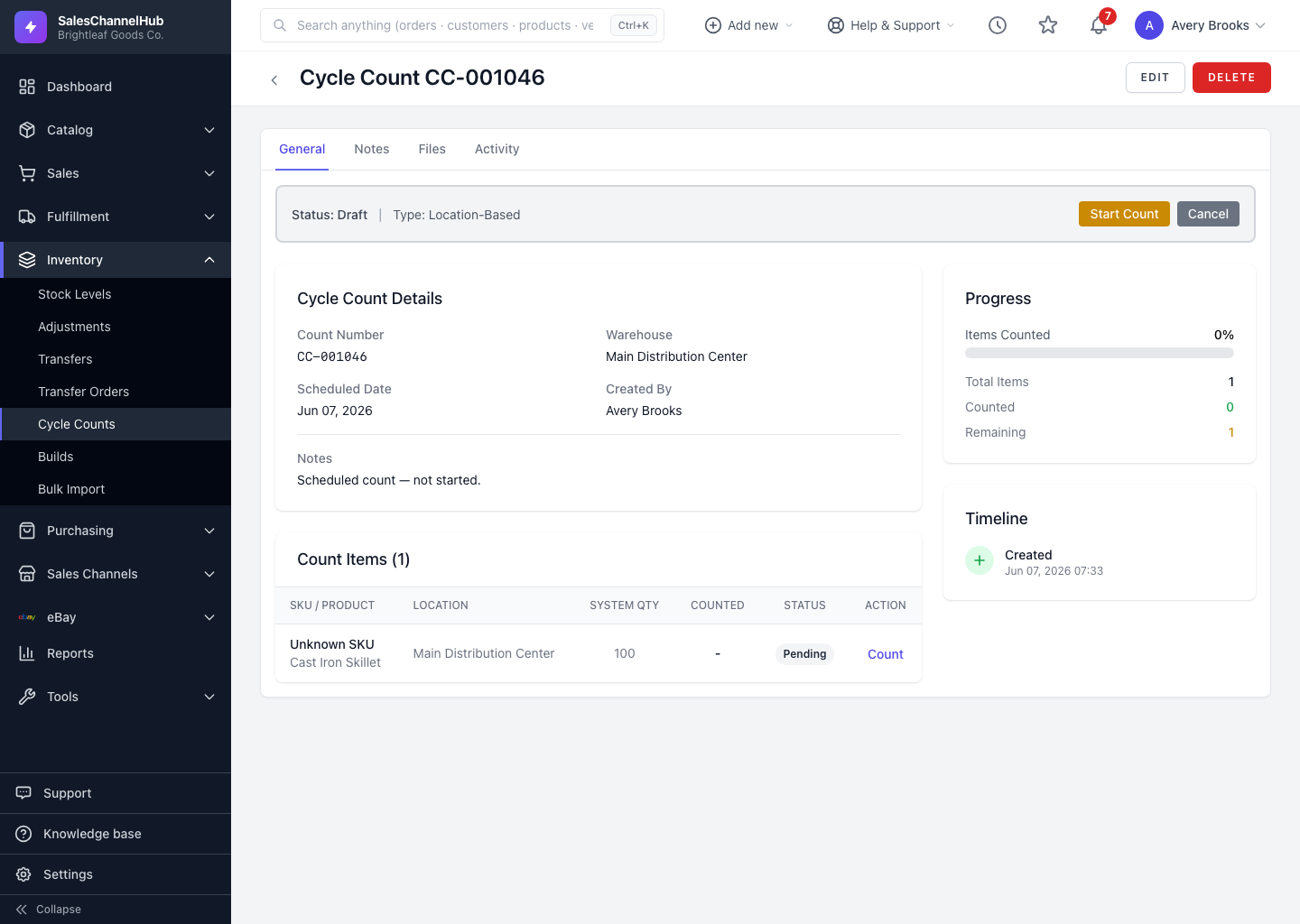
How do I create a count?
- On the Cycle Counts screen, click New Count.
- Choose the Warehouse.
- Set the Count Type: Full Count, ABC Analysis, Location-Based or Random Sample.
- Optionally set a Scheduled Date and tick Blind Count to hide expected quantities.
- Under Select Locations to Count, tick the bins to include.
- Click Create Cycle Count to generate the lines.
Tip. Only locations holding stock add lines. Empty bins are skipped, so you won't get blank rows to count.
Common questions
Why does my count have fewer lines than I expected?
Lines come only from locations that currently hold stock. Bins with zero on-hand are skipped, so an empty location adds no rows.
Can I count just one aisle or bin?
Yes. Tick only those locations and pick the Location-Based count type. The count then covers just the bins you selected.
Was this article helpful?