Bulk-apply suggestions
Set your filters, then click Apply all unapplied in this filter to accept every matching suggestion at once instead of row by row.
Once you trust the numbers, applying them one at a time gets tedious. The bulk action applies every unapplied suggestion that matches whatever filter you have on screen, in a single click.
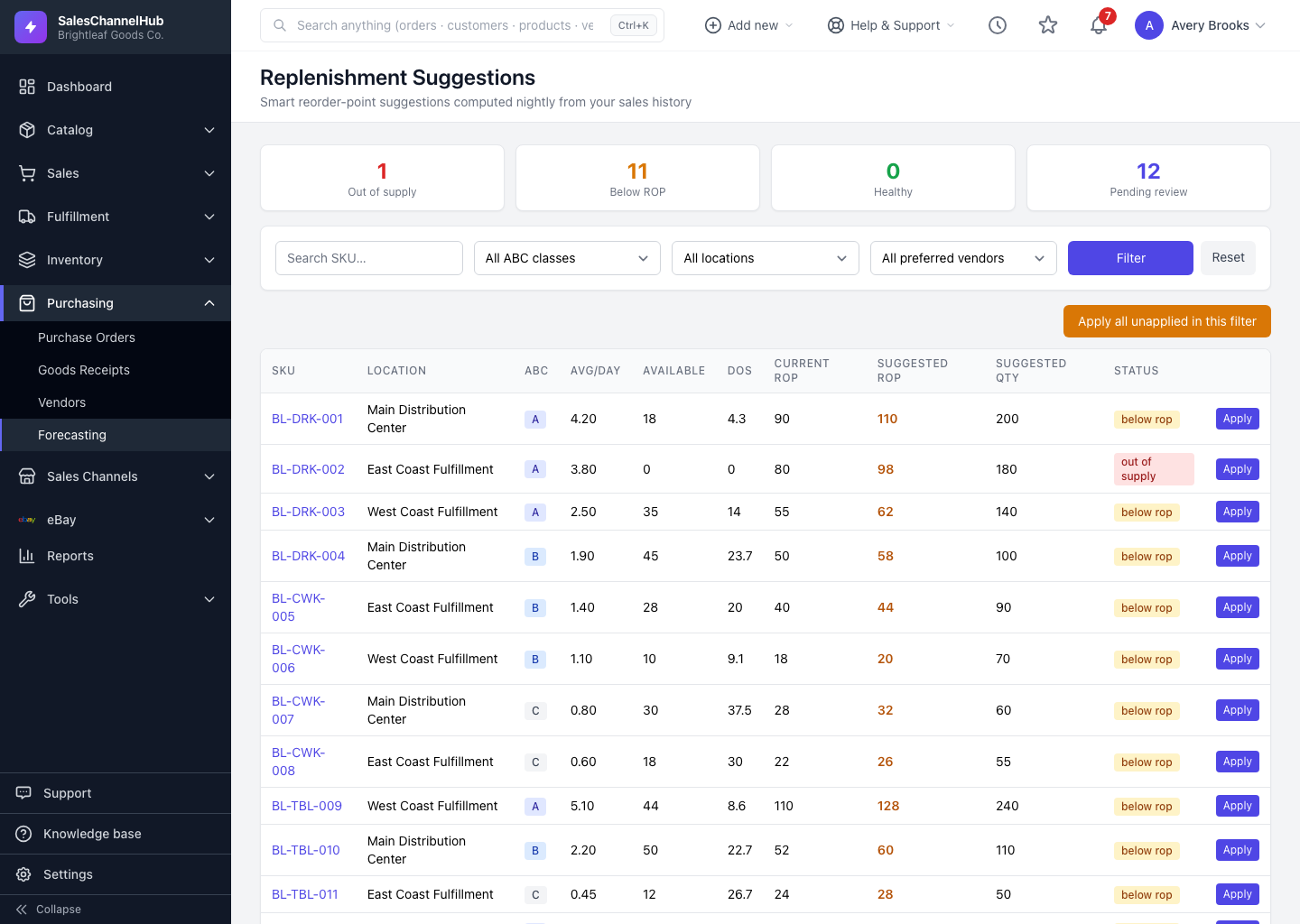
How do I bulk-apply?
- Open Purchasing → Replenishment Suggestions and set your filters first. Pick a location or a preferred vendor, or click an ABC class, so you only act on the rows you mean to.
- Click Filter to apply them.
- Click Apply all unapplied in this filter at the top right of the list.
- Confirm when prompted. This writes the suggested reorder point and quantity to the stock level of every matching SKU.
- A message reports how many suggestions were applied.
What does it leave alone?
- Already-applied rows are skipped; only unapplied suggestions are affected.
- Rows hidden by your filter aren't touched, so narrow the list deliberately before clicking.
Tip. Bulk-apply by vendor: filter to one preferred vendor, apply all, then turn those updated reorder points into a single purchase order for that supplier.
Common questions
Does bulk-apply touch rows hidden by my filter?
No. Only suggestions matching the current filter are applied. Rows the filter hides are left as they are, so narrow the list before you click.
What happens to suggestions I already applied?
They're skipped. Bulk-apply only acts on unapplied suggestions, so re-running it never double-applies.
Was this article helpful?