Set up the offers widget and thresholds
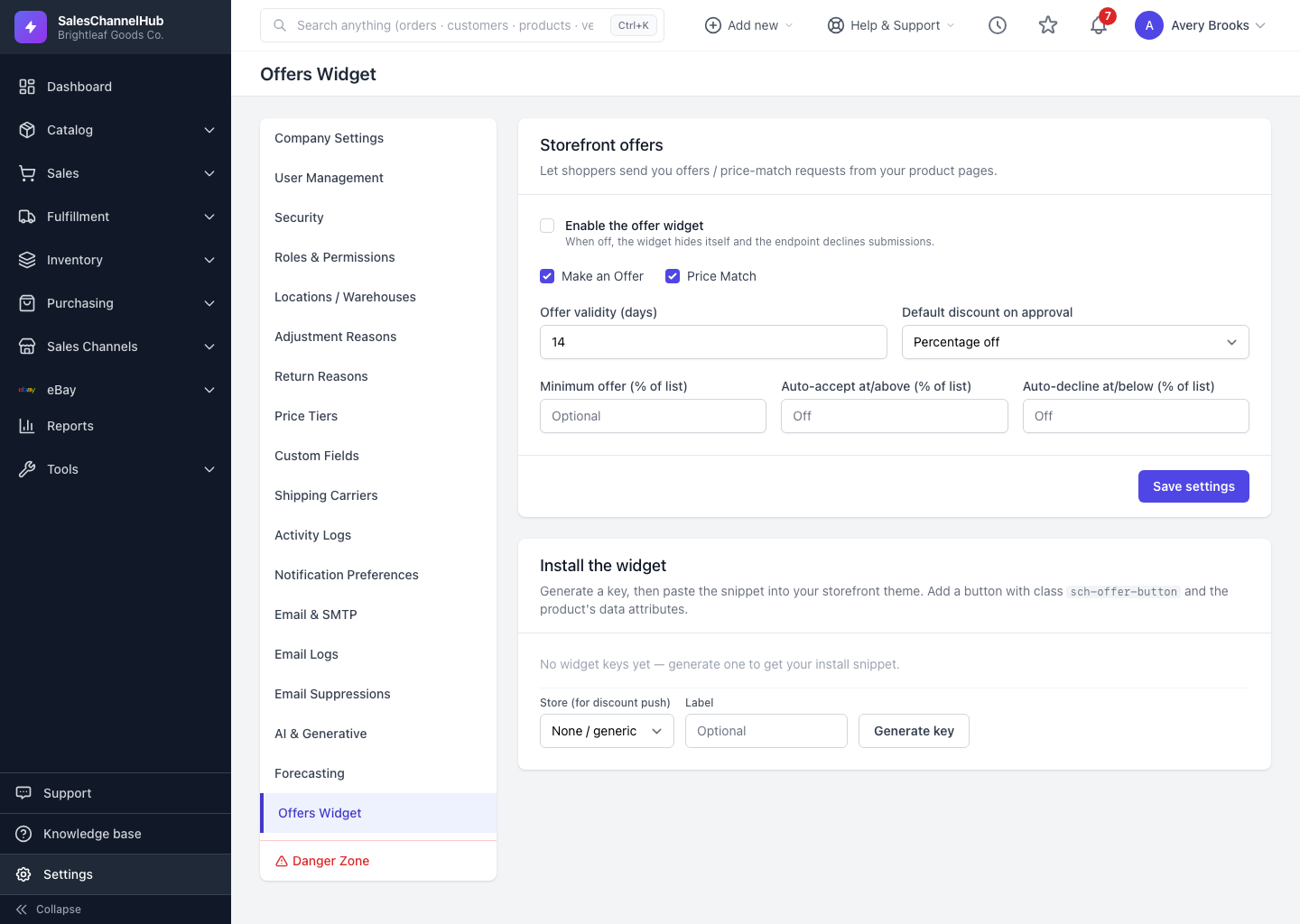
On Settings → Offers Widget, enable the widget, choose Make an Offer and Price Match, and set validity, default discount and thresholds.
The offers widget settings control what shoppers can ask for and the guardrails on those requests. Find them under Settings, on the Offers Widget page.
How do I set up the widget?
- Tick Enable the offer widget. When it's off, the widget hides and the endpoint declines submissions.
- Choose what's allowed: Make an Offer, Price Match, or both.
- Set Offer validity (days), how long an offer stays open before it expires.
- Pick the Default discount on approval: percentage or fixed amount.
- Optionally set a Minimum offer (% of list) to reject lowballs, plus the auto-accept and auto-decline thresholds.
- Click Save settings.
Tip. Start conservative on validity. A 7-day window keeps your inbox current and gives buyers a gentle reason to decide.
Common questions
Do I have to offer both Make an Offer and Price Match?
No. Tick whichever you want. Leave Price Match off to only take negotiation offers, or untick Make an Offer to only take price-match requests.
What does Offer validity (days) do?
It sets how long a new offer stays open before it expires unanswered. The buyer sees the expiry date, and an offer that passes it moves to Expired on its own.
What is Default discount on approval?
The discount type (percentage or fixed) pre-selected on the approve form, so you don't pick it each time. You can still change it when you approve a specific offer.