Add and manage product images
On the Images tab you can upload up to 20 images, set a primary, reorder by dragging and add alt text.
Good photos sell. The Images tab lets you upload up to 20 images per product, mark which one leads, and arrange the rest.
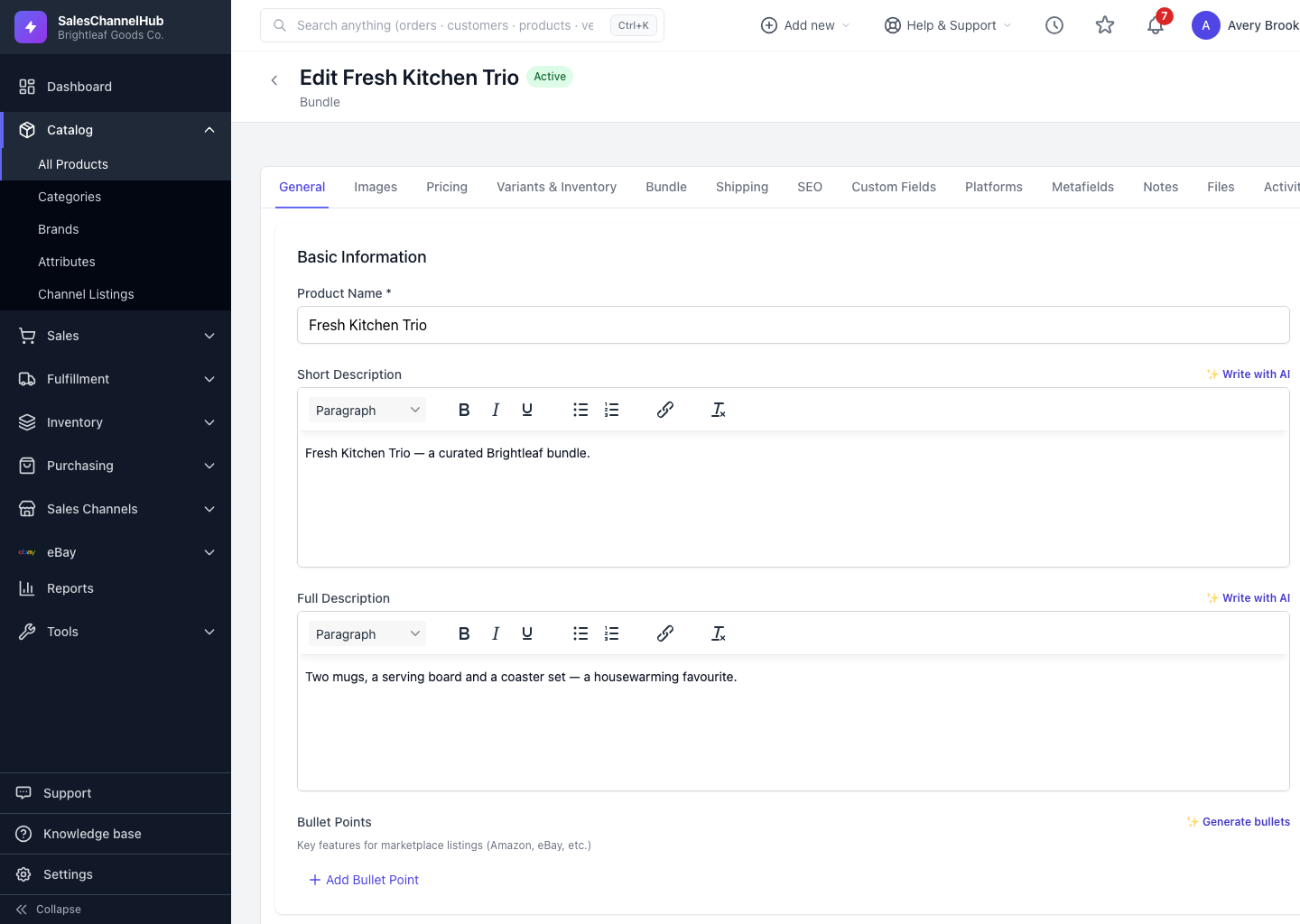
How do I add and arrange images?
- Open a product and click the Images tab.
- Click Upload images or drag files onto the dropzone. PNG, JPG, GIF and WebP up to 10MB each are accepted.
- Hover an image and click the star to set it as primary; the primary leads everywhere and carries a badge.
- Drag an image by its handle to reorder the gallery.
- Click the pencil to add alt text describing the image, then save.
Why does alt text matter?
Alt text helps screen readers and search engines, and many marketplaces use it. Write a short, plain description of what's in the shot.
Tip. The counter at the top of the gallery shows how many of your 20 image slots are used.
Common questions
How many images can a product have?
Up to 20 images per product, each up to 10MB. Accepted formats are PNG, JPG, GIF and WebP.
How do I change which image is the primary?
Hover the image you want and click the star to set it as primary. The primary image leads on the product and on your channel listings.
Can I set a different photo per colour?
Yes, on variant products. Use the Variant images section on the Variants & Inventory tab to attach one image per option value. The main Images tab is for shared lifestyle and detail shots.