Filter the activity log
Narrow the audit trail by date range, category, event, user, IP address or a free-text search, then click Apply Filters.
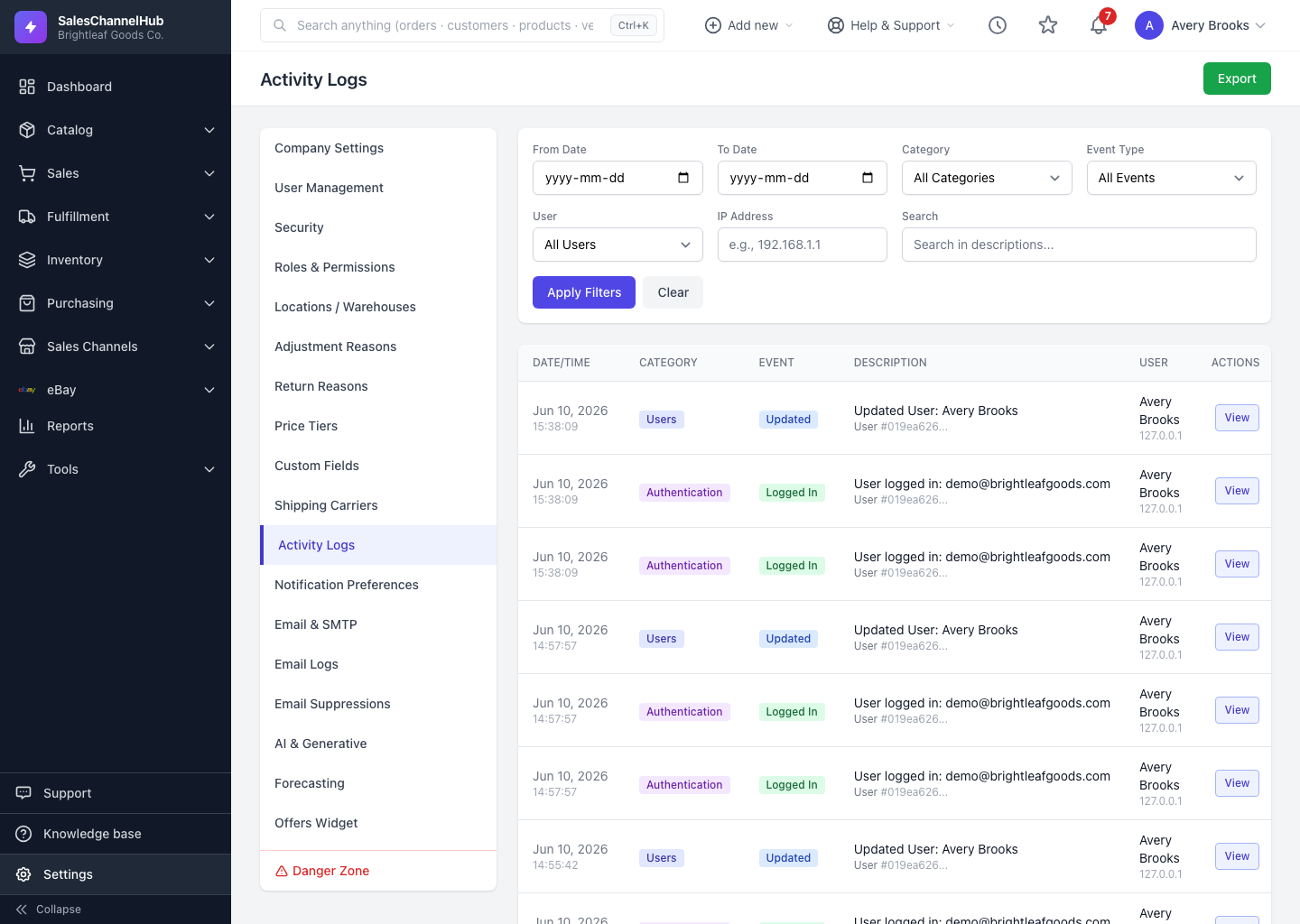
The activity log grows quickly, so it ships with a full filter panel to pinpoint a single change. Open Settings > Activity Logs and use the form at the top.
What can I filter by?
- From Date and To Date bound the time range.
- Category limits to one area, such as Orders, Inventory or Settings.
- Event Type targets a specific action like Updated or Deleted.
- User shows only what one person did; IP Address narrows to a single location.
- Search matches text inside the description column. Type a SKU or order reference to trace its history.
- Click Apply Filters to run them, or Clear to start over.
Can I combine filters?
Yes. They stack, so you can ask a precise question like "everything one user changed on orders last Tuesday" in one pass. The result count appears below the table.
Tip. If an expected change isn't showing, widen the date range and clear any category, user or event filter first. A narrow filter is the usual reason a row goes missing.
Was this article helpful?