Bulk cancel purchase orders
Tick POs on the list and click Cancel in the bulk-actions bar. Only non-received orders are cancelled; the rest are skipped.
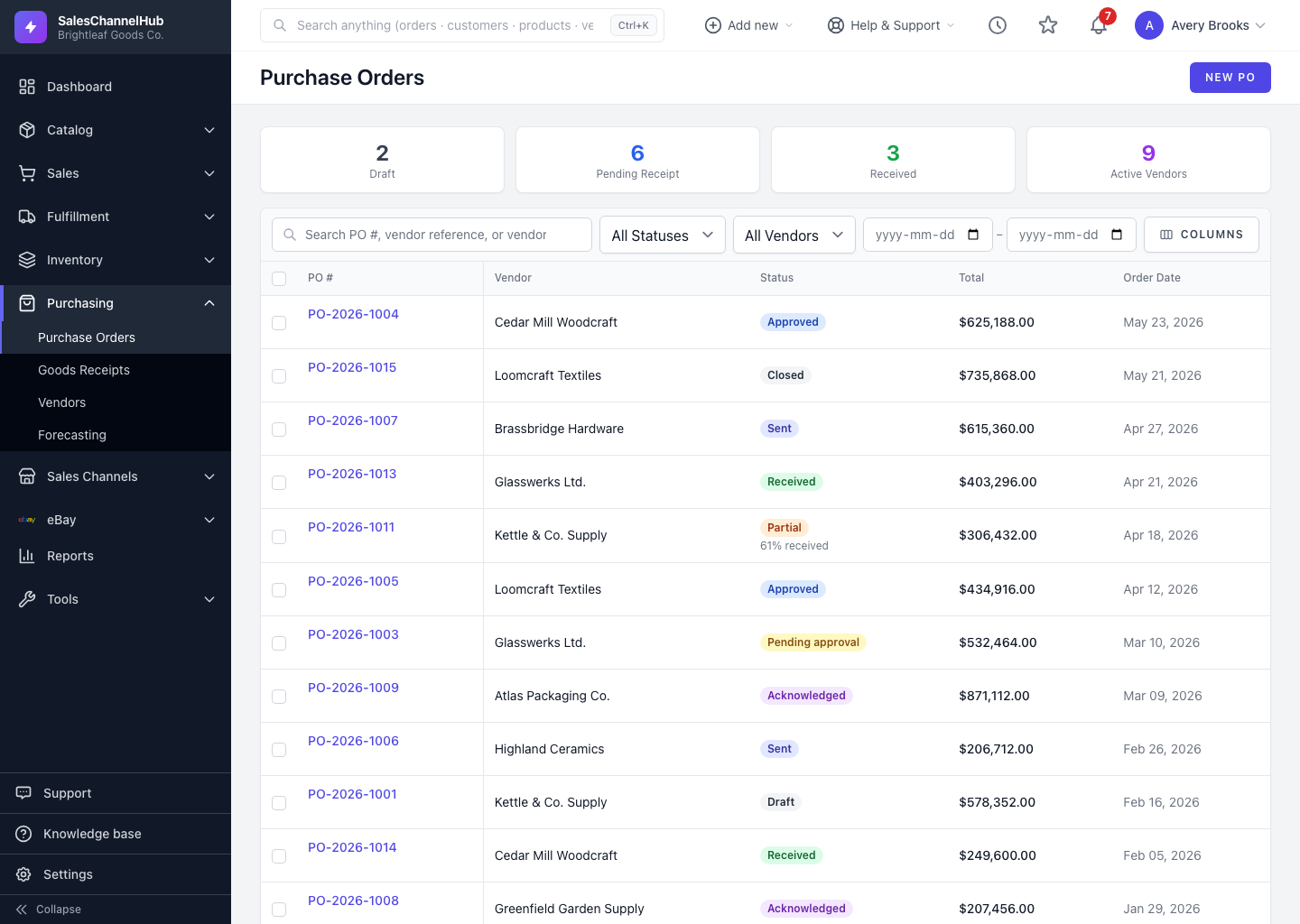
If a project is dropped or a vendor falls through, cancel a batch of purchase orders in one go rather than opening each. Tick them on the list and use the bulk-actions bar.
How do I bulk cancel POs?
- Go to Purchasing → Purchase Orders.
- Tick the checkbox on each PO you want to cancel.
- In the bulk-actions bar, click Cancel.
- Confirm the prompt, which warns that only non-received POs can be cancelled.
What gets skipped?
- POs that are already received, closed or cancelled are skipped, and the result tells you how many and why.
- There's no un-cancel. To reinstate an order, raise a new one.
- Cancelled POs stay on file for the record.
Tip. Filter the list by Status first, for example to Draft or Sent to Vendor, so your selection only contains orders that are actually cancellable.
Was this article helpful?