Connect WooCommerce
Generate a Read/Write REST API key in WooCommerce, then paste the Consumer Key and Consumer Secret to connect your store.
WooCommerce connects with an API key you generate inside your own WordPress admin. Once connected you can pull orders and customers and push inventory and products.
How do I connect WooCommerce?
- In WooCommerce, go to WooCommerce → Settings → Advanced → REST API and click Add key.
- Set the description to Sales Channel Hub, set Permissions to Read/Write, then click Generate API key.
- Copy the Consumer Key (starts
ck_) and Consumer Secret (startscs_). The secret is shown only once. - Back here, click Connect on WooCommerce, enter your full store URL (for example
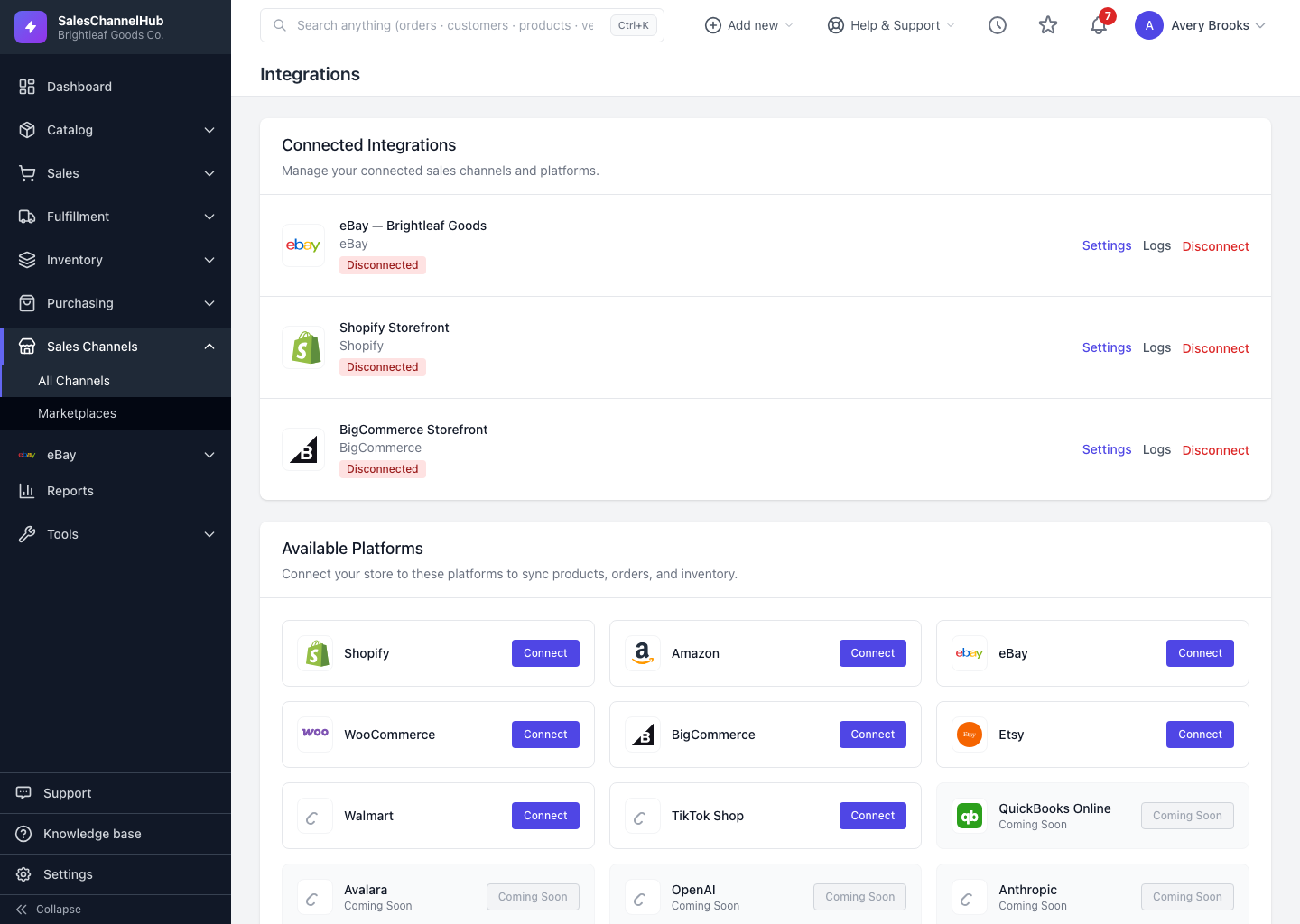
https://brightleaf-goods.com), and paste both values. - Add an optional Display Name and click Connect to WooCommerce.
Tip. Use the full
https://address for the store URL. If the connection fails, check the key has Read/Write permission and that the URL has no typos.
Common questions
Where do I get the Consumer Key and Secret?
In WooCommerce under Settings → Advanced → REST API → Add key. Set permissions to Read/Write and generate. The Consumer Secret appears once, so copy it before leaving the page.
My WooCommerce connection failed. What should I check?
Confirm the key has Read/Write permission, that you used the full https:// store URL, and that there are no typos. A read-only key can pull but can't push.