Create a shipment from an order
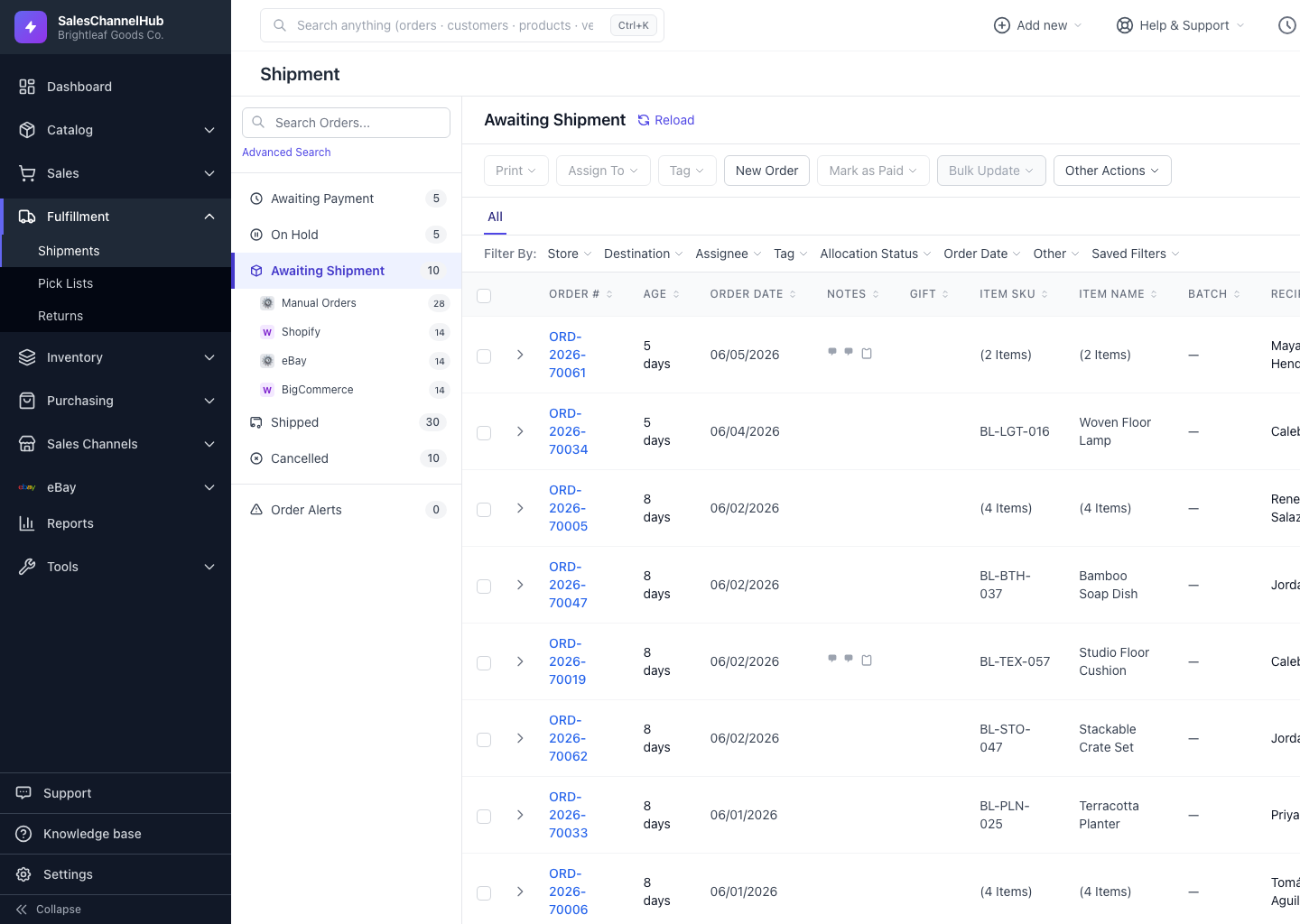
Click an order number in Awaiting Shipment to open its draft in the workspace modal, ready to configure and label.
A shipment starts as a draft on a paid order. You don't create it by hand. Opening a paid order in the workspace starts the draft for you, ready to configure.
How do I start a shipment?
- In the Awaiting Shipment bucket, click an order number to slide up the workspace modal.
- The order opens in three columns: Order Summary on the left, the central workspace, and Configure Shipment on the right.
- The draft is now live. Set the package and weight, shop rates, and buy the label.
What if the order isn't paid?
You'll see This Order is Awaiting Payment in place of the configure panel, with a Mark as Paid button. Pay it first to unlock labelling.
Tip. Use the left and right arrows on the edges of the modal to step through orders without closing it, which helps when you're working a whole batch.
Was this article helpful?