Bulk cancel orders
Tick several orders and click Cancel in the bulk action bar; orders that can't be cancelled are skipped and reported.
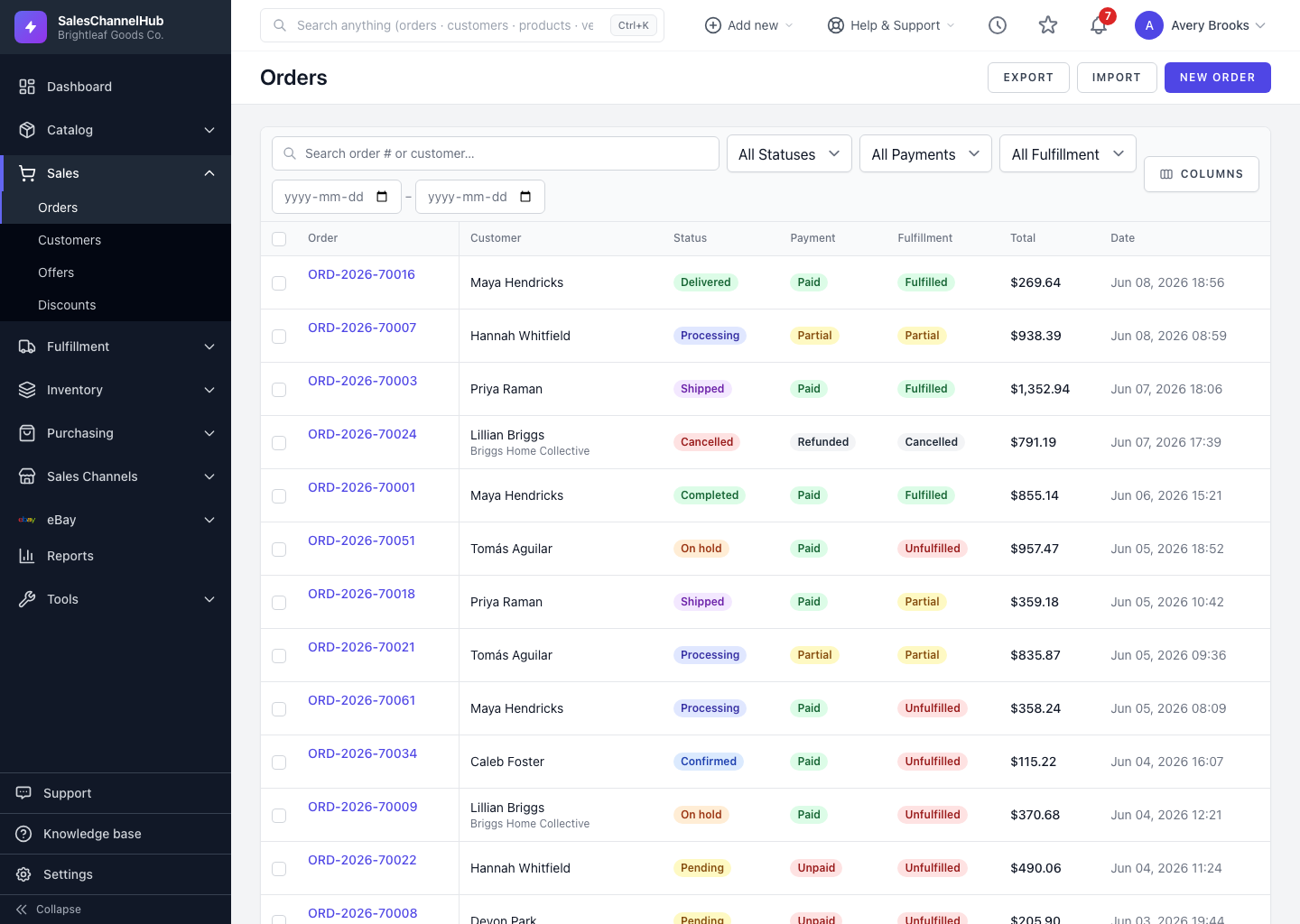
To cancel several orders at once, tick them on the list and use the Cancel bulk action. As with a single cancel, this releases allocated stock and voids active shipments on each order.
How do I cancel orders in bulk?
- Tick the checkbox on each order you want to cancel.
- In the bulk action bar, click Cancel.
- Confirm the prompt. This cannot be undone.
Only orders that are still cancellable are processed. Any already shipped, delivered, completed or cancelled are skipped, and the summary reports how many were cancelled and how many were skipped.
Tip. If more orders were skipped than you expected, filter by Status first so your selection only holds orders that can actually be cancelled.
Common questions
Why did a bulk cancel skip some orders?
Orders already shipped, delivered, completed or cancelled can't be cancelled, so they're skipped and counted in the summary. Filter by Status first to avoid selecting them.