Import or export locations by CSV
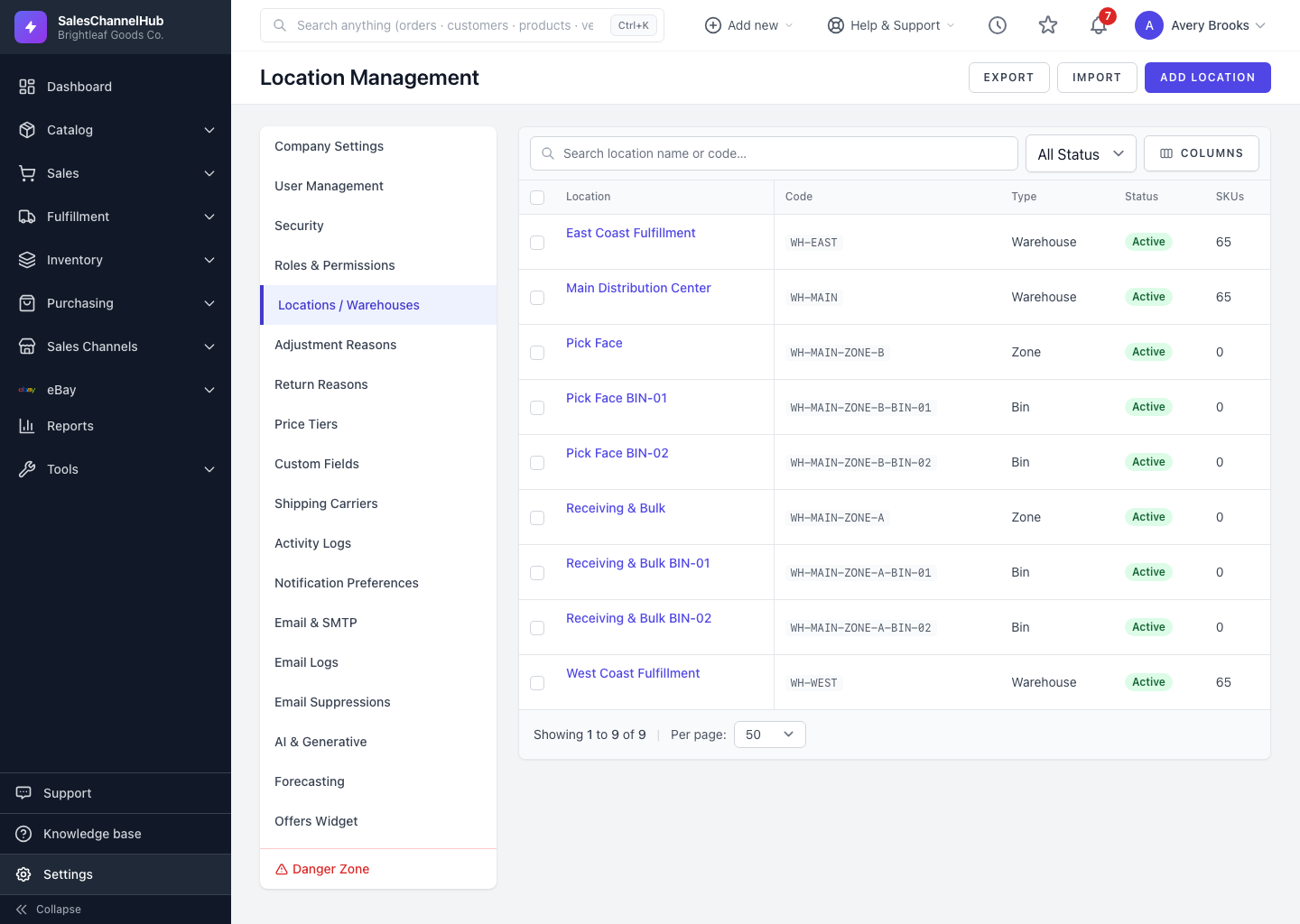
Use Import on the Locations page to bulk-load your warehouse hierarchy from a CSV, or Export to download what you have.
If you have many bins or are setting up a new site, a CSV is far quicker than adding locations one at a time.
How do I import locations?
- Go to Settings → Locations / Warehouses and click Import.
- Click Download a blank CSV template, or Export first to start from your current data.
- Fill the required columns: Code, Name and Type. Reference a parent by its Parent Code.
- Upload the file. Leave Update existing locations ticked to match rows by Code, and Skip rows with errors to import the rest.
- Click Import Locations and review any reported issues.
Tip. A parent can appear after its children in the file and still link correctly. The importer recalculates each location's path and level for you, so leave those columns out.
Common questions
Does the parent row have to come before its children in the file?
No. The importer resolves parents by Parent Code regardless of row order, then recalculates each location's path and level.
Will re-importing create duplicate locations?
Not if Update existing locations is ticked. Rows are matched by Code, so an existing code updates that location instead of adding a new one.
Was this article helpful?