Create an attribute with options
Go to Catalog → Attributes → Add Attribute to add a characteristic like Color, then add each selectable value as an option.
To add a new characteristic such as Material or Finish, open Catalog > Attributes and click Add Attribute. Define its options, and you can build variants from it.
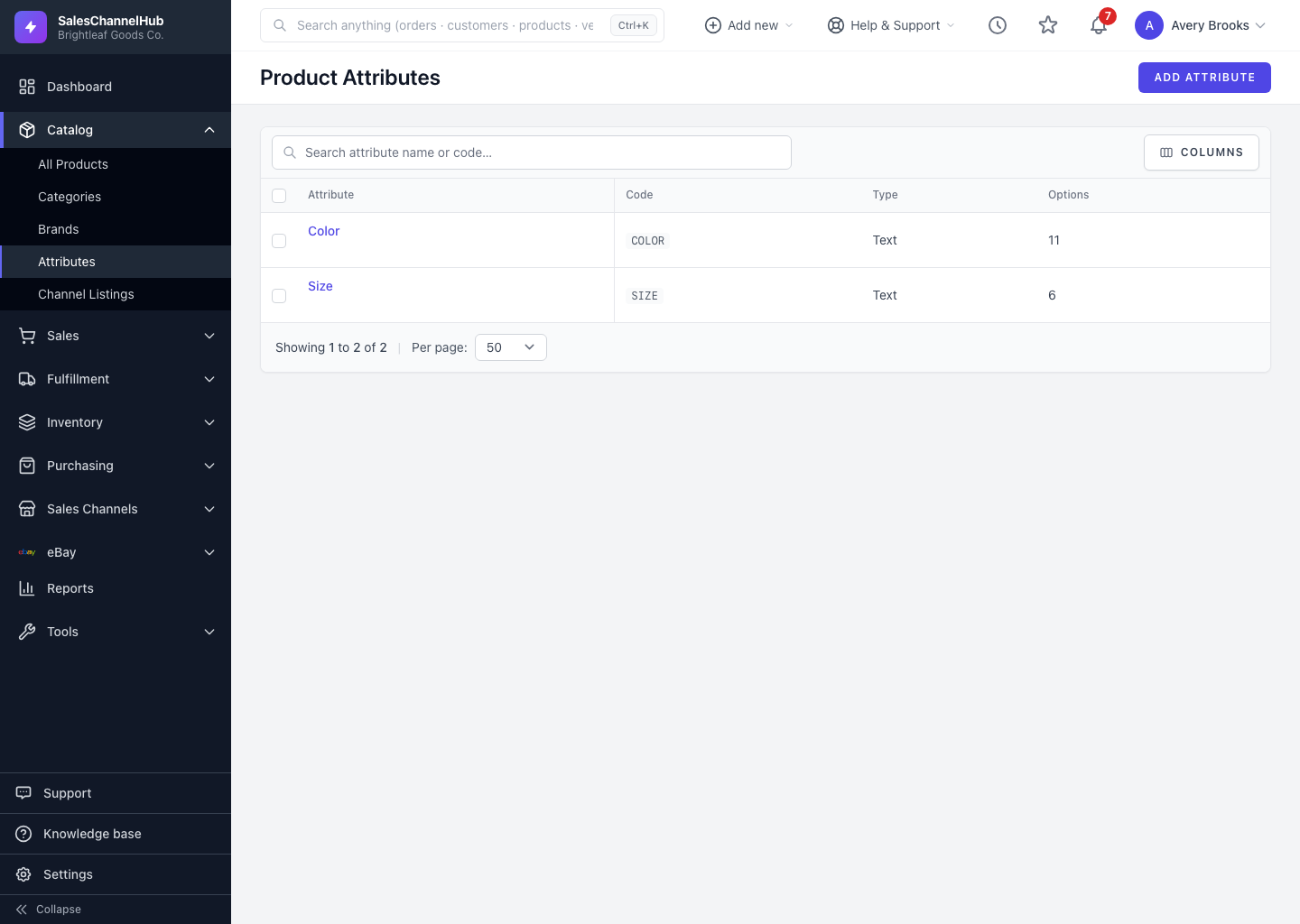
How do I create an attribute?
- Click Add Attribute on the Product Attributes list.
- Enter a Name (required). Leave Code blank to auto-generate it, or type your own using letters, numbers and underscores.
- Set a Sort Order to control where it appears among other attributes.
- Under Options, click + Add Option for each value. Type the Value, pick a Color swatch if it helps, and set its sort order.
- Click Create Attribute.
Do I need every option up front?
No. Add the values you know now and add more later by editing the attribute. The color swatch is most useful on visual attributes like Color or Finish.
Tip. Keep option values clean and consistent, since they appear on variants and push to your sales-channel listings.
Common questions
Do I have to set a Code?
No. Leave it blank and the app generates one from the name. Set your own only if you want a specific internal code; it accepts letters, numbers and underscores.
Can I add more options after creating the attribute?
Yes. Edit the attribute and use + Add Option at any time. You can also add a value on the fly from the variant builder.