Delete a product
Open the product and click Delete in the header. Products with stock on hand can't be deleted; clear the inventory first.
Deleting removes a product from your catalog for good. Use it for mistakes and test entries. For items you simply no longer sell, discontinuing is usually the better choice.
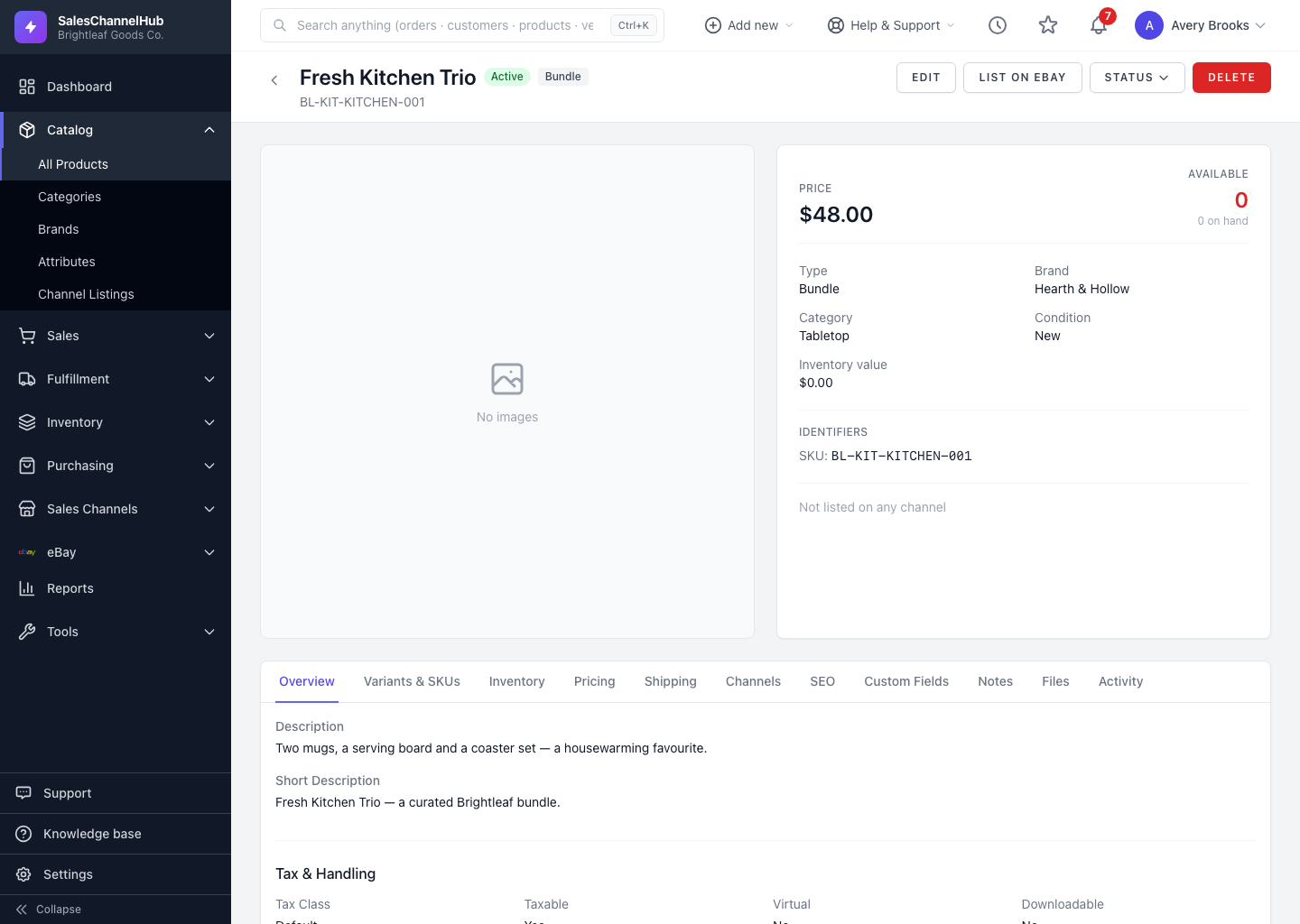
How do I delete a product?
- Open the product you want to remove.
- Click Delete in the header.
- Confirm when prompted. The product is removed and you're returned to the list.
What should I check before deleting?
- Products that have stock on hand can't be deleted. Clear the inventory first.
- Deletion can't be undone, so discontinue instead if you might need the history.
Tip. You can also delete from the list using the Delete action that appears when you hover a row.
Common questions
Why can't I delete a product?
It still has stock on hand. The app blocks deletion of stocked products to protect your inventory. Clear the stock first, or discontinue the product instead.
Can I undo a deletion?
No. Deletion can't be reversed. If you might need the product's history later, set it to Discontinued rather than deleting.
Should I delete or discontinue products I no longer sell?
Discontinue. It keeps the product and its order history while removing it from active selling. Delete only for mistakes and test entries.