Add attachments to a ticket
Use the Attachments field on a new ticket, or the file picker on a reply, to add up to five screenshots, logs or files.
To attach files, use the Attachments field on a new ticket or the file picker on a reply. A screenshot of an error often turns a back-and-forth into a single, accurate answer.
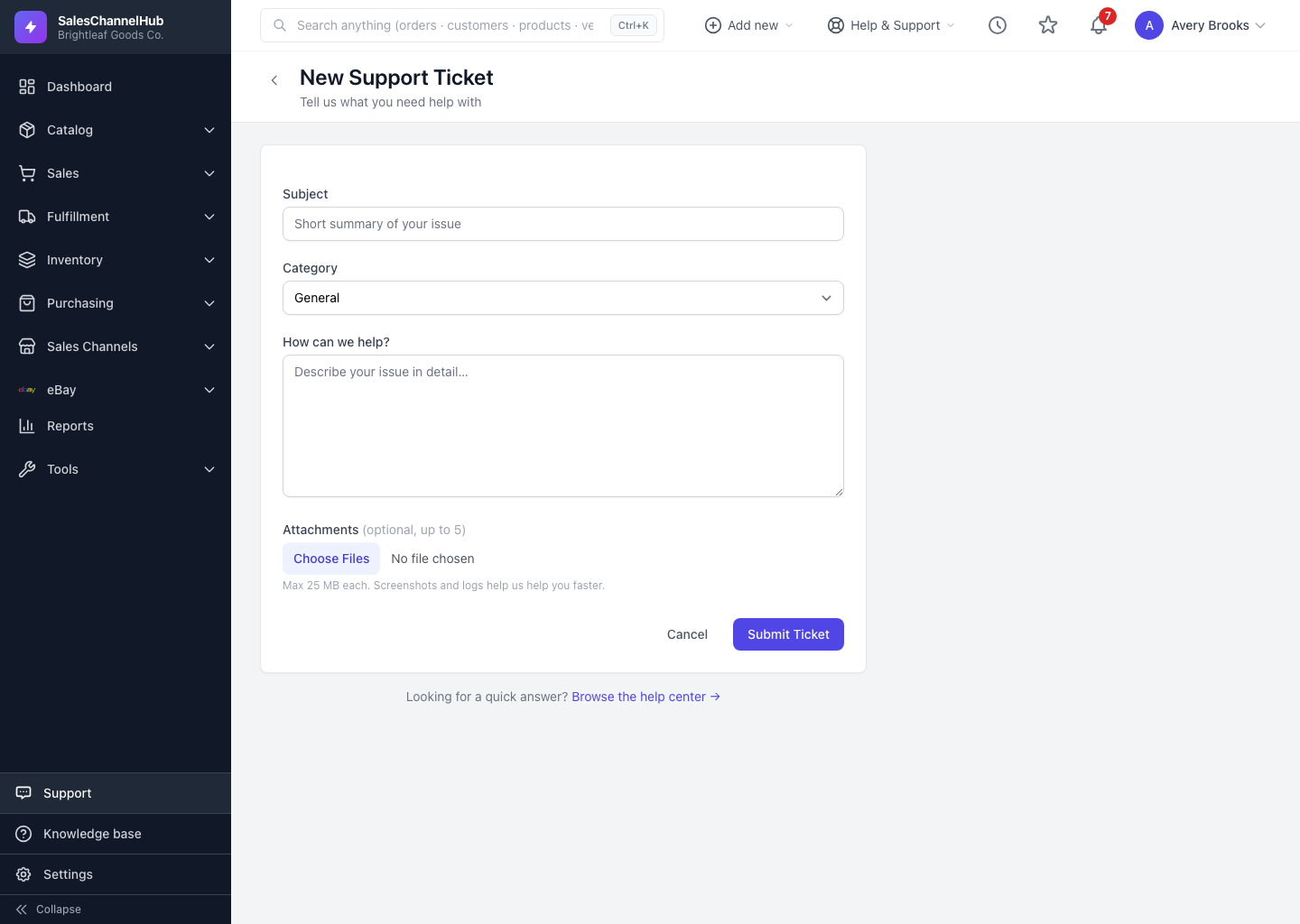
How do I attach files?
- On the New Support Ticket form, use the Attachments field to choose files from your computer.
- Add up to five files per message. The size limit per file is shown beneath the field.
- Already on a ticket? The reply box has its own file picker. Attach files there before you click Send Reply.
- Submit the ticket or reply. Your files appear in the thread for our team to open.
Tip. Need to send more than five files? Send the first five with your ticket, then add the rest in a follow-up reply.
Common questions
My file was rejected. Why?
It's likely over the per-file size limit shown on the form, or a blocked file type such as an executable. Compress large logs or screenshots and try again.
How many files can I attach?
Up to five per message. To send more, attach five with your ticket and add the rest in a follow-up reply.
How big can each file be?
The exact limit is shown beneath the Attachments field on the form. Anything larger is rejected, so compress it first.