Create a manual order
Click New Order, pick a customer, add product lines, then set discounts, shipping and tax before saving.
To enter a sale that came in by phone, email or in person, click New Order on the orders list and fill in the form.
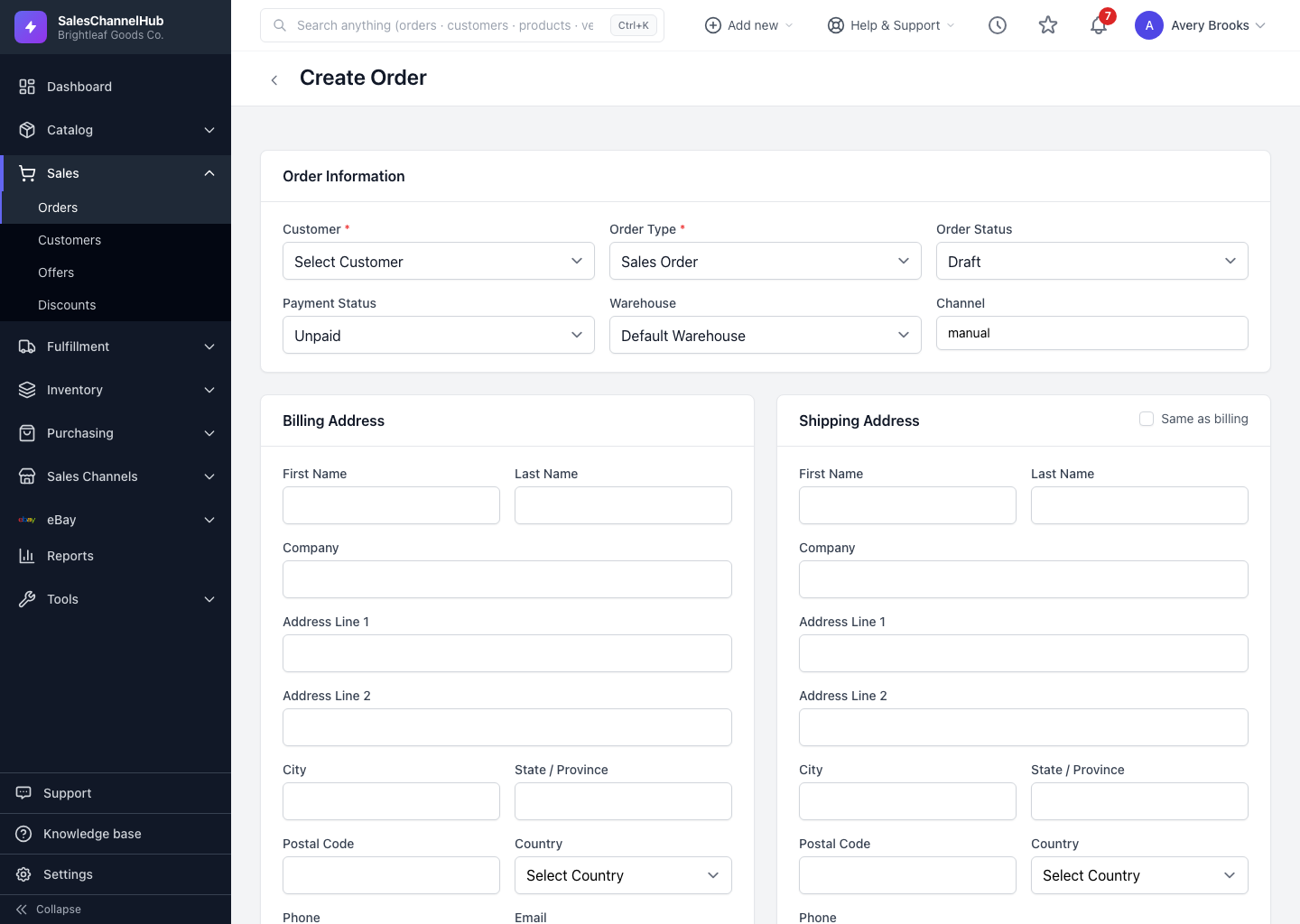
How do I build the order?
- On the orders list, click New Order.
- Under Order Information, choose the Customer and Order Type, set an opening Order Status and Payment Status, and optionally a Warehouse and Channel.
- Fill in the Billing Address and Shipping Address. Picking a customer can auto-fill these, and Same as billing copies one to the other.
- Under Order Lines, click Add Line, choose a SKU, and set the quantity, unit price and any per-line discount.
- Set order-wide Discount Code, Discount, Shipping Cost and Tax Amount under Order Totals. The running total updates as you type.
- Add any Internal or Customer notes, then click Create Order.
Tip. Selecting a SKU fills in its catalogue price automatically. You can still override it on the line if this customer has a special rate.
Common questions
Do I have to enter addresses by hand?
No. Choosing a customer auto-fills their billing and shipping address. Same as billing copies the billing address to shipping in one click.
What order status should I start with?
The form opens on Draft, but you can start at Pending, Confirmed or Processing. Use Draft while you're still building the order, and a later status when it's ready to work.
Why is the Tax Amount field locked?
Avalara is set to calculate tax automatically. Turn that off under Integrations if you need to enter tax by hand.