Send a test email
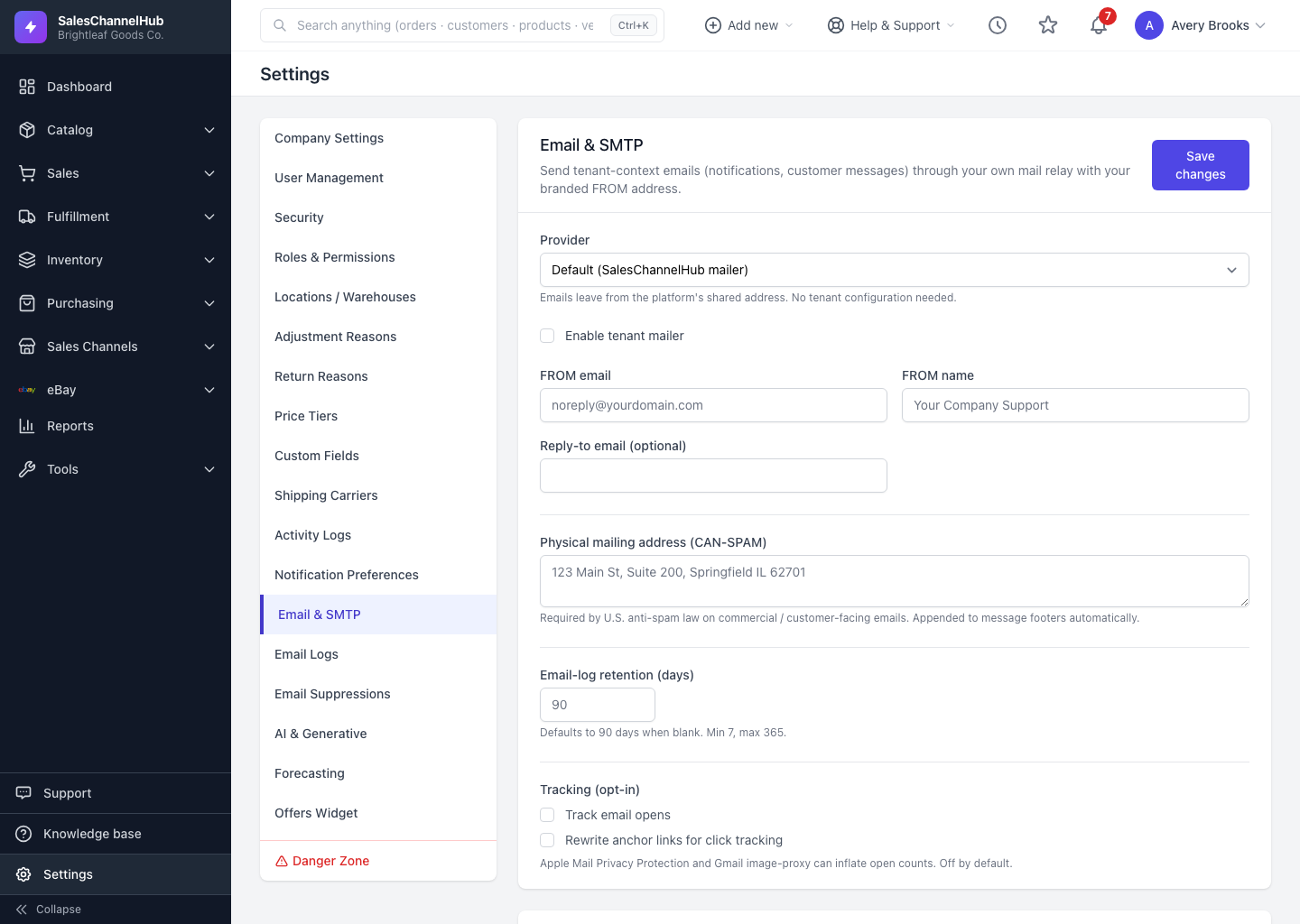
After saving email settings, use Send test email on the Email page to confirm your provider accepts the message, then read the Recent tests table.
After changing email settings, send a test to make sure your provider accepts the message and your FROM address looks right.
How do I send a test email?
- On Settings → Email & SMTP, save your changes first.
- Scroll to Send a test email and click Send test email.
- Check the Recent tests table below. Each attempt shows a status (Sent, Failed, or Suppressed), the mailer used, the recipient, and when it ran.
- If a test shows Failed, the error message appears under the row to help you fix the cause.
Tip. A failed test almost always points at the credentials or the FROM domain. Re-check the provider fields and that your domain's DNS is verified, then test again.
Common questions
My test shows Suppressed. What does that mean?
The recipient is on your suppression list, so sending was skipped. Open Email Suppressions to see why, and release the address only if it's safe to email again.
The test failed. Where do I start?
The error under the failed row names the cause. Most failures are wrong credentials or an unverified FROM domain, so re-check the provider fields and the DNS panel, then test again.