Edit your company settings
On the first Settings page, set your company name, contact details, tax ID, currency and timezone, then click Save Settings.
Company Settings holds the core facts about your business. These values feed documents, defaults, and the way dates and money display across the app.
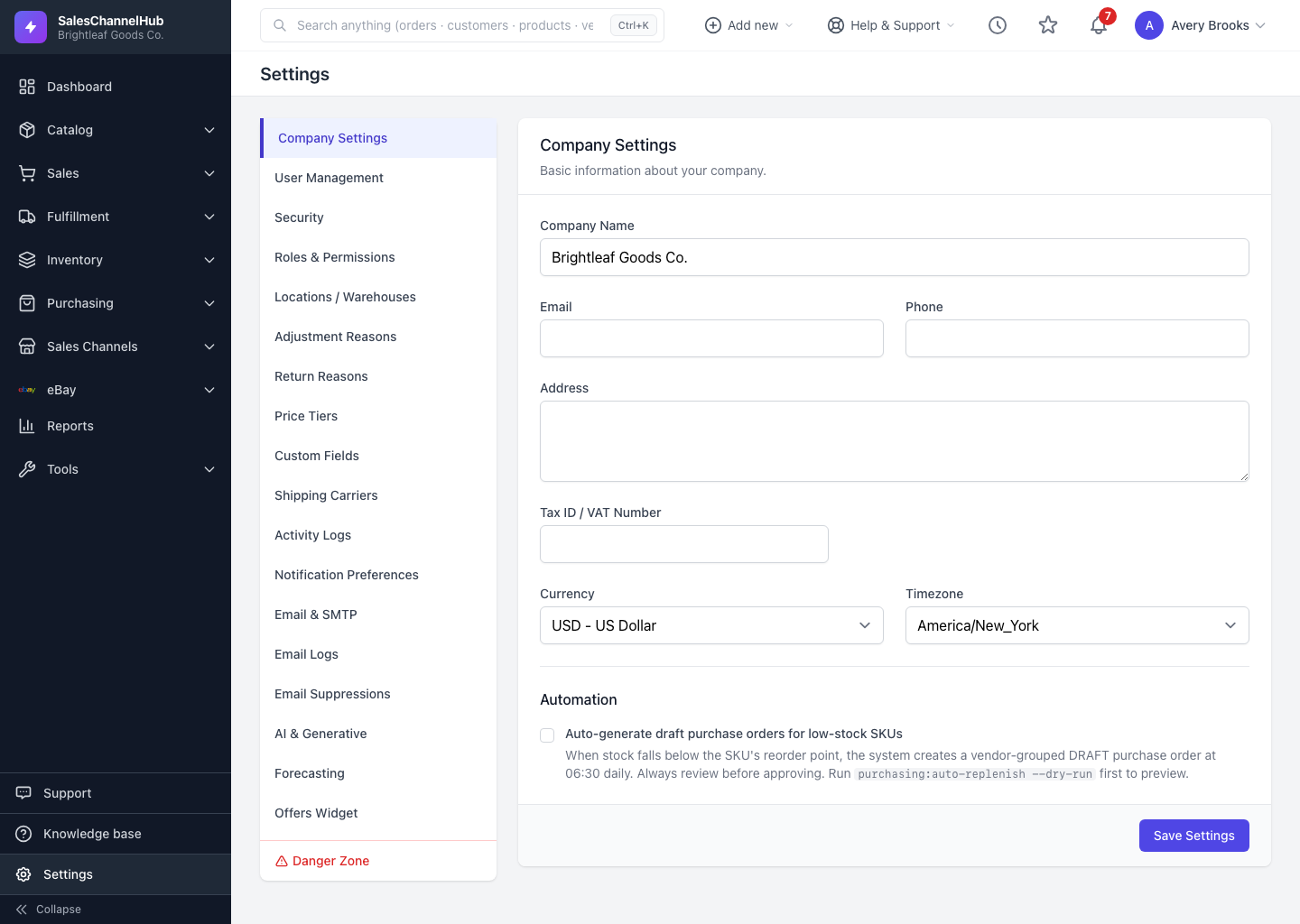
How do I edit my company settings?
- Open Settings — Company Settings is the first page.
- Fill in Company Name, Email and Phone.
- Add your Address and Tax ID / VAT Number.
- Pick your Currency (for example USD - US Dollar) and Timezone.
- Click Save Settings.
Where does the company name show up?
The Company Name here is also the default sender name and appears on customer-facing documents, so keep it the way you want buyers to see it.
Tip. Set the timezone to where your operations team works so order and activity times read correctly, and pick the currency you actually sell in to avoid confusing totals.
Common questions
Why are my order times off by a few hours?
The timezone is wrong. Open Company Settings, set Timezone to where your operations team works, and save. Timestamps across the app recalculate to that zone.
Does changing the currency convert my existing prices?
No. The currency setting only changes the symbol and formatting shown. It doesn't recalculate any stored amounts, so set it to the currency you actually sell in.