Audit recent mapping changes
Click View recent changes to see every mapping change from the last 7 days, newest first, so you can catch silent drift before it misfiles listings.
The recent-changes view lists every mapping change from the last 7 days, newest first, so you can catch drift before it misfiles a whole category of listings. Mappings drive what category your products land in, so a stray change can quietly send listings to the wrong place.
How do I read the audit?
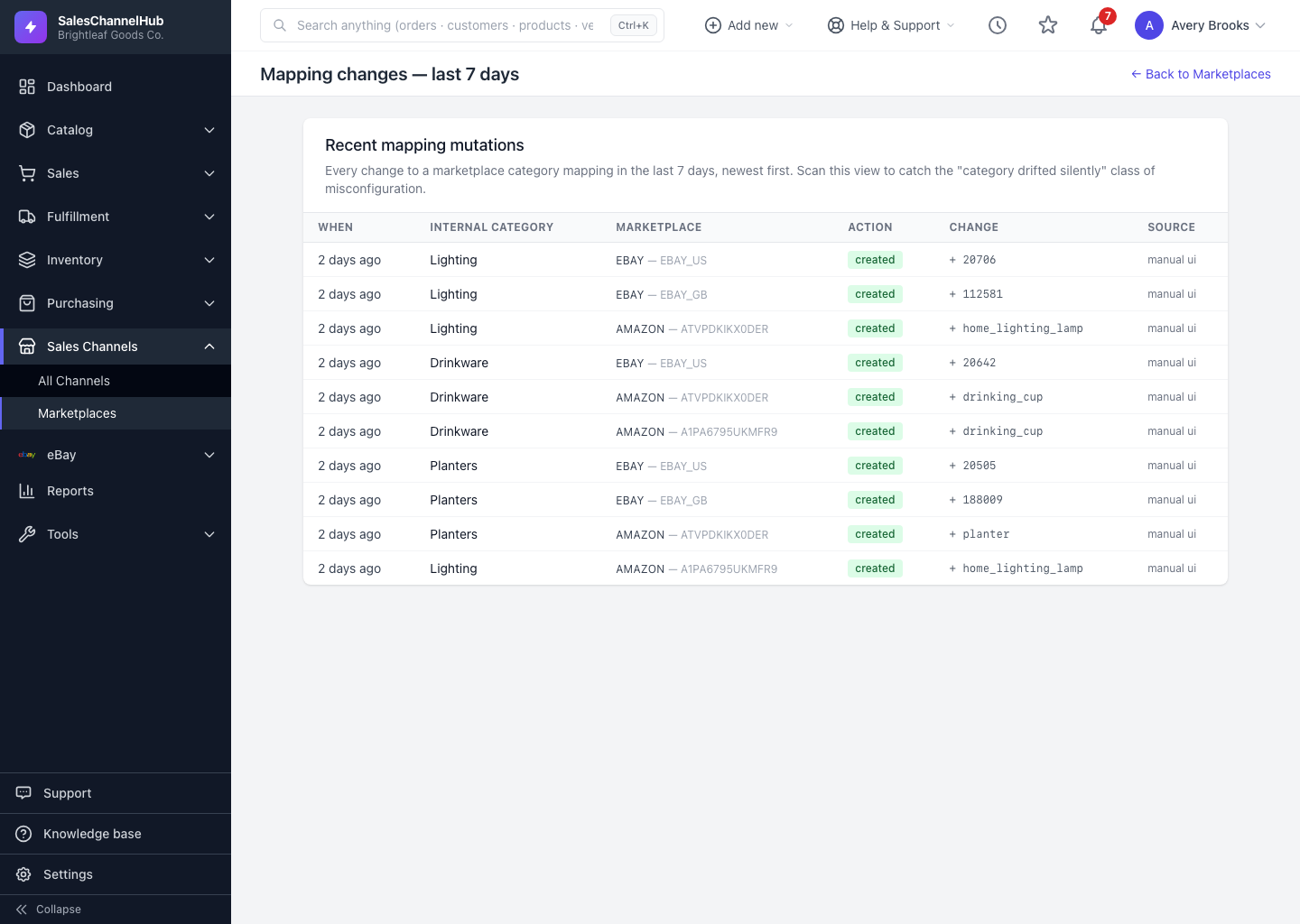
- From the uncategorized list, click View recent changes →. The page is headed Mapping changes — last 7 days.
- Read the table top to bottom. Each row shows When the change happened, the Internal category, the Marketplace and region, the Action, the Change itself, and the Source.
- The coloured Action tag names the kind of change: created, updated, deleted, bulk applied, restored or migrated deprecation.
- The Source column tells you whether the change came from a manual edit in the app or an automated process.
What is it good for?
- Confirming a teammate's change went in the way you both expected.
- Catching a category that drifted without anyone meaning to change it.
- Tracing back from a misfiled listing to the exact change that caused it.
Tip. Skim this view after any big mapping session or a deprecation cleanup. It's the quickest way to confirm everything landed as intended.
Common questions
How far back does the audit go?
The last 7 days, newest first. It's built for the "what changed recently?" check, not full history, so older changes drop off the view.
What does the Source column tell me?
Whether a change came from a manual edit in the app or from an automated process such as a bulk-apply or a deprecation cleanup. It's how you tell a person's edit from a system one.
I see a "migrated deprecation" action. What is that?
It marks a mapping the system moved off a marketplace category that was retired. Check the new target is right, and confirm it on the category's mapping page if needed.