Export report results
Click Export on the results page and pick CSV, Excel or PDF. Excel and PDF have row limits; oversized reports must go out as CSV.
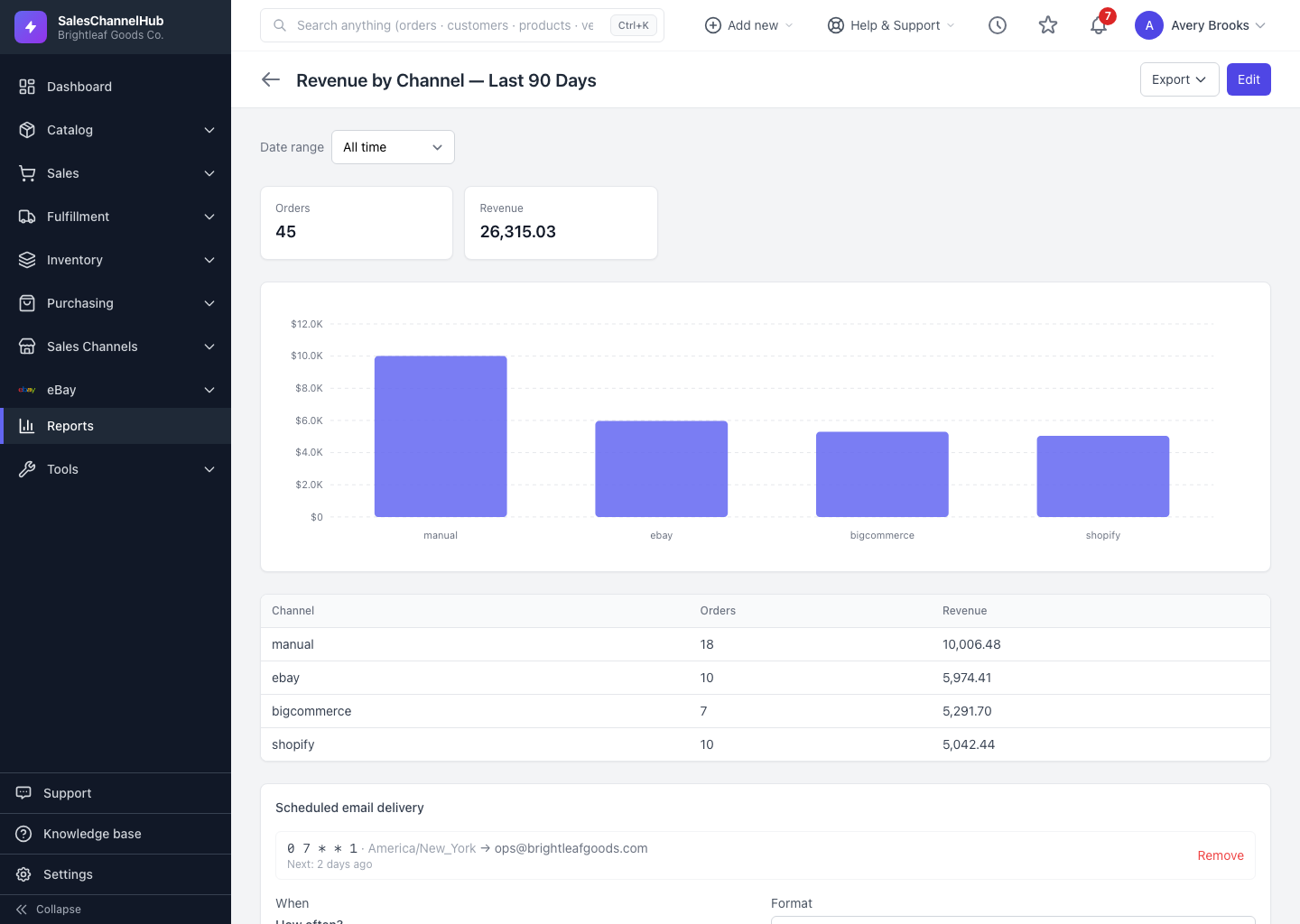
Any saved report can be downloaded for sharing or deeper analysis. The Export button sits at the top right of the results page.
How do I export a report?
- Open the report and click Export.
- Choose a format: CSV (.csv), Excel (.xlsx) or PDF (.pdf).
- The file downloads. If you've set a Date range on the results, the export honours it.
What happens with a very large report?
Excel and PDF have row limits, with PDF the smallest. If a report is too big for the format you chose, you're asked to export it as CSV instead. Very large CSV exports are prepared in the background, and you get a notification when the file is ready to download.
Tip. Excel exports keep money and number columns as real numbers, so totals sum and sort correctly in your spreadsheet. Reach for PDF when you want a tidy, printable snapshot.
Common questions
Which export format should I use?
CSV for re-importing or large data, Excel when you want money and numbers to stay sortable in a spreadsheet, and PDF for a printable snapshot. PDF has the smallest row limit.
Why was my Excel or PDF export blocked?
The report has more rows than that format allows. Export it as CSV instead; CSV handles the larger sets.
Does the export use the date range I picked?
Yes. If you've set a Date range on the results, the export honours that window rather than the full data set.