Add a location or warehouse
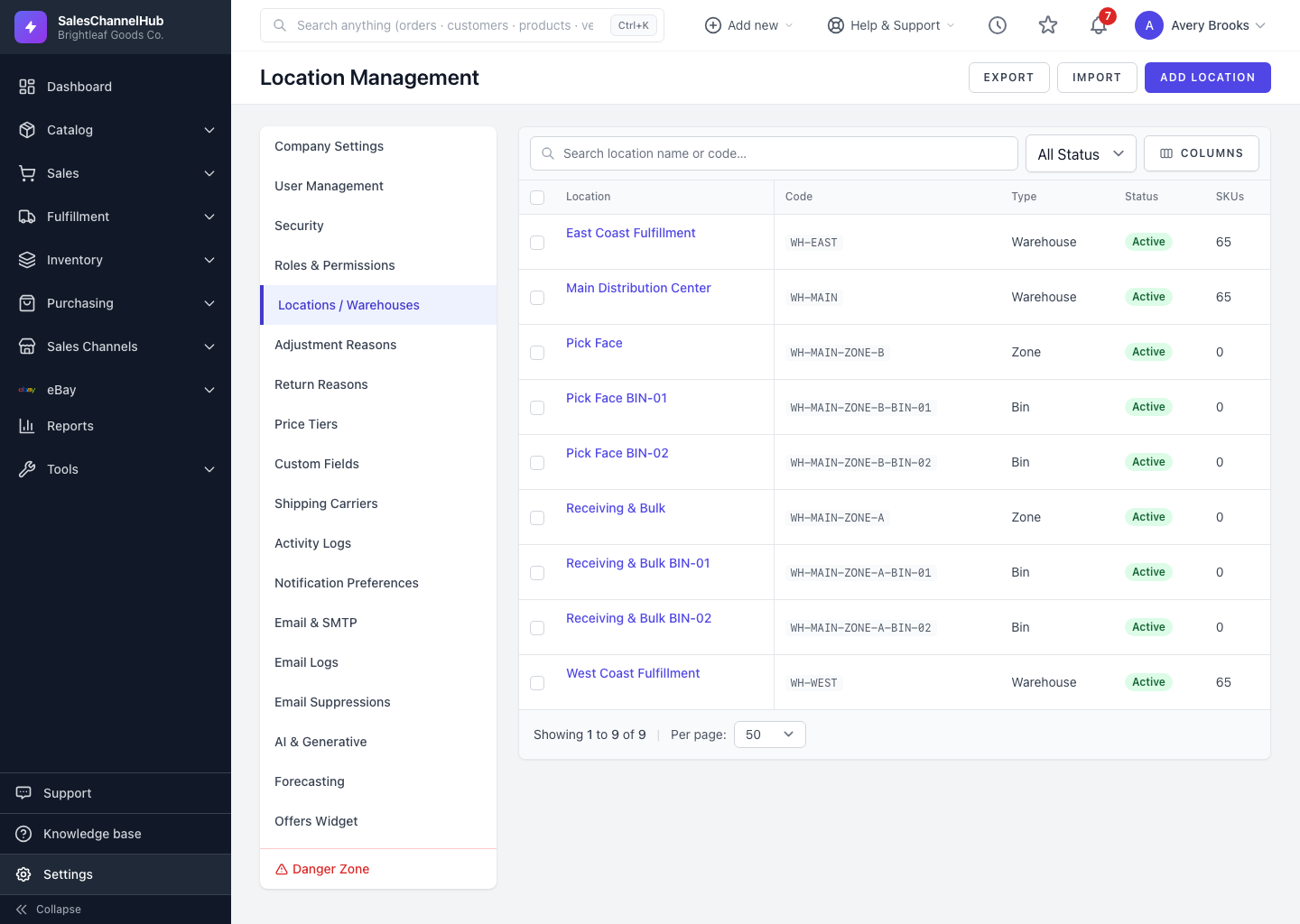
Go to Settings → Locations / Warehouses → Add Location, set a name, unique code, type, parent and stock-handling flags, then Create Location.
Add a location whenever you open a new site or want finer control over where stock lives.
How do I add a location?
- Go to Settings → Locations / Warehouses and click Add Location.
- Enter a Name and a unique Code (for example WH-01 or ZONE-A).
- Pick a Location Type and, if it sits under another place, a Parent Location.
- Optionally add the address. For warehouses you can also set a Timezone.
- Tick the flags you need: Active, Sellable, Receivable.
- Click Create Location.
Tip. Codes are how imports and integrations match locations, so choose a scheme you can keep consistent and never reuse a code.
Common questions
Do I have to set a parent location?
No. A top-level warehouse has no parent. Set a Parent Location only when the place sits inside another, such as a zone within a warehouse.
Can I change a location's code later?
Yes, by editing the location, but avoid it. Codes are how imports and channel syncs match a location, so changing a code can break those mappings.
Was this article helpful?