Create a custom field
Go to Settings → Custom Fields → Add Custom Field, name it, pick a type and what it applies to, then set required, list and filter behaviour.
Create a custom field when you need to store something the built-in forms don't cover.
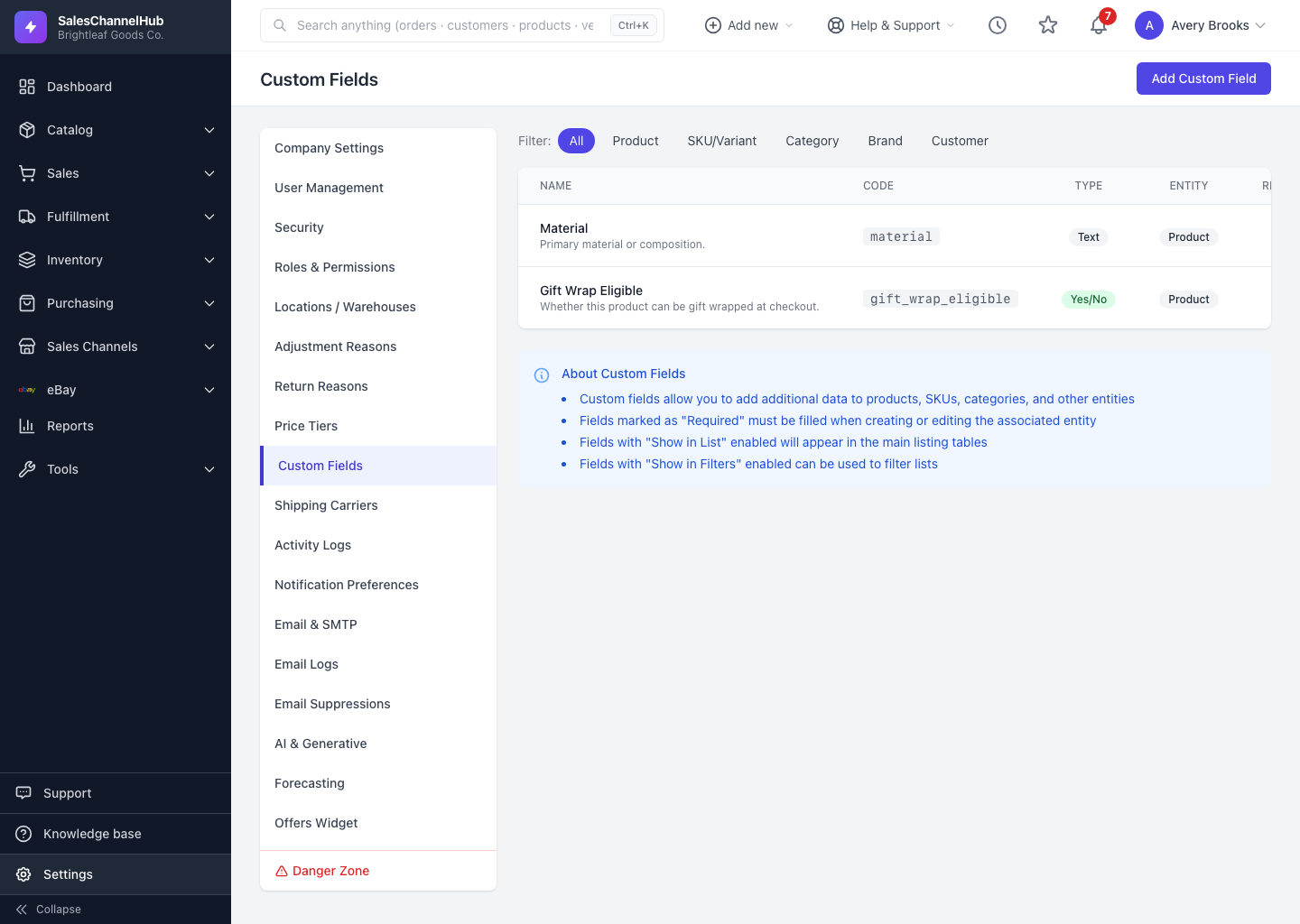
How do I create a custom field?
- Go to Settings → Custom Fields and click Add Custom Field.
- Enter a Field Name. Leave Field Code blank to auto-generate it, or set your own using lowercase letters, numbers and underscores.
- Pick a Field Type and choose what it applies to under Apply To.
- For Dropdown or Multi-Select, add the available Options.
- Set any Default Value, Placeholder, Help Text and validation rules.
- Under Visibility & Behavior, choose Required, Show in List View, Show in Filters, Searchable, and keep Active ticked.
- Click Create Custom Field.
Tip. Required fields must be filled in whenever someone creates or edits that record type, so only mark a field required if every record genuinely needs it.
Common questions
Can I change a field's type after creating it?
Changing the type of a field that already holds values risks mismatching the saved data. If a field's type is wrong, it's safest to deactivate it and create a new one of the right type.
Where does a custom field appear once I create it?
On the record type you chose under Apply To. For products it shows on the product's Custom Fields tab; that tab only appears once at least one product field exists.
Was this article helpful?