Read and group notifications
Open the full Notifications page, filter by status, category or type, and expand grouped alerts to see each item.
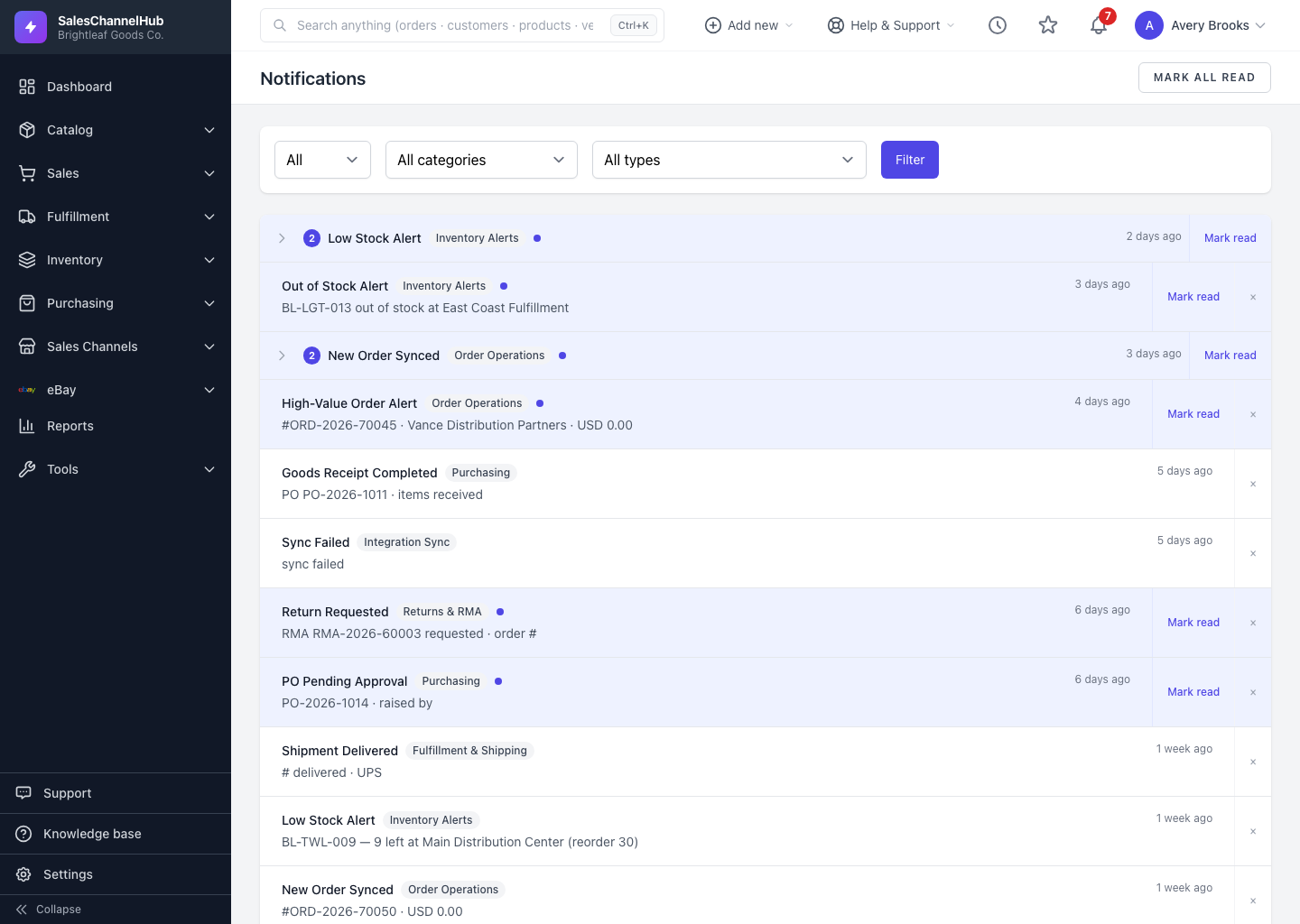
The Notifications page is the full version of the bell. It lists every alert you've received and lets you filter and drill into them. Open it from the bell's View all notifications link.
How do I find a specific notification?
- Use the status dropdown to show All, Unread or Read.
- Narrow by category (Order Operations, Inventory Alerts, Purchasing, Returns & RMA and more) or by a specific type, then click Filter. Clear removes every filter.
- A blue dot and a tinted row mark anything still unread.
Why are some alerts collapsed into one row?
When the same kind of alert arrives several times in a day, such as multiple low-stock warnings, they're collapsed into one row with a count chip. Click the arrow on the left to expand it and see each individual item.
Tip. Grouping is display-only. The individual alerts are never merged or deleted, so expanding a group always shows the real underlying items.
Was this article helpful?