Filter and search the email log
Find one email by date, status, recipient, subject, notification type or what triggered it, then click Filter.
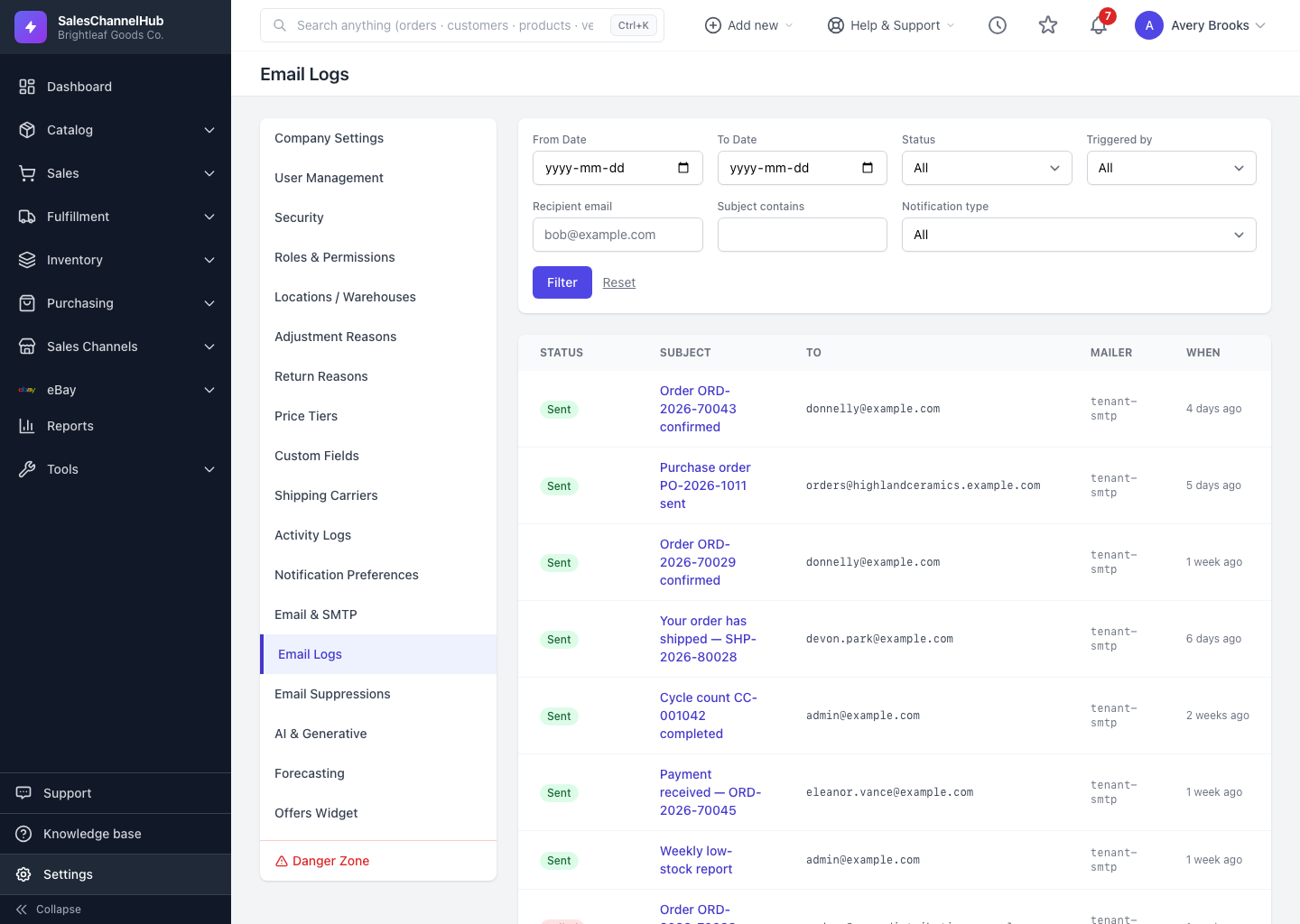
To track down one message among many, the email log offers a detailed filter panel. Open Settings > Email Logs and use the form at the top of the page.
How do I narrow the list?
- From Date and To Date bound the period you're searching.
- Status shows only Sent, Failed, Queued, Suppressed or Sending messages.
- Triggered by filters by what set the email off: a user action, a scheduled job (cron), the system, or an incoming webhook.
- Recipient email finds everything sent to one address; Subject contains matches words in the subject line.
- Notification type limits to one kind of message, like an order confirmation.
- Click Filter to apply, or Reset to clear everything.
Tip. When a customer says their order confirmation never arrived, filter by their Recipient email and read the Status column. It usually answers the question on its own.
Common questions
A customer says they never got their order confirmation. Where do I look?
Open Settings > Email Logs, filter by their Recipient email, and check the Status. No row means the email wasn't sent; Failed or Suppressed explain why it didn't arrive.
What does Triggered by mean?
It records what set the email off: a user action, a scheduled cron job, the system, or an incoming webhook. Filter by it to separate automated sends from ones a person triggered.