Start from a template
Pick a ready-made rule from the gallery on the create page and it pre-fills the type, schedule and conditions for you.
To skip the setup, pick a template. The gallery on the create page is full of pre-built rules for common automations, and choosing one fills in the rule type, schedule and sensible conditions so you can adjust only what you need.
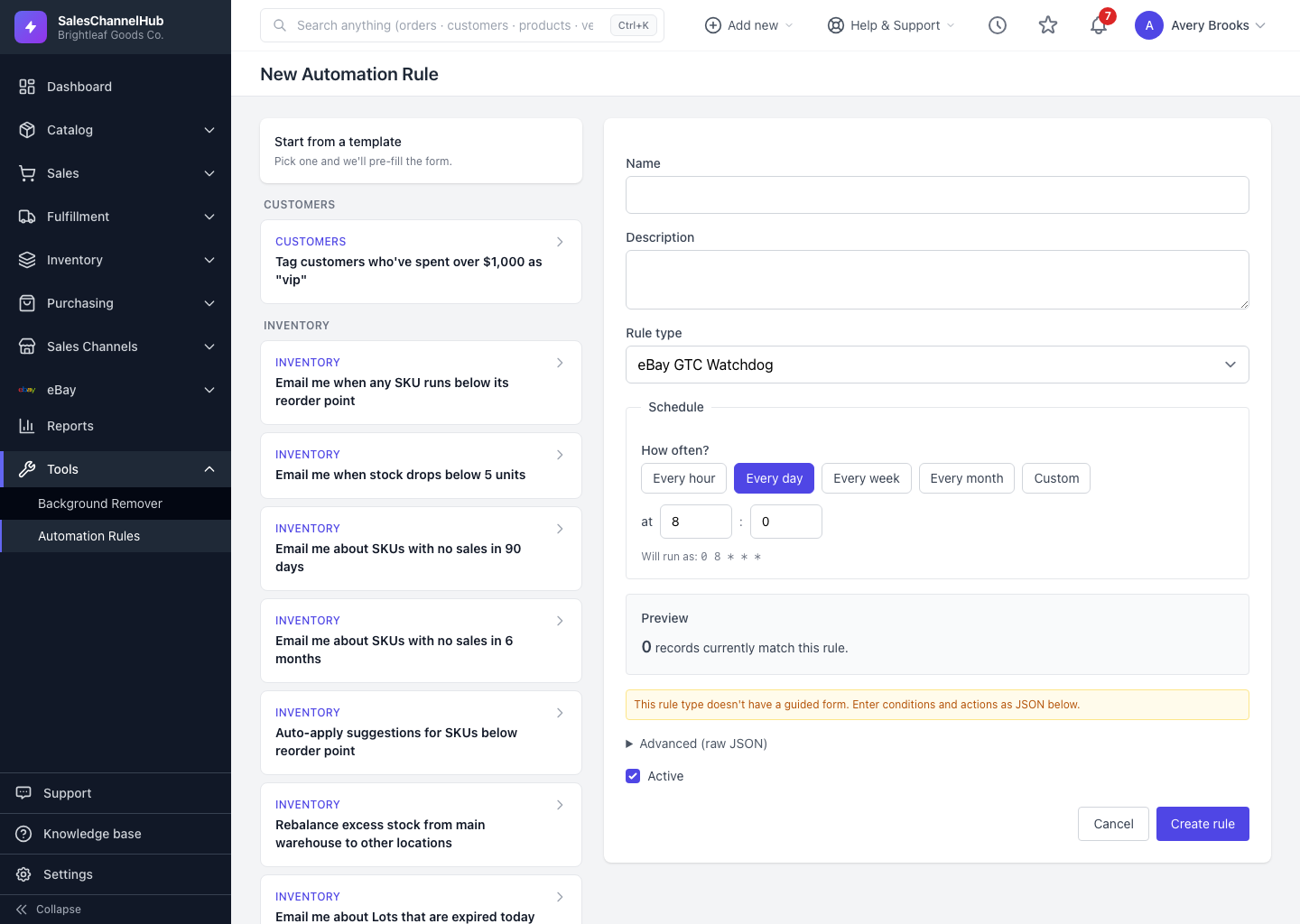
How do I use a template?
- From Automation Rules, click New rule to open the create page. The Start from a template gallery sits on the left.
- Templates are grouped by area, such as Inventory, Orders, Purchasing and Reports. Browse to one that fits, like "Email me when any SKU runs below its reorder point".
- Click the template card. The form on the right fills in with that template's name, schedule and conditions.
- Edit anything you like, then click Create rule.
Tip. When you have no rules yet, a shortlist of featured templates also appears right on the Automation Rules list, so you can launch one without opening the full gallery.
Common questions
Can I change a template after I pick it?
Yes. A template only pre-fills the form. Edit the name, schedule or any condition before you click Create rule, and your changes are what gets saved.
What if no template fits what I need?
Use the Or build from scratch card. The form on the right is editable in either mode, so you can pick a rule type and configure every field yourself.
Why are some rule types missing from the gallery?
A few rule types, including the eBay-specific ones, don't ship templates, so they're left out to keep the gallery approachable. They're still available in the Rule type dropdown on the build-from-scratch form.