Tune your forecasting settings
Open Settings → Forecasting to adjust lookback, lead time, replenishment cycle and safety buffers, then Save forecasting settings.
The defaults work for most sellers, but the forecast sharpens when the settings match how you actually buy and sell. Open Settings → Forecasting to tune them, then save with Save forecasting settings.
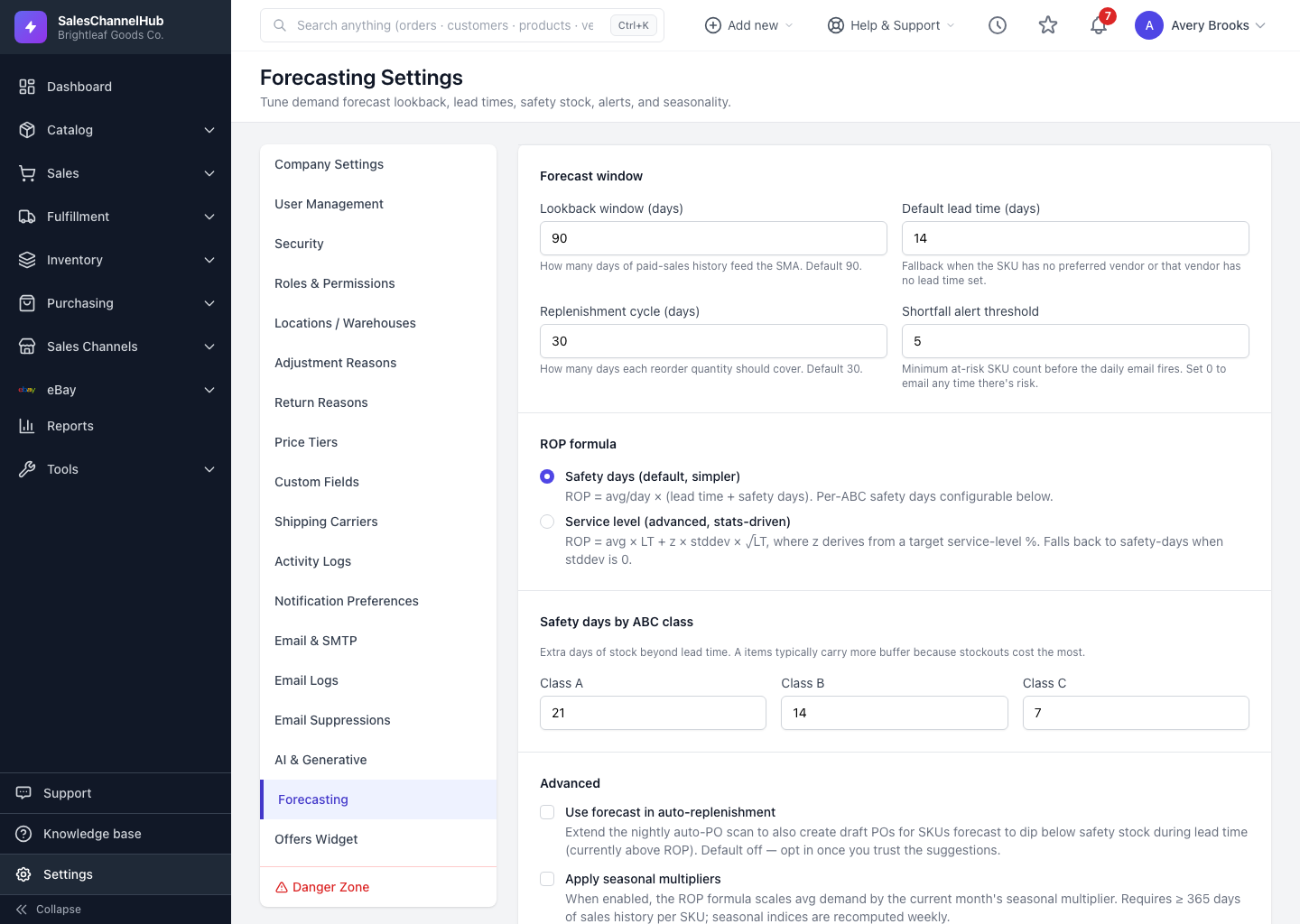
What does the forecast window control?
- Lookback window (days): how much sales history feeds the demand average. Default 90. Shorten it for fast-moving or trendy lines, lengthen it for steady ones.
- Default lead time (days): the fallback used when a SKU's preferred vendor has no lead time set. Default 14.
- Replenishment cycle (days): how many days of demand each reorder quantity should cover. Default 30.
- Shortfall alert threshold: how many at-risk SKUs it takes before the daily warning email fires.
How is the reorder point sized?
- Safety days (default, simpler): adds a fixed number of buffer days per ABC class on top of lead time. Set Class A, B and C separately.
- Service level (advanced): sets a target probability of not stocking out (80–99%) per class and sizes the buffer from your demand variability.
What do the advanced toggles do?
- Use forecast in auto-replenishment drafts POs for SKUs forecast to dip below safety stock during lead time, even while they're still above the reorder point.
- Apply seasonal multipliers scales demand by the current month's seasonal pattern. It needs at least 365 days of history per SKU, and indices recompute weekly.
Tip. Change one setting at a time and watch the next day's suggestions, so you can see exactly what each lever does.
Common questions
When do my setting changes take effect?
On the next nightly run. Suggestions recompute overnight, so a change you save today shows in tomorrow's numbers, not instantly.
What's a good lookback window?
The 90-day default suits most catalogs. Shorten it for trendy or fast-moving lines so the average reacts faster; lengthen it for steady sellers to smooth out noise.
Was this article helpful?