Receive goods against a PO
Open a sent PO, enter the quantities that arrived in the Receive Goods section, and click Record Receipt to post stock into inventory.
Receiving turns a delivery into stock-on-hand. You enter the quantities that physically arrived against each PO line, and the app creates a goods receipt and updates inventory.
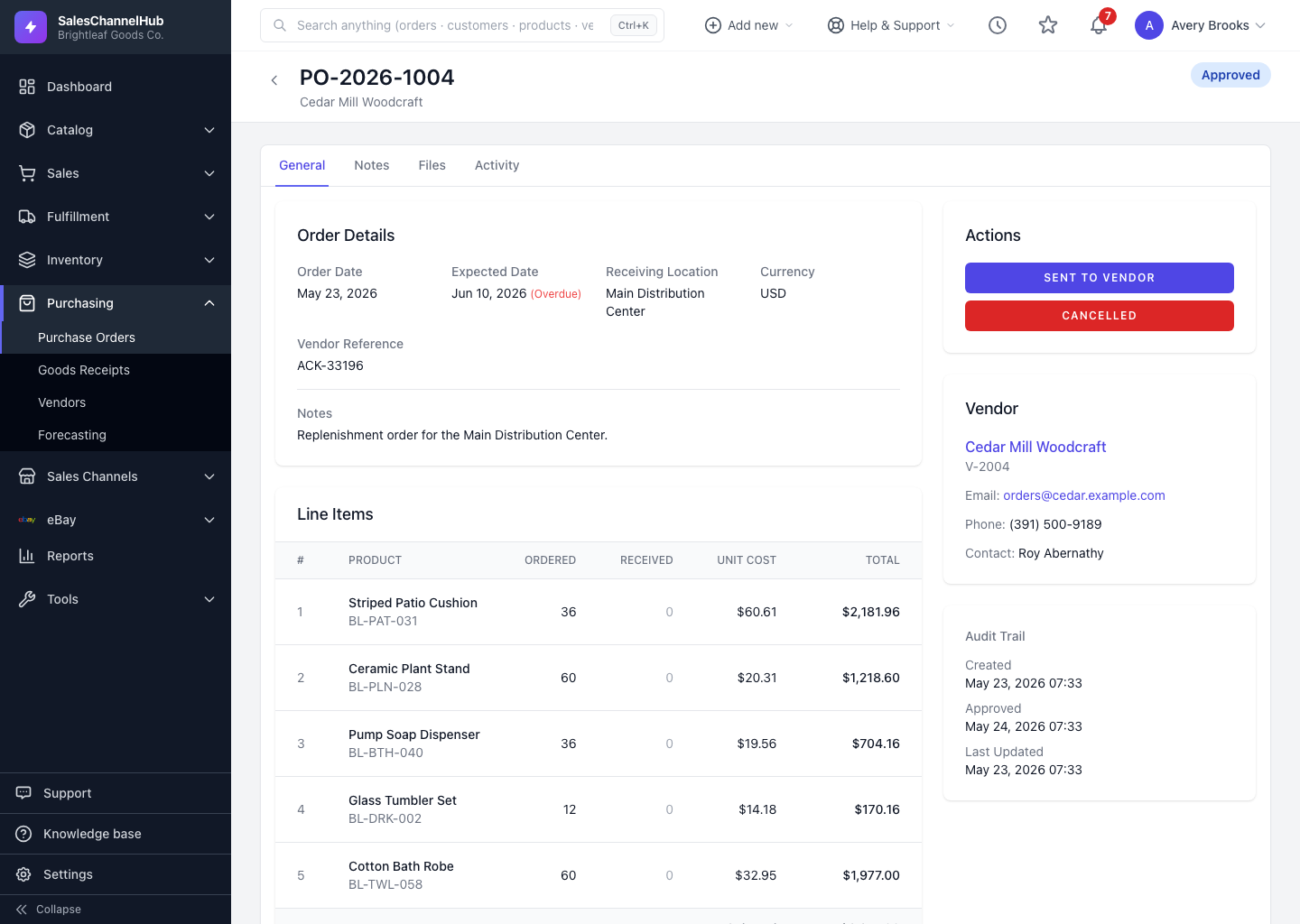
How do I receive goods?
- Open a purchase order that's been Sent to Vendor (or Acknowledged / Partially Received). A green Receive Goods section appears.
- Optionally enter a Vendor Packing Slip # and Receipt Notes.
- For each line, type the quantity into the Receive box. It can't exceed the Remaining amount.
- Add a Lot # and Expiry date where you track them.
- Click Record Receipt.
What happens after I record a receipt?
- A goods receipt is created and listed under Receipt History.
- Stock-on-hand at the receiving location goes up.
- The PO moves to Partially Received or Fully Received depending on how much arrived.
Tip. You don't have to receive everything at once. Leave the Receive box at 0 for items still in transit and come back when they land.
Common questions
Why is there no Receive Goods section on my PO?
You can only receive once a PO has been Sent to Vendor (or Acknowledged / Partially Received). Approve and send the order first.
Can I receive more than was ordered?
No. The Receive box for each line is capped at the Remaining quantity, so you can't over-receive against a line.
Does receiving update my stock right away?
Recording the receipt raises stock-on-hand at the receiving location. The goods are fully confirmed once the receipt is completed, which posts the cost into inventory valuation.