Use the notification bell
Click the bell in the top bar to see your ten most recent alerts and jump straight to what they're about. A red badge counts unread.
The bell in the top-right corner of every page is your quick view of recent alerts. A red badge shows how many notifications you haven't read (99+ once you pass ninety-nine), and it refreshes itself roughly every thirty seconds, so you don't have to reload the page.
How do I use the bell?
- Click the bell to open the dropdown. It loads your ten most recent notifications, with unread ones highlighted and shown first.
- Click any notification to go straight to what it's about. A low-stock alert opens the affected product, for example, and clicking it also marks it read.
- Use the Mark all read link at the top of the dropdown to clear the badge in one go.
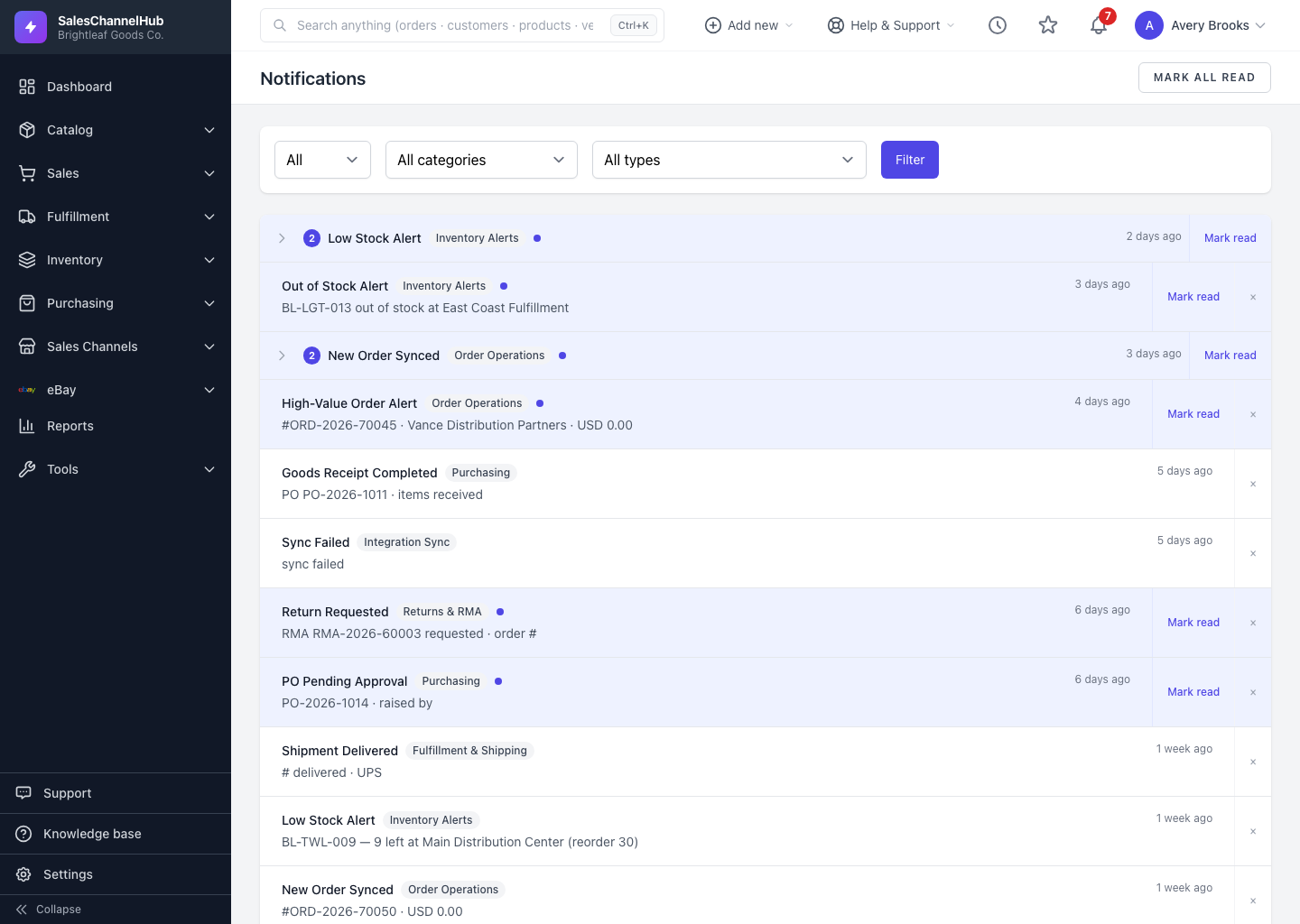
- Click View all notifications at the bottom to open the full Notifications page, where you can filter and browse everything.
What's the number next to some alerts?
A small count chip means similar alerts from the same day are grouped into one row. Clicking it opens just those items rather than a single record.
Tip. Choose which alerts reach the bell, and whether they also email you, under Settings > Notification Preferences.
Common questions
Why won't the bell badge clear?
New notifications probably arrived since you last looked. Click Mark all read. The badge also refreshes on its own roughly every thirty seconds.
How many notifications does the bell show?
The dropdown loads your ten most recent, unread first. For the complete history, open View all notifications at the bottom.