Connect BigCommerce
Connect BigCommerce with a one-click authorise or by pasting an API token you create in your store's API settings.
BigCommerce connects two ways: a one-click authorise (when available) or by pasting an API token you create in BigCommerce. Either way, once connected you can sync products, orders and customers.
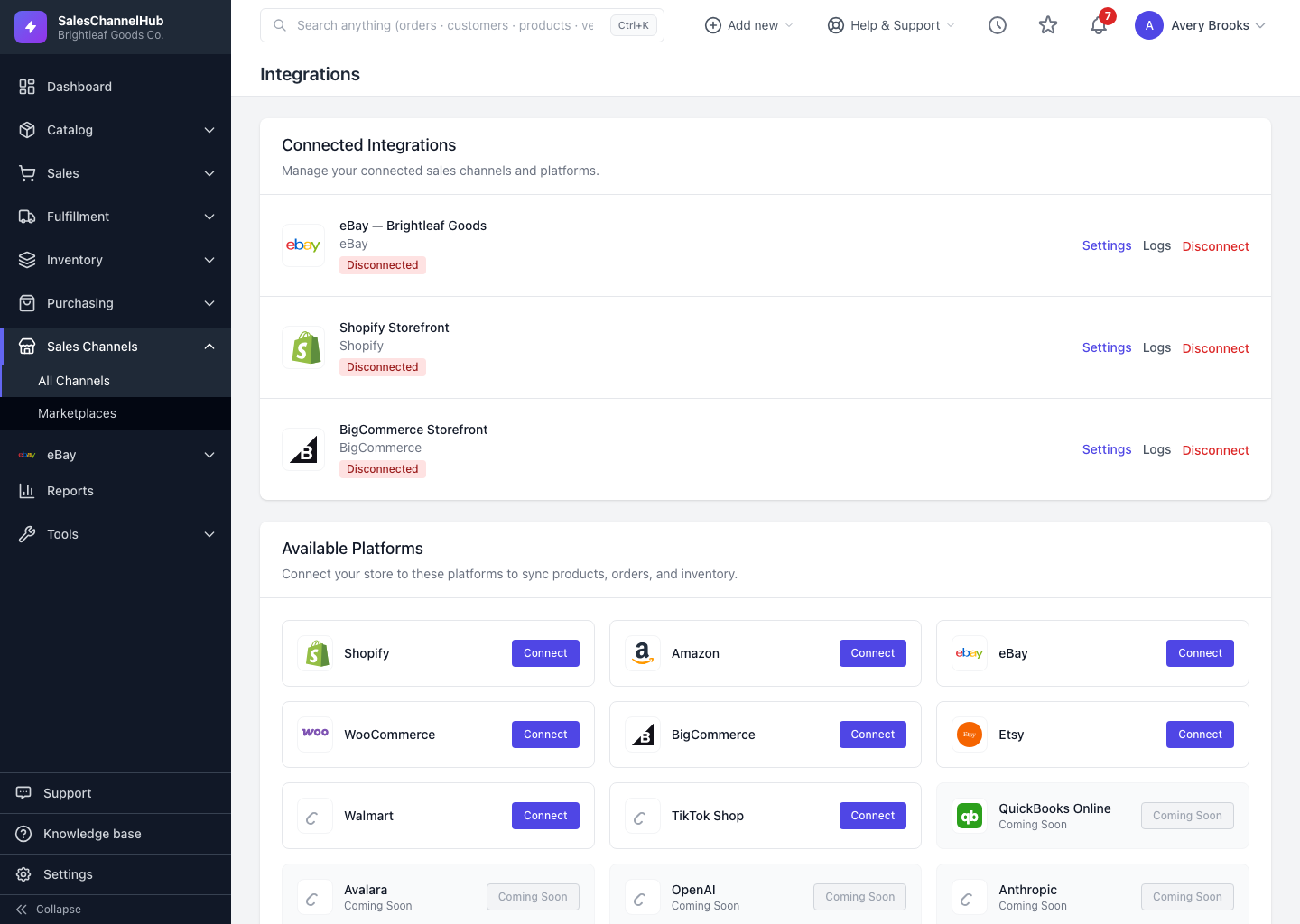
How do I connect with one click?
- From Sales Channels → All Channels, click Connect on BigCommerce.
- If Connect with BigCommerce is shown, click it and authorise the app on BigCommerce. There are no keys to copy.
How do I connect with an API token?
- In BigCommerce, go to Settings → API → Store-level API accounts and create a token with the Products, Orders and Customers scopes.
- Back here, enter your BigCommerce Store URL, the Store Hash (the value between
/stores/and/v3/in your API path), the Access Token, and your Client ID and Client Secret. - Add an optional Display Name, then click Connect to BigCommerce.
Tip. The Client Secret verifies incoming BigCommerce webhooks, so paste it even if you only plan to pull orders for now.
Common questions
Where do I find my Store Hash?
It's the value between /stores/ and /v3/ in your BigCommerce API path. Create the API account first under Settings → API → Store-level API accounts and the path shows it.
Which scopes does the API token need?
Products, Orders and Customers. Grant those when you create the store-level API account so all three entities can sync.
Was this article helpful?