Set reorder points and safety stock
A reorder point is the available-stock level at which a SKU counts as low. Set it through Bulk Adjust to switch on alerts and the row highlight.
A reorder point is the available-stock level at which a SKU counts as low. Set one and the system flags the item, highlights its row, and feeds automatic replenishment.
How do I set reorder points?
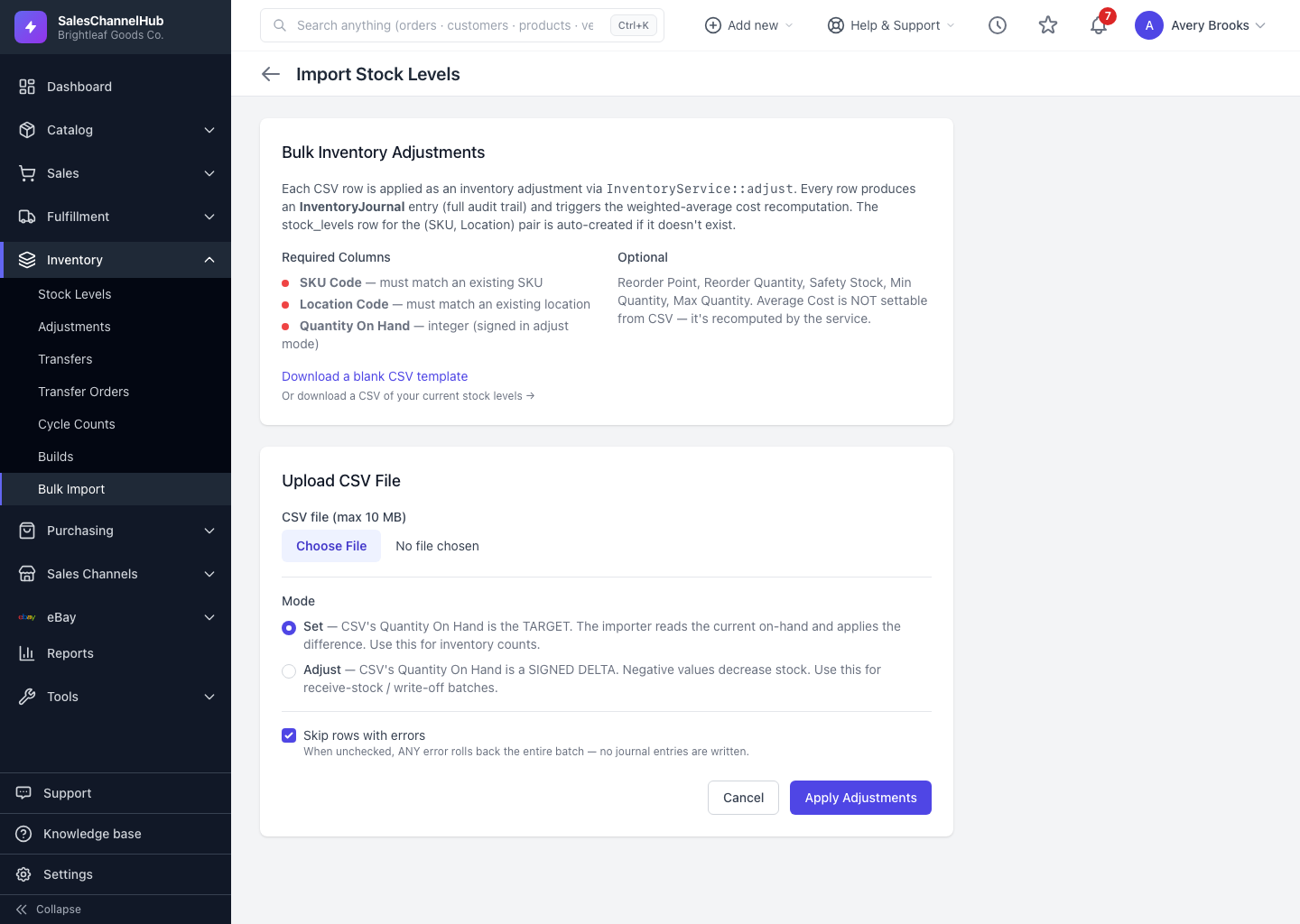
- From the Inventory group, open Bulk Import (the Bulk Adjust button on Stock Levels), then download a CSV of your current stock.
- Fill in the Reorder Point column (and optionally Reorder Quantity and Safety Stock) for the SKUs you want to track.
- Upload the file back to save the values.
What changes once they're set?
- Rows at or below their reorder point turn red and show a (Low) tag.
- The Low stock only filter starts surfacing those items.
Tip. Reorder points also power Forecasting, which can suggest data-driven reorder points and quantities for you to apply in bulk.
Common questions
Can I set reorder points one SKU at a time?
The thresholds are imported through the bulk CSV, alongside Reorder Quantity, Safety Stock, Min and Max Quantity. Export your current stock, edit those columns, and re-upload.
Does a reorder point of zero do anything?
A SKU is flagged when Available is at or below its reorder point. With a point of zero, only a SKU that hits zero available is flagged.