Bulk delete draft purchase orders
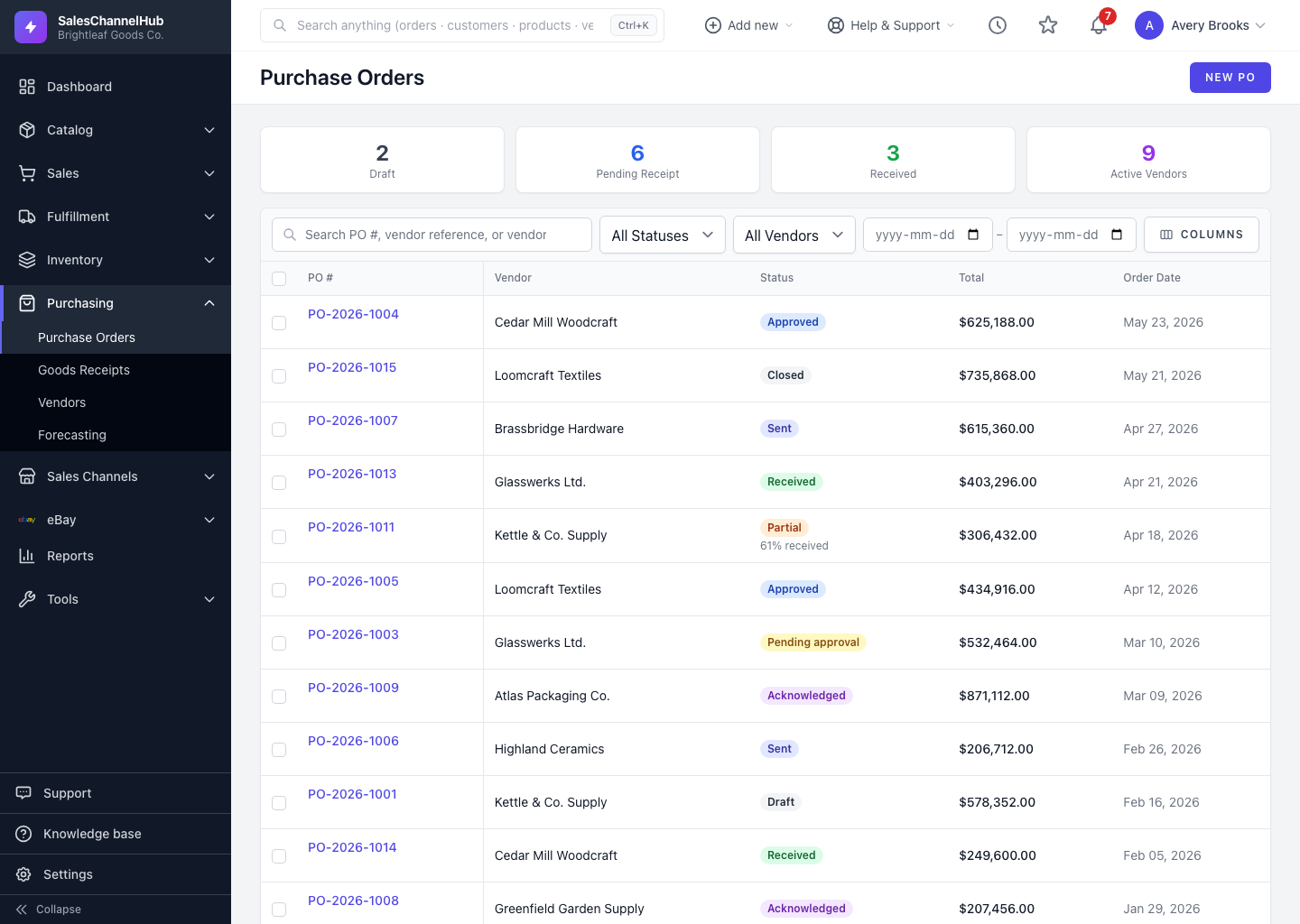
Tick draft POs on the list and click Delete in the bulk-actions bar. Deletion is limited to drafts, so committed orders are safe.
Clearing out abandoned drafts keeps the purchase order list tidy. Deletion is limited to drafts, so committed orders are never lost.
How do I bulk delete drafts?
- Go to Purchasing → Purchase Orders.
- Tick the checkbox on each draft PO you want to remove.
- In the bulk-actions bar, click Delete.
- Confirm the prompt, which reminds you that only draft POs can be deleted.
What if I selected non-drafts?
- Any selected PO that isn't a draft is skipped.
- Deletion is permanent. There's no recycle bin for purchase orders.
- To remove a PO that has moved past draft, cancel it instead.
Tip. Click the Draft card at the top of the list to filter to drafts first, then select the page to clear them in one pass.
Was this article helpful?